> ## Documentation Index
> Fetch the complete documentation index at: https://help.vori.com/llms.txt
> Use this file to discover all available pages before exploring further.
# Create Loyalty Rewards in Vori Back Office
> Create shopper rewards (incentives) to drive repeat visits and boost sales
Activating a loyalty program can help increase cart size, encourage repeat visits, and build long-term shopper relationships. Vori makes it easy for you to offer rewards like free items, discounts, and percent-off deals, customized to your store's goals.
### Activate Loyalty
To start offering rewards, turn on the loyalty program. Follow these steps to activate Loyalty:
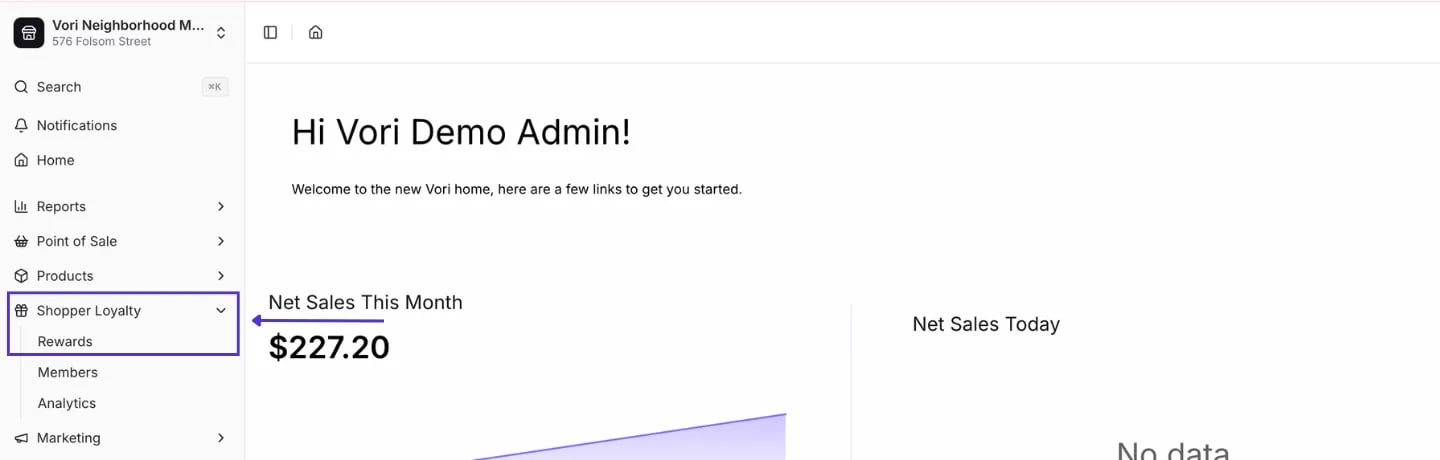
1. In the **[Back Office](https://app.vori.com)**, from the left-hand navigation bar, select **Shopper Loyalty**, then click **[Rewards](https://app.vori.com/retail/loyalty/rewards)**.
2. Select the **Rewards** tab.
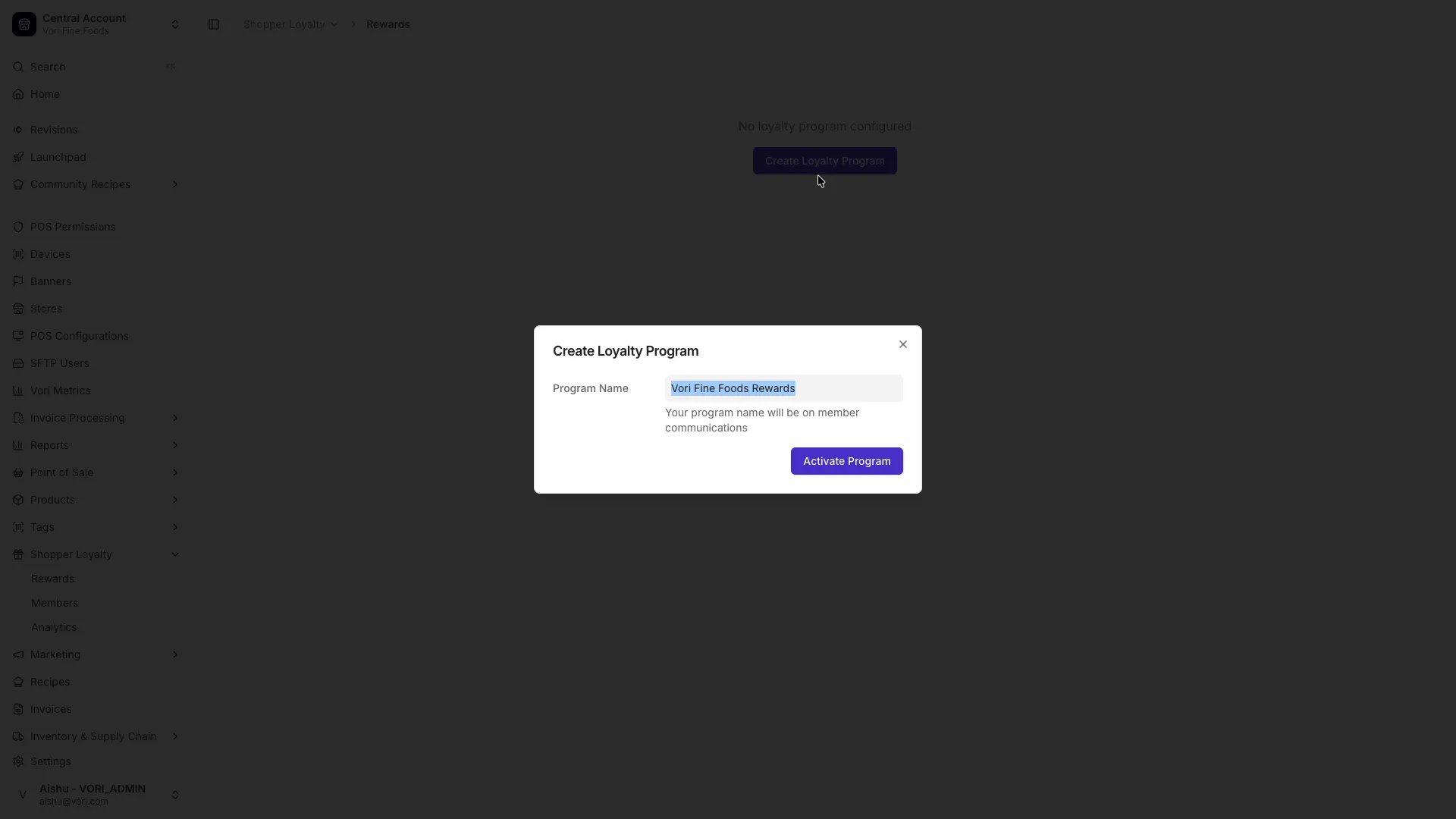
3. Click **Create Loyalty Program**, give your program a name, and select **Activate Program**.
***
### How to Structure Effective Rewards
Not sure how much to give away in your campaigns? You want to offer a meaningful incentive without cutting into your profits.
#### Reward Value Analysis
| **Points** | **Reward** | **\$ Spent to Earn** | **Reward %** |
| ---------- | ---------- | -------------------- | ------------ |
| 100 | \$5 | \$100 | 5% |
| 250 | \$10 | \$250 | 4% |
| 500 | \$20 | \$500 | 4% |
**✏️Note:** If your margin is only 20%, a 5% reward eats up 25% of profit. If your margin is 10%, it eats half.
#### Recommended Structure
| **Points** | **Reward** | **Reward %** |
| ---------- | ---------- | ------------ |
| 100 | \$3 | 3% |
| 250 | \$7 | 2.8% |
| 500 | \$15 | 3% |
**💡Tip:** Pro tip: A 3% reward rate is usually the sweet spot for grocers.
***
### Create a Reward
You can customize rewards by type, earning method, and eligible products. Vori autosaves as you fill out the form — there's no Save button. Follow these steps to create a Reward:
1. On the **[Rewards](https://app.vori.com/retail/loyalty/rewards)** page, select **New Reward** (top right).
2. Give the reward a **Name** that shoppers will recognize (e.g., *Free Sandwich*).
3. Choose the **Reward Type**:
1. **Item Discount** — savings on specific items (a free item, a dollar amount off, or a percentage off eligible products).
2. **Transaction Discount** — a basket-level discount (a flat dollar amount or percentage off the total).
**💡Tip:** We recommend creating 3–5 rewards to offer shoppers a variety of options.
***
### Item Savings Rewards
Item Savings rewards are now labeled **Item Discount** in Vori Back Office. Shoppers earn **Points** (per \$ spent) or accumulate **Punches** (per item purchased) to redeem for product-specific savings.
1. Under **Reward Type**, select **Item Discount**.
2. Choose **Earned By**: **Points** or **Punch Card**.
1. When using **Punch Card**, the eligible products serve two purposes:
1. They're the items that **earn** punches when purchased.
2. They're also the items shoppers can **redeem** using their punches.
*For example, if all deli sandwiches are eligible, buying a sandwich earns a punch, and punches can be redeemed for any sandwich on the list.*
3. Enter the number of **Points** or **Punches** required to redeem.
4. In the **Discount** field, enter a value and choose how the discount applies from the dropdown:
1. **% Off** — the shopper receives a percentage discount on eligible items (e.g., 25% off beverages).
2. **\$ Off** — the shopper receives a fixed dollar amount off eligible items (e.g., \$5.00 off select coffee beverages).
3. **Free Item** — the shopper gets eligible item(s) for free. A **Quantity** field appears next to the dropdown (defaults to 1) so you can control how many items they earn per redemption — e.g., 10 punches earns 1 free sandwich.
5. Under **Product Selection**, choose how eligible products are selected:
1. **Manual** — pick specific products one at a time. Search by name or barcode and select **Add** to include them. If a product is sold by weight, the reward applies per pound.
2. **Dynamic** — the reward applies to any product that matches a set of conditions you define. Click **Set Conditions** to open the rule builder, then add a condition like **Department is Sandwiches** to scope the reward to a department or sub-department. Dynamic ranges automatically update as your catalog changes — no list to maintain.
The form autosaves as you go — when you click away from a field, Vori saves it for you.
***
### Transaction Discount Rewards
Apply a flat dollar amount off the shopper's basket total.
1. Under **Reward Type**, select **Transaction Discount**.
2. Enter the number of **Points** required to redeem.
3. In the **Discount** field, enter the dollar amount (e.g., `5.00`) and select **\$ Off** from the dropdown.
4. Optionally enter a **Min Basket Total** — the discount only applies when the basket reaches this amount (e.g., \$50 minimum spend).
5. Give the reward a **Name** that shoppers will recognize (e.g., *\$5 off your \$50 order*).
The form autosaves as you go.
**💡 Tip:** Setting a Min Basket Total can incentivize shoppers to increase their basket size to qualify for the discount.
***
### Transaction Percent Off Rewards
A percentage off the shopper's basket total uses the same Transaction Discount form, with the **% Off** type selected.
1. Under **Reward Type**, select **Transaction Discount**.
2. Enter the number of **Points** required to redeem.
3. In the **Discount** field, enter the percentage (e.g., `10`) and select **% Off** from the dropdown.
4. Optionally set a **Min Basket Total** to qualify.
5. Give the reward a **Name** (e.g., *10% off your \$30 order*).
**💡 Tip:** Percent-off rewards offer strong value to shoppers. To protect margins and encourage larger purchases, consider setting a Min Basket Total to qualify for the discount.
***
### Additional Notes
* **Item Discount rewards** apply to the **highest-priced** eligible item by default.
* You can **exclude individual items or entire departments** (e.g., Liquor or Tobacco) from **earning** loyalty points or punches in the **[Product Details](/product-and-product-catalog-management/product-creation-and-set-up/product-catalog-product-details)** page or [**Department Settings**](/departments/set-up-departments).
* Excluded items can still be redeemed as rewards if added during reward setup.
\_(Example: Shoppers won't earn points on half sandwiches, but they can still redeem a reward to get one for free.)
\_
* To learn how these rewards appear at checkout, see the [**Redeeming Loyalty Rewards at the POS**](/customer-marketing/loyalty-and-rewards/redeem-loyalty-rewards-at-the-pos) article.
## Related topics
- [Create and Manage Shopper Groups](/customer-marketing/loyalty-and-rewards/create-and-manage-shopper-groups.md)
- [Create Quick Actions in Back Office](/point-of-sale-pos/pos-customization-and-setup/create-quick-actions-in-back-office.md)
- [View & Edit Loyalty Member Data](/customer-marketing/loyalty-and-rewards/view-edit-loyalty-member-data.md)
 3. Click **Create Loyalty Program**, give your program a name, and select **Activate Program**.
 ***
### How to Structure Effective Rewards
Not sure how much to give away in your campaigns? You want to offer a meaningful incentive without cutting into your profits.
#### Reward Value Analysis
| **Points** | **Reward** | **\$ Spent to Earn** | **Reward %** |
| ---------- | ---------- | -------------------- | ------------ |
| 100 | \$5 | \$100 | 5% |
| 250 | \$10 | \$250 | 4% |
| 500 | \$20 | \$500 | 4% |
**✏️Note:** If your margin is only 20%, a 5% reward eats up 25% of profit. If your margin is 10%, it eats half.
#### Recommended Structure
| **Points** | **Reward** | **Reward %** |
| ---------- | ---------- | ------------ |
| 100 | \$3 | 3% |
| 250 | \$7 | 2.8% |
| 500 | \$15 | 3% |
**💡Tip:** Pro tip: A 3% reward rate is usually the sweet spot for grocers.
***
### Create a Reward
You can customize rewards by type, earning method, and eligible products. Vori autosaves as you fill out the form — there's no Save button. Follow these steps to create a Reward:
1. On the **[Rewards](https://app.vori.com/retail/loyalty/rewards)** page, select **New Reward** (top right).
***
### How to Structure Effective Rewards
Not sure how much to give away in your campaigns? You want to offer a meaningful incentive without cutting into your profits.
#### Reward Value Analysis
| **Points** | **Reward** | **\$ Spent to Earn** | **Reward %** |
| ---------- | ---------- | -------------------- | ------------ |
| 100 | \$5 | \$100 | 5% |
| 250 | \$10 | \$250 | 4% |
| 500 | \$20 | \$500 | 4% |
**✏️Note:** If your margin is only 20%, a 5% reward eats up 25% of profit. If your margin is 10%, it eats half.
#### Recommended Structure
| **Points** | **Reward** | **Reward %** |
| ---------- | ---------- | ------------ |
| 100 | \$3 | 3% |
| 250 | \$7 | 2.8% |
| 500 | \$15 | 3% |
**💡Tip:** Pro tip: A 3% reward rate is usually the sweet spot for grocers.
***
### Create a Reward
You can customize rewards by type, earning method, and eligible products. Vori autosaves as you fill out the form — there's no Save button. Follow these steps to create a Reward:
1. On the **[Rewards](https://app.vori.com/retail/loyalty/rewards)** page, select **New Reward** (top right).
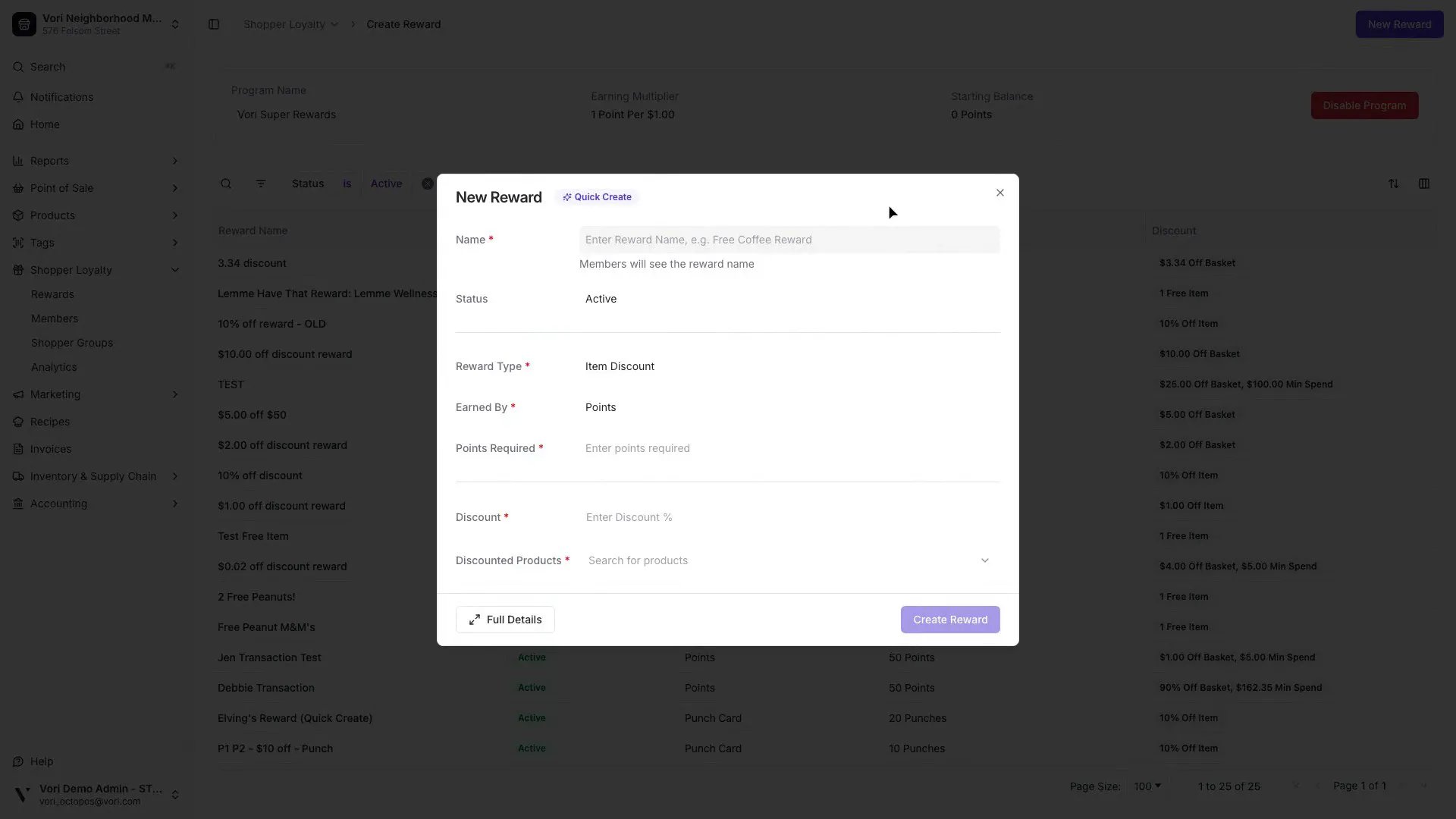 2. Give the reward a **Name** that shoppers will recognize (e.g., *Free Sandwich*).
3. Choose the **Reward Type**:
1. **Item Discount** — savings on specific items (a free item, a dollar amount off, or a percentage off eligible products).
2. **Transaction Discount** — a basket-level discount (a flat dollar amount or percentage off the total).
**💡Tip:** We recommend creating 3–5 rewards to offer shoppers a variety of options.
***
### Item Savings Rewards
Item Savings rewards are now labeled **Item Discount** in Vori Back Office. Shoppers earn **Points** (per \$ spent) or accumulate **Punches** (per item purchased) to redeem for product-specific savings.
1. Under **Reward Type**, select **Item Discount**.
2. Choose **Earned By**: **Points** or **Punch Card**.
1. When using **Punch Card**, the eligible products serve two purposes:
1. They're the items that **earn** punches when purchased.
2. They're also the items shoppers can **redeem** using their punches.
*For example, if all deli sandwiches are eligible, buying a sandwich earns a punch, and punches can be redeemed for any sandwich on the list.*
3. Enter the number of **Points** or **Punches** required to redeem.
4. In the **Discount** field, enter a value and choose how the discount applies from the dropdown:
1. **% Off** — the shopper receives a percentage discount on eligible items (e.g., 25% off beverages).
2. **\$ Off** — the shopper receives a fixed dollar amount off eligible items (e.g., \$5.00 off select coffee beverages).
3. **Free Item** — the shopper gets eligible item(s) for free. A **Quantity** field appears next to the dropdown (defaults to 1) so you can control how many items they earn per redemption — e.g., 10 punches earns 1 free sandwich.
2. Give the reward a **Name** that shoppers will recognize (e.g., *Free Sandwich*).
3. Choose the **Reward Type**:
1. **Item Discount** — savings on specific items (a free item, a dollar amount off, or a percentage off eligible products).
2. **Transaction Discount** — a basket-level discount (a flat dollar amount or percentage off the total).
**💡Tip:** We recommend creating 3–5 rewards to offer shoppers a variety of options.
***
### Item Savings Rewards
Item Savings rewards are now labeled **Item Discount** in Vori Back Office. Shoppers earn **Points** (per \$ spent) or accumulate **Punches** (per item purchased) to redeem for product-specific savings.
1. Under **Reward Type**, select **Item Discount**.
2. Choose **Earned By**: **Points** or **Punch Card**.
1. When using **Punch Card**, the eligible products serve two purposes:
1. They're the items that **earn** punches when purchased.
2. They're also the items shoppers can **redeem** using their punches.
*For example, if all deli sandwiches are eligible, buying a sandwich earns a punch, and punches can be redeemed for any sandwich on the list.*
3. Enter the number of **Points** or **Punches** required to redeem.
4. In the **Discount** field, enter a value and choose how the discount applies from the dropdown:
1. **% Off** — the shopper receives a percentage discount on eligible items (e.g., 25% off beverages).
2. **\$ Off** — the shopper receives a fixed dollar amount off eligible items (e.g., \$5.00 off select coffee beverages).
3. **Free Item** — the shopper gets eligible item(s) for free. A **Quantity** field appears next to the dropdown (defaults to 1) so you can control how many items they earn per redemption — e.g., 10 punches earns 1 free sandwich.
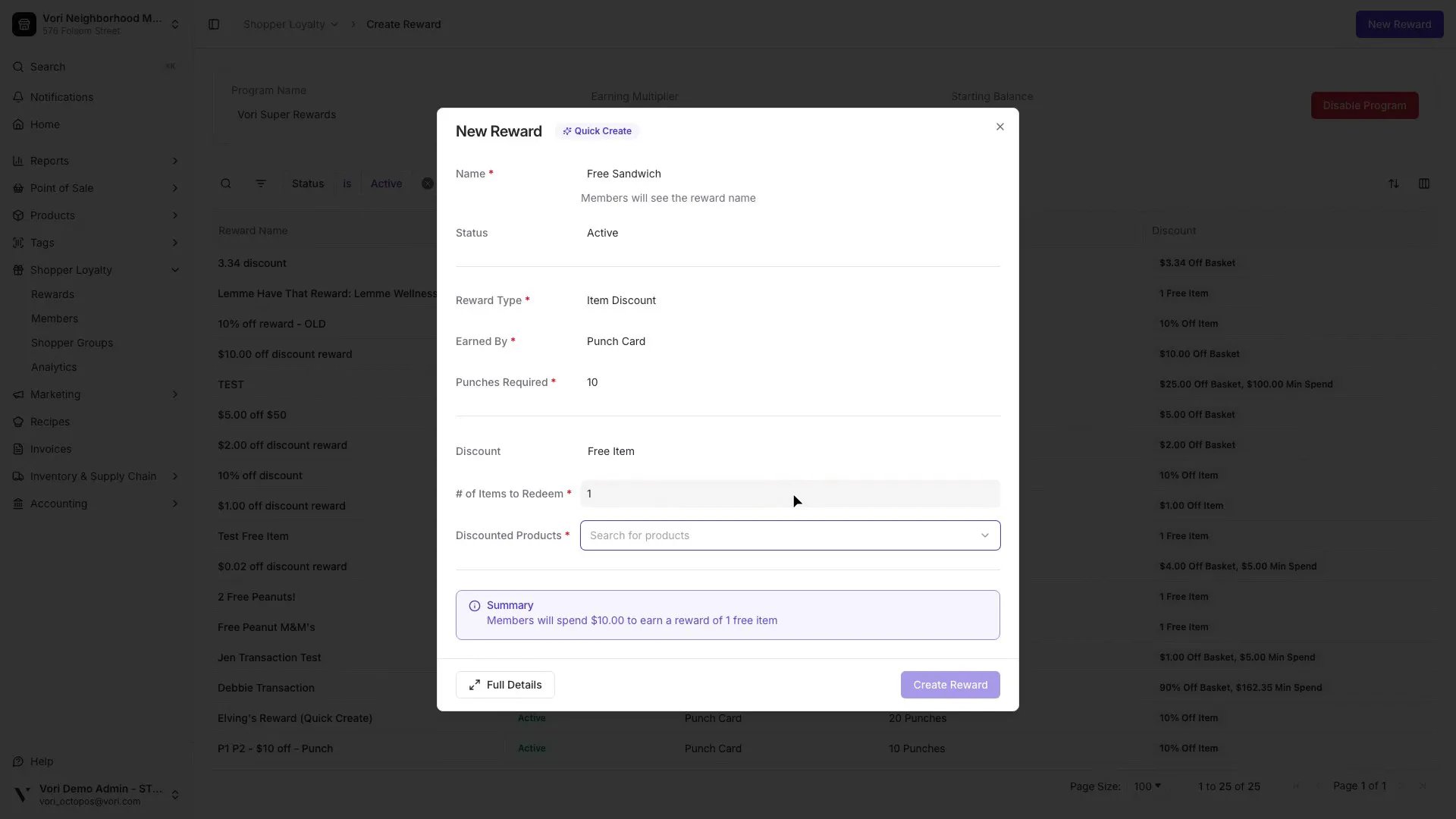 5. Under **Product Selection**, choose how eligible products are selected:
1. **Manual** — pick specific products one at a time. Search by name or barcode and select **Add** to include them. If a product is sold by weight, the reward applies per pound.
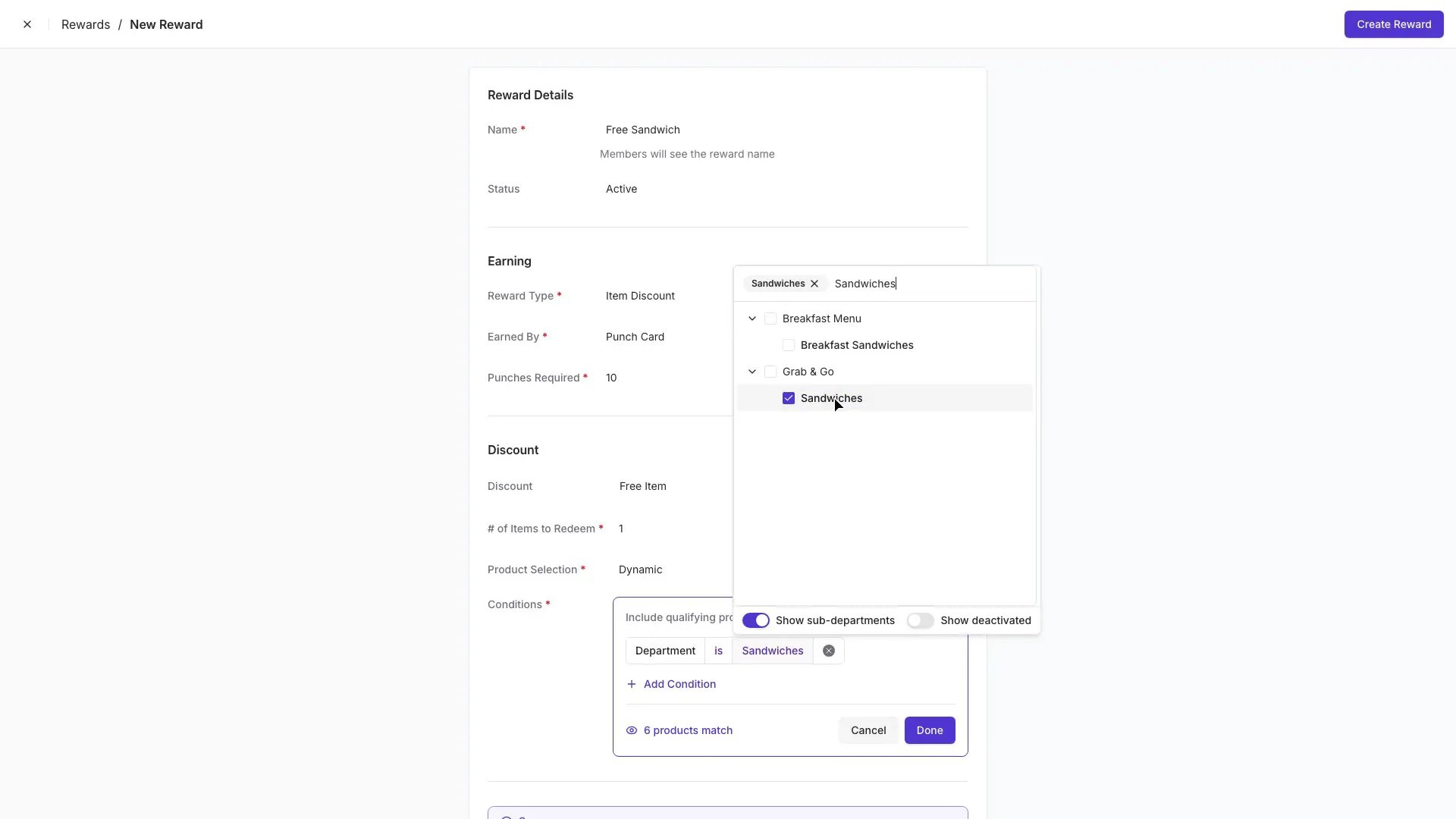
2. **Dynamic** — the reward applies to any product that matches a set of conditions you define. Click **Set Conditions** to open the rule builder, then add a condition like **Department is Sandwiches** to scope the reward to a department or sub-department. Dynamic ranges automatically update as your catalog changes — no list to maintain.
5. Under **Product Selection**, choose how eligible products are selected:
1. **Manual** — pick specific products one at a time. Search by name or barcode and select **Add** to include them. If a product is sold by weight, the reward applies per pound.
2. **Dynamic** — the reward applies to any product that matches a set of conditions you define. Click **Set Conditions** to open the rule builder, then add a condition like **Department is Sandwiches** to scope the reward to a department or sub-department. Dynamic ranges automatically update as your catalog changes — no list to maintain.
 The form autosaves as you go — when you click away from a field, Vori saves it for you.
***
### Transaction Discount Rewards
Apply a flat dollar amount off the shopper's basket total.
1. Under **Reward Type**, select **Transaction Discount**.
2. Enter the number of **Points** required to redeem.
3. In the **Discount** field, enter the dollar amount (e.g., `5.00`) and select **\$ Off** from the dropdown.
4. Optionally enter a **Min Basket Total** — the discount only applies when the basket reaches this amount (e.g., \$50 minimum spend).
5. Give the reward a **Name** that shoppers will recognize (e.g., *\$5 off your \$50 order*).
The form autosaves as you go — when you click away from a field, Vori saves it for you.
***
### Transaction Discount Rewards
Apply a flat dollar amount off the shopper's basket total.
1. Under **Reward Type**, select **Transaction Discount**.
2. Enter the number of **Points** required to redeem.
3. In the **Discount** field, enter the dollar amount (e.g., `5.00`) and select **\$ Off** from the dropdown.
4. Optionally enter a **Min Basket Total** — the discount only applies when the basket reaches this amount (e.g., \$50 minimum spend).
5. Give the reward a **Name** that shoppers will recognize (e.g., *\$5 off your \$50 order*).
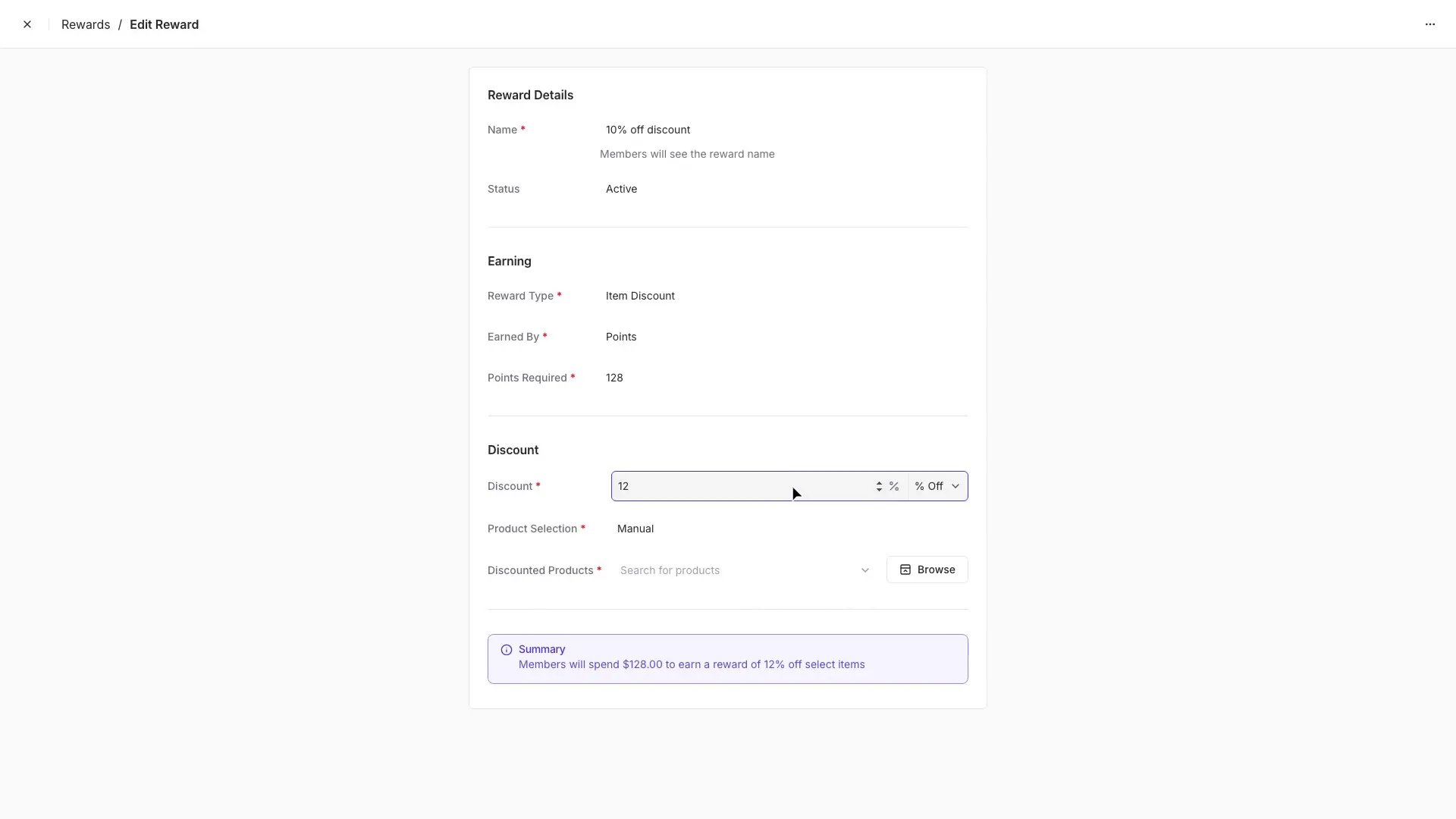 The form autosaves as you go.
**💡 Tip:** Setting a Min Basket Total can incentivize shoppers to increase their basket size to qualify for the discount.
***
### Transaction Percent Off Rewards
A percentage off the shopper's basket total uses the same Transaction Discount form, with the **% Off** type selected.
1. Under **Reward Type**, select **Transaction Discount**.
2. Enter the number of **Points** required to redeem.
3. In the **Discount** field, enter the percentage (e.g., `10`) and select **% Off** from the dropdown.
4. Optionally set a **Min Basket Total** to qualify.
5. Give the reward a **Name** (e.g., *10% off your \$30 order*).
**💡 Tip:** Percent-off rewards offer strong value to shoppers. To protect margins and encourage larger purchases, consider setting a Min Basket Total to qualify for the discount.
***
### Additional Notes
* **Item Discount rewards** apply to the **highest-priced** eligible item by default.
* You can **exclude individual items or entire departments** (e.g., Liquor or Tobacco) from **earning** loyalty points or punches in the **[Product Details](/product-and-product-catalog-management/product-creation-and-set-up/product-catalog-product-details)** page or [**Department Settings**](/departments/set-up-departments).
* Excluded items can still be redeemed as rewards if added during reward setup.
\_(Example: Shoppers won't earn points on half sandwiches, but they can still redeem a reward to get one for free.)
\_
The form autosaves as you go.
**💡 Tip:** Setting a Min Basket Total can incentivize shoppers to increase their basket size to qualify for the discount.
***
### Transaction Percent Off Rewards
A percentage off the shopper's basket total uses the same Transaction Discount form, with the **% Off** type selected.
1. Under **Reward Type**, select **Transaction Discount**.
2. Enter the number of **Points** required to redeem.
3. In the **Discount** field, enter the percentage (e.g., `10`) and select **% Off** from the dropdown.
4. Optionally set a **Min Basket Total** to qualify.
5. Give the reward a **Name** (e.g., *10% off your \$30 order*).
**💡 Tip:** Percent-off rewards offer strong value to shoppers. To protect margins and encourage larger purchases, consider setting a Min Basket Total to qualify for the discount.
***
### Additional Notes
* **Item Discount rewards** apply to the **highest-priced** eligible item by default.
* You can **exclude individual items or entire departments** (e.g., Liquor or Tobacco) from **earning** loyalty points or punches in the **[Product Details](/product-and-product-catalog-management/product-creation-and-set-up/product-catalog-product-details)** page or [**Department Settings**](/departments/set-up-departments).
* Excluded items can still be redeemed as rewards if added during reward setup.
\_(Example: Shoppers won't earn points on half sandwiches, but they can still redeem a reward to get one for free.)
\_
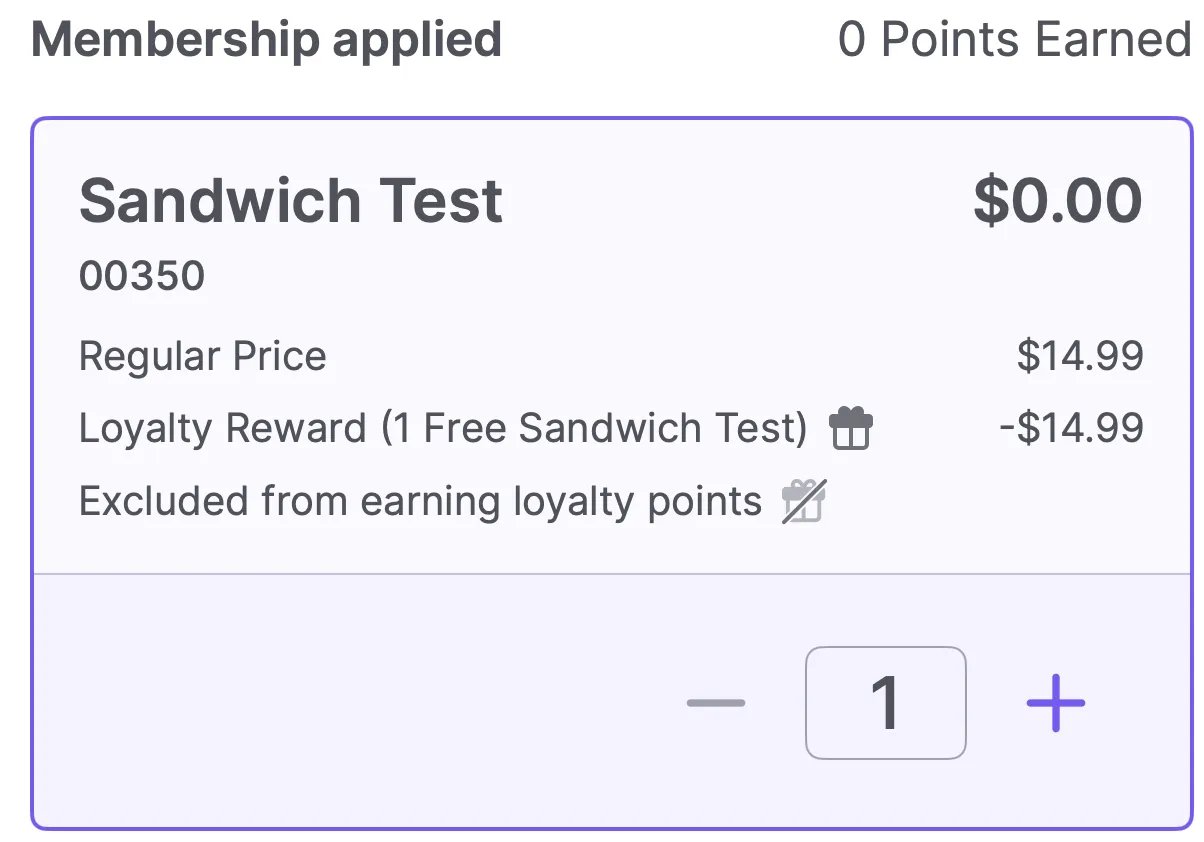 * To learn how these rewards appear at checkout, see the [**Redeeming Loyalty Rewards at the POS**](/customer-marketing/loyalty-and-rewards/redeem-loyalty-rewards-at-the-pos) article.
## Related topics
- [Create and Manage Shopper Groups](/customer-marketing/loyalty-and-rewards/create-and-manage-shopper-groups.md)
- [Create Quick Actions in Back Office](/point-of-sale-pos/pos-customization-and-setup/create-quick-actions-in-back-office.md)
- [View & Edit Loyalty Member Data](/customer-marketing/loyalty-and-rewards/view-edit-loyalty-member-data.md)
* To learn how these rewards appear at checkout, see the [**Redeeming Loyalty Rewards at the POS**](/customer-marketing/loyalty-and-rewards/redeem-loyalty-rewards-at-the-pos) article.
## Related topics
- [Create and Manage Shopper Groups](/customer-marketing/loyalty-and-rewards/create-and-manage-shopper-groups.md)
- [Create Quick Actions in Back Office](/point-of-sale-pos/pos-customization-and-setup/create-quick-actions-in-back-office.md)
- [View & Edit Loyalty Member Data](/customer-marketing/loyalty-and-rewards/view-edit-loyalty-member-data.md)