> ## Documentation Index
> Fetch the complete documentation index at: https://help.vori.com/llms.txt
> Use this file to discover all available pages before exploring further.
# Custom Campaign Messages & Coupons
> Learn how to create, edit, and attach coupons to your custom SMS marketing campaigns.
The Vori Campaigns tool allows you to send targeted marketing text messages to your loyalty members. You can create custom, one-time messages for sales, holidays, and events.
### Campaigns Overview
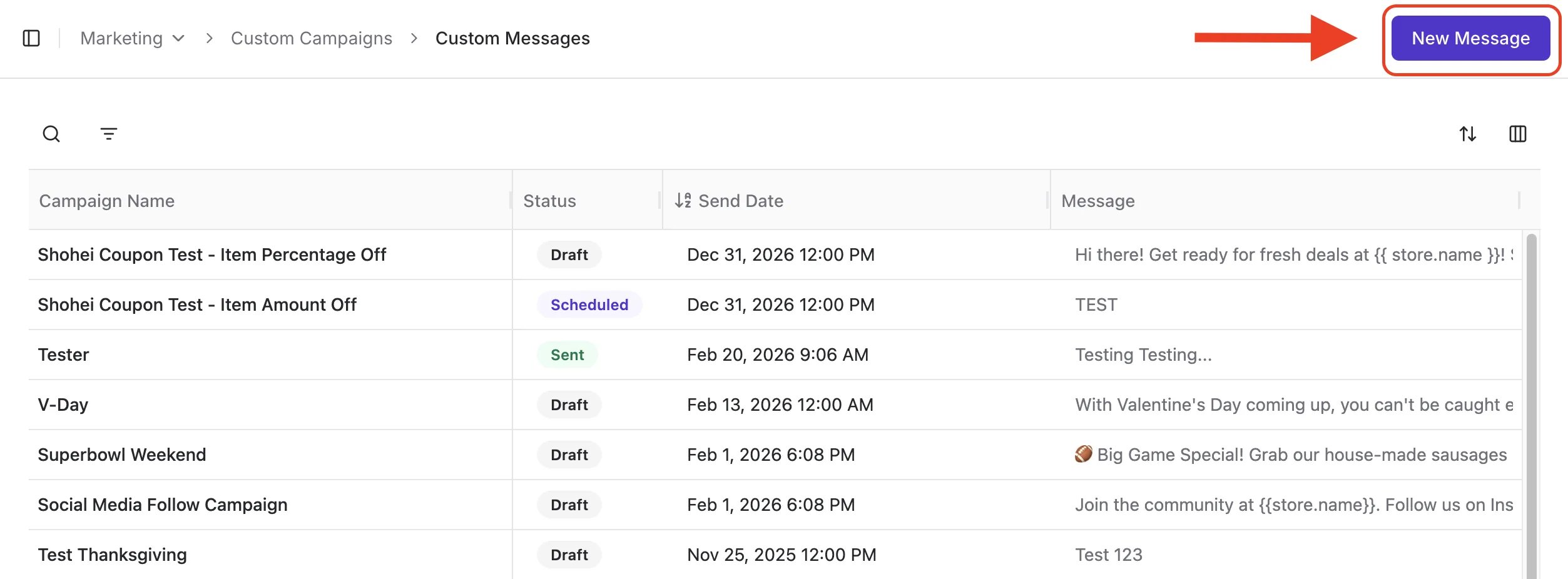
To begin, log into Vori Back Office and select **Marketing** > **Custom** **Campaigns** from the side menu. The Custom Campaigns page is where you will create, edit, and manage all SMS marketing messages.
***
### Custom Campaigns
Custom Campaigns are one-time SMS messages that you create and schedule yourself. They are ideal for announcing sales, sharing holiday hours, or promoting specific events. You have full control over the message content, send date, and any attached images or coupons.
💡Tip: Learn more on **[How to Send Effective Campaign Messages](/customer-marketing/best-practices/build-effective-automated-campaign-messages)** in the article guide.
### How to Create a Custom Campaign
1. From the **Custom** **Campaigns** page, click the **New\*\*\*\*Message** button.
 2. On the campaign editing page, enter the required information:
* **Campaign Name:** Assign a unique internal name to the campaign for easy identification.
* **Send Date & Time:** Choose the time and date when the message will be delivered to members.
* **Notification:** Write the content of your text message. You can select **Insert Variable** → **Store Name** to automatically add it to the message.
2. On the campaign editing page, enter the required information:
* **Campaign Name:** Assign a unique internal name to the campaign for easy identification.
* **Send Date & Time:** Choose the time and date when the message will be delivered to members.
* **Notification:** Write the content of your text message. You can select **Insert Variable** → **Store Name** to automatically add it to the message.
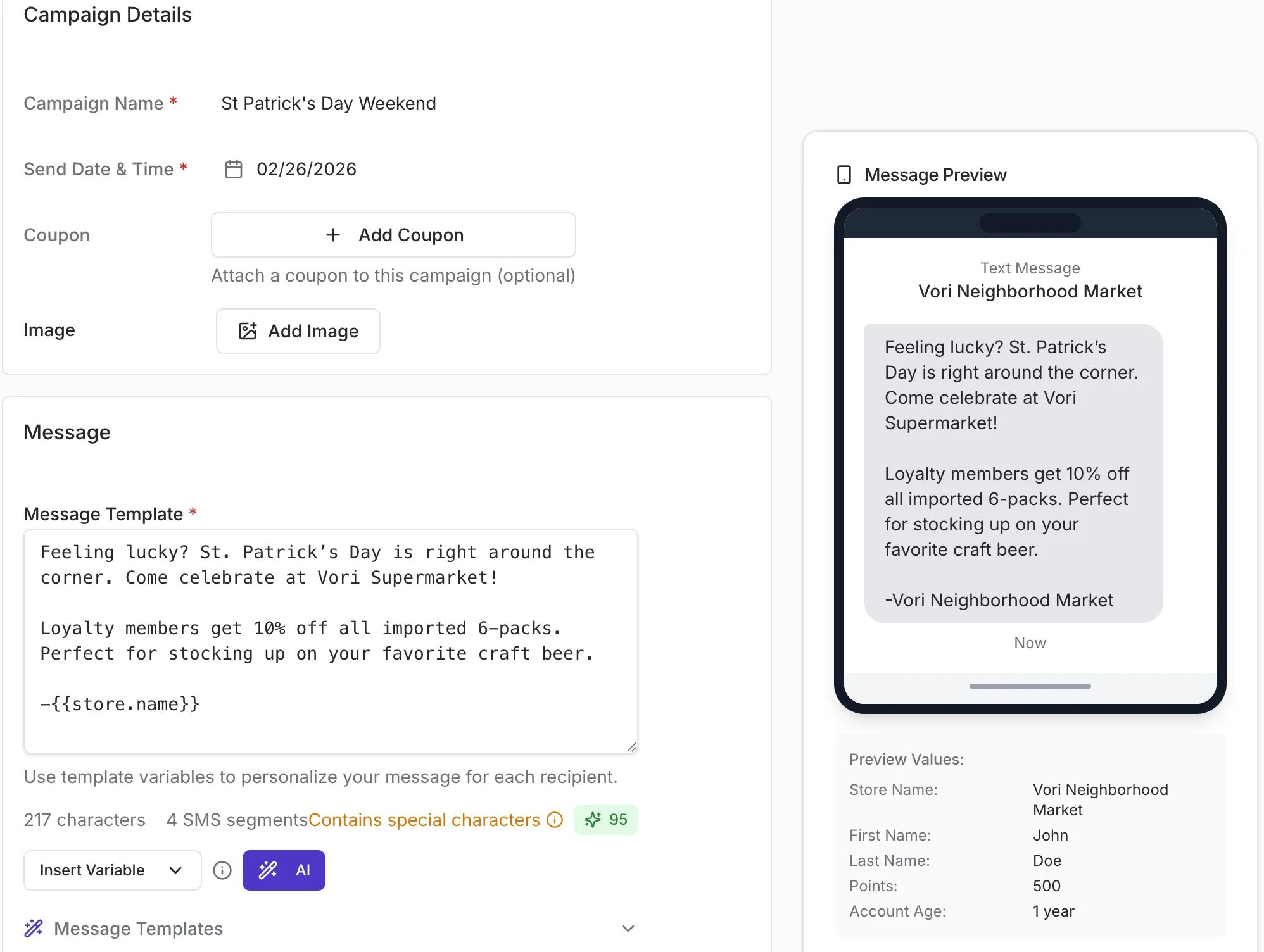 3. Review the additional options:
* **Add Image:** Attach an optional image to your message.
* ⚠️ **Caution:** The image must be a true **JPEG file (.jpg)**. Renaming a file from another format (like .png or .heic) to .jpg will not convert it — the message will still fail to send. If your image isn't sending, confirm the file is a genuine JPEG before re-uploading.
4. * **Add Coupon:** Attach an optional promotional coupon.
* When attaching a coupon to an Automated Campaign, details about the coupon are automatically included in the SMS message and don't need to be manually added.
* See the [**How to Add a Coupon to a Campaign**](#how-to-add-a-coupon-to-a-custom-campaign) section of the article, below, for detailed instructions.
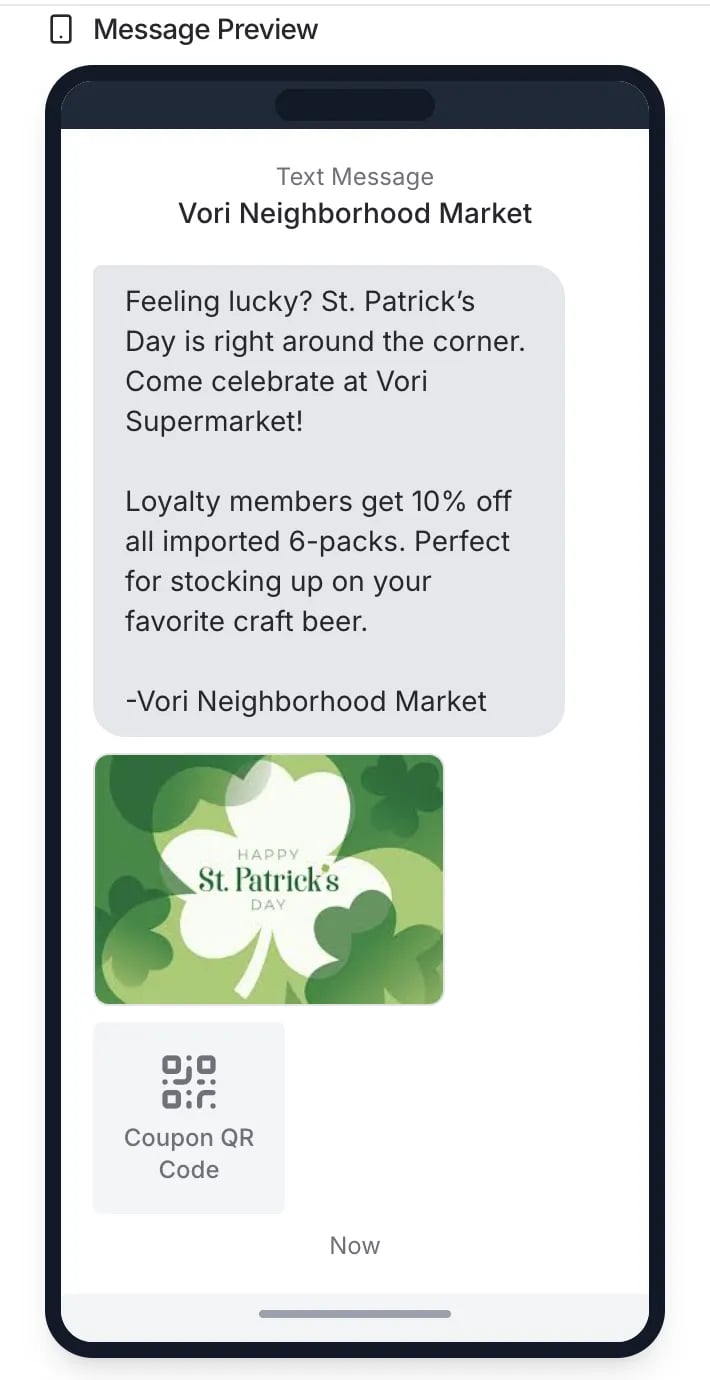
5. Use the **SMS preview** to see how your message will appear to members.
3. Review the additional options:
* **Add Image:** Attach an optional image to your message.
* ⚠️ **Caution:** The image must be a true **JPEG file (.jpg)**. Renaming a file from another format (like .png or .heic) to .jpg will not convert it — the message will still fail to send. If your image isn't sending, confirm the file is a genuine JPEG before re-uploading.
4. * **Add Coupon:** Attach an optional promotional coupon.
* When attaching a coupon to an Automated Campaign, details about the coupon are automatically included in the SMS message and don't need to be manually added.
* See the [**How to Add a Coupon to a Campaign**](#how-to-add-a-coupon-to-a-custom-campaign) section of the article, below, for detailed instructions.
5. Use the **SMS preview** to see how your message will appear to members.
 6. To send a test, select **Save for later** then enter a phone number in the **mobile number to send a test message** field and click **Send**.
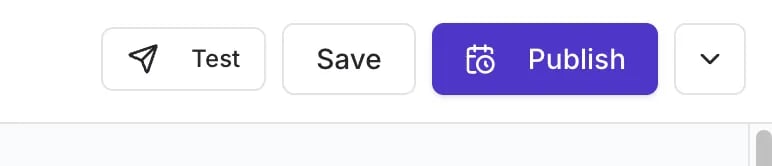
7. Once you are finished, choose an option at the top of the page:
* **Save:** Saves your changes as a draft.
* **Publish:** Schedules the campaign to be sent at the specified date and time.
* **Delete:** Select the dropdown option to select the "Delete" option. This will Permanently remove the campaign.
6. To send a test, select **Save for later** then enter a phone number in the **mobile number to send a test message** field and click **Send**.
7. Once you are finished, choose an option at the top of the page:
* **Save:** Saves your changes as a draft.
* **Publish:** Schedules the campaign to be sent at the specified date and time.
* **Delete:** Select the dropdown option to select the "Delete" option. This will Permanently remove the campaign.
 ***
### How to Add a Coupon to a Custom Campaign
You can add a promotional coupon while creating or editing any custom or automated campaign message.
#### Understanding Coupon Types
* **Item discount:** Reduces the price of a specific item by a fixed dollar amount.
* **Item percent off:** Reduces the price of a specific item by a percentage.
* **Transaction discount:** Reduces the total price of the entire transaction by a fixed dollar amount.
* **Transaction percent off:** Reduces the total price of the entire transaction by a percentage.
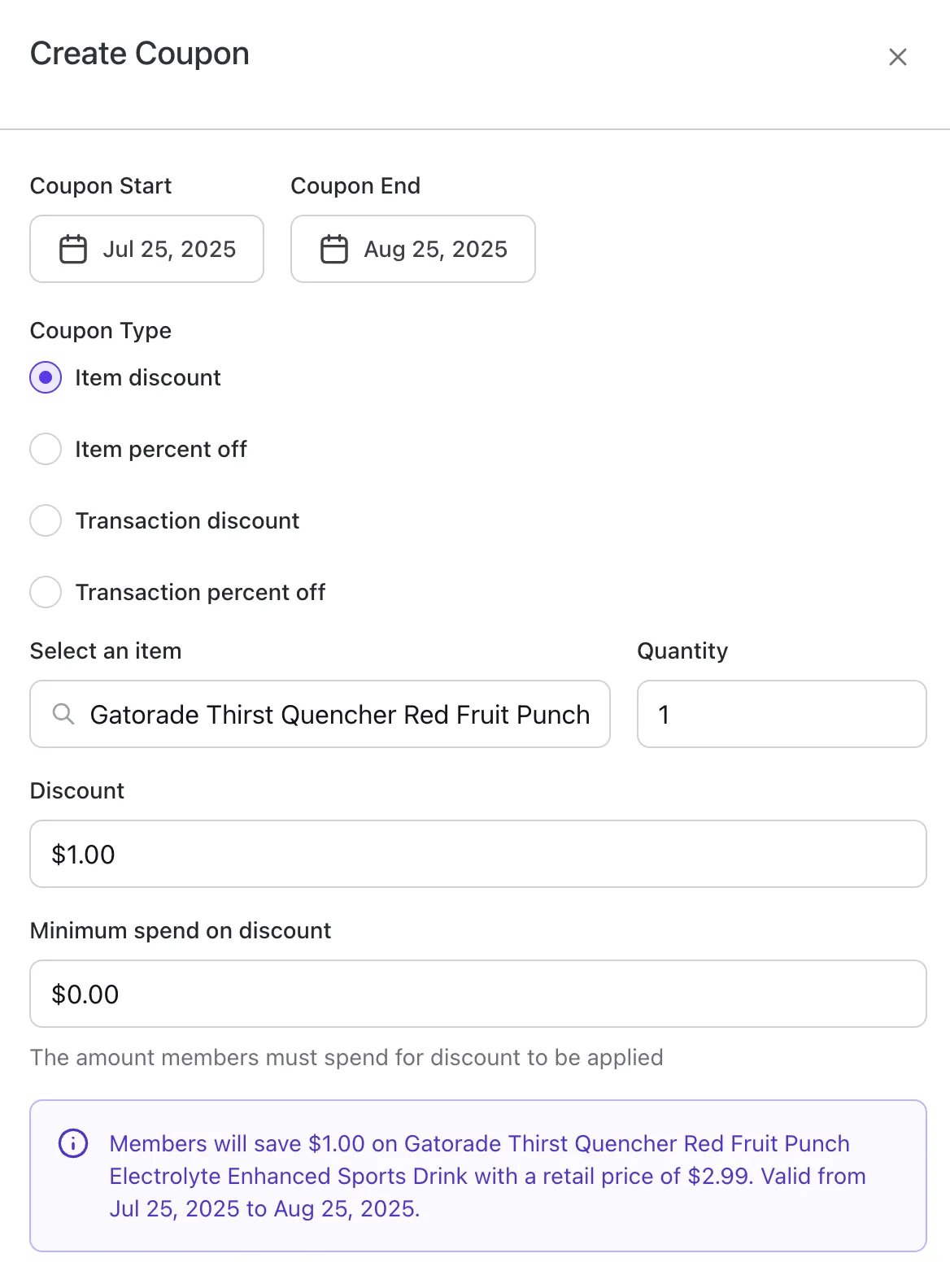
#### Item Discount
This coupon applies a fixed dollar discount to a single product.
1. Select the **Item discount** radio button.
2. In the **Select an item** field, search for and choose the product for the discount.
* *✏️Note: Only one product can be selected for a single campaign coupon.*
3. Enter the **Quantity** of the item the discount can be applied to (typically "1").
4. In the **Discount** field, enter the dollar amount to be taken off the item's price.
5. Set the **Coupon Start** and **Coupon End** dates to define when the offer is valid.
6. Optionally, set a **Minimum spend on discount** that a member must reach for the coupon to be applied.
7. When finished adding or editing coupon details, click **Save** at the bottom of the Campaign edit window.
***
### How to Add a Coupon to a Custom Campaign
You can add a promotional coupon while creating or editing any custom or automated campaign message.
#### Understanding Coupon Types
* **Item discount:** Reduces the price of a specific item by a fixed dollar amount.
* **Item percent off:** Reduces the price of a specific item by a percentage.
* **Transaction discount:** Reduces the total price of the entire transaction by a fixed dollar amount.
* **Transaction percent off:** Reduces the total price of the entire transaction by a percentage.
#### Item Discount
This coupon applies a fixed dollar discount to a single product.
1. Select the **Item discount** radio button.
2. In the **Select an item** field, search for and choose the product for the discount.
* *✏️Note: Only one product can be selected for a single campaign coupon.*
3. Enter the **Quantity** of the item the discount can be applied to (typically "1").
4. In the **Discount** field, enter the dollar amount to be taken off the item's price.
5. Set the **Coupon Start** and **Coupon End** dates to define when the offer is valid.
6. Optionally, set a **Minimum spend on discount** that a member must reach for the coupon to be applied.
7. When finished adding or editing coupon details, click **Save** at the bottom of the Campaign edit window.
 #### Item Percent Off
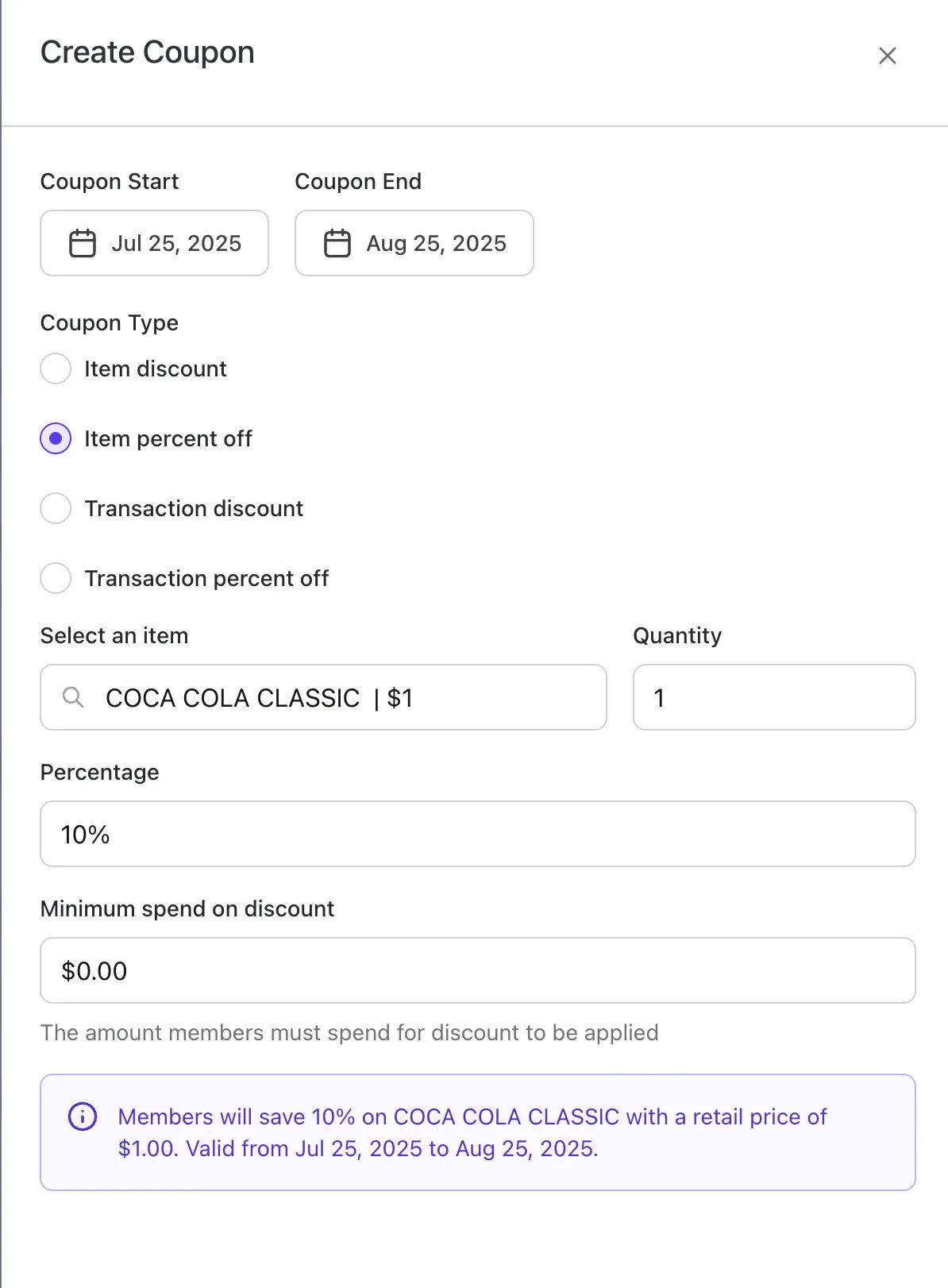
This coupon applies a percentage discount to a single product.
1. Select the **Item percent off** radio button.
2. In the **Select an item** field, search for and choose the product for the discount.
* *Note: Only one product can be selected for a single campaign coupon.*
3. Enter the **Quantity** of the item the discount can be applied to.
4. In the **Percentage** field, enter the discount percentage (e.g., "25" for 25% off).
5. Set the **Coupon Start** and **Coupon End** dates.
6. Optionally, set a **Minimum spend on discount**.
7. When finished adding or editing coupon details, click **Save** at the bottom of the Campaign edit window.
#### Item Percent Off
This coupon applies a percentage discount to a single product.
1. Select the **Item percent off** radio button.
2. In the **Select an item** field, search for and choose the product for the discount.
* *Note: Only one product can be selected for a single campaign coupon.*
3. Enter the **Quantity** of the item the discount can be applied to.
4. In the **Percentage** field, enter the discount percentage (e.g., "25" for 25% off).
5. Set the **Coupon Start** and **Coupon End** dates.
6. Optionally, set a **Minimum spend on discount**.
7. When finished adding or editing coupon details, click **Save** at the bottom of the Campaign edit window.
 #### Transaction Discount
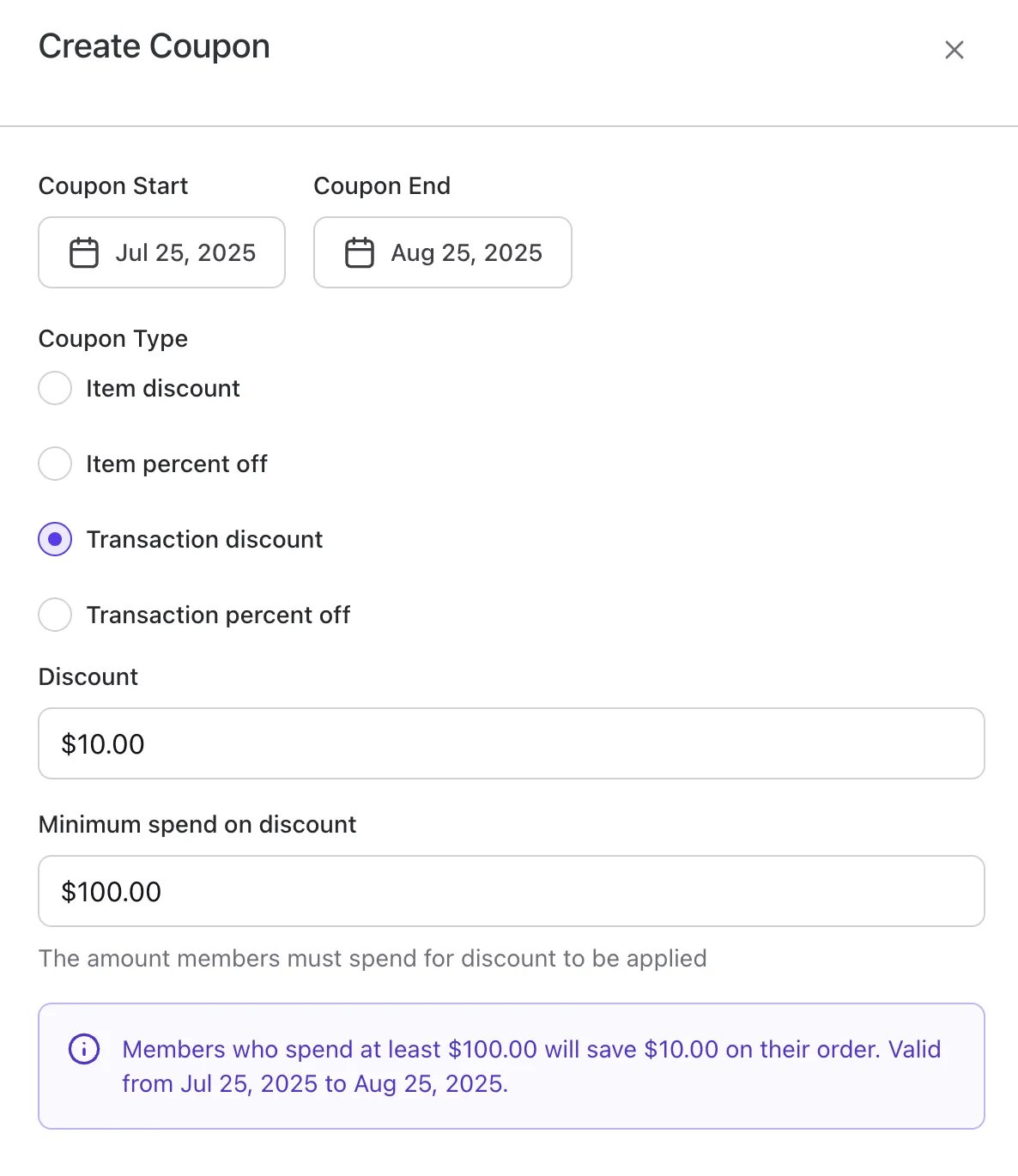
This coupon applies a fixed dollar discount to the entire purchase.
1. Select the **Transaction discount** radio button.
2. In the **Discount** field, enter the total dollar amount to be taken off the transaction.
3. Set the **Coupon Start** and **Coupon End** dates.
4. Optionally, set a **Minimum spend on discount**.
5. When finished adding or editing coupon details, click **Save** at the bottom of the Campaign edit window.
#### Transaction Discount
This coupon applies a fixed dollar discount to the entire purchase.
1. Select the **Transaction discount** radio button.
2. In the **Discount** field, enter the total dollar amount to be taken off the transaction.
3. Set the **Coupon Start** and **Coupon End** dates.
4. Optionally, set a **Minimum spend on discount**.
5. When finished adding or editing coupon details, click **Save** at the bottom of the Campaign edit window.
 #### Transaction Percent Off
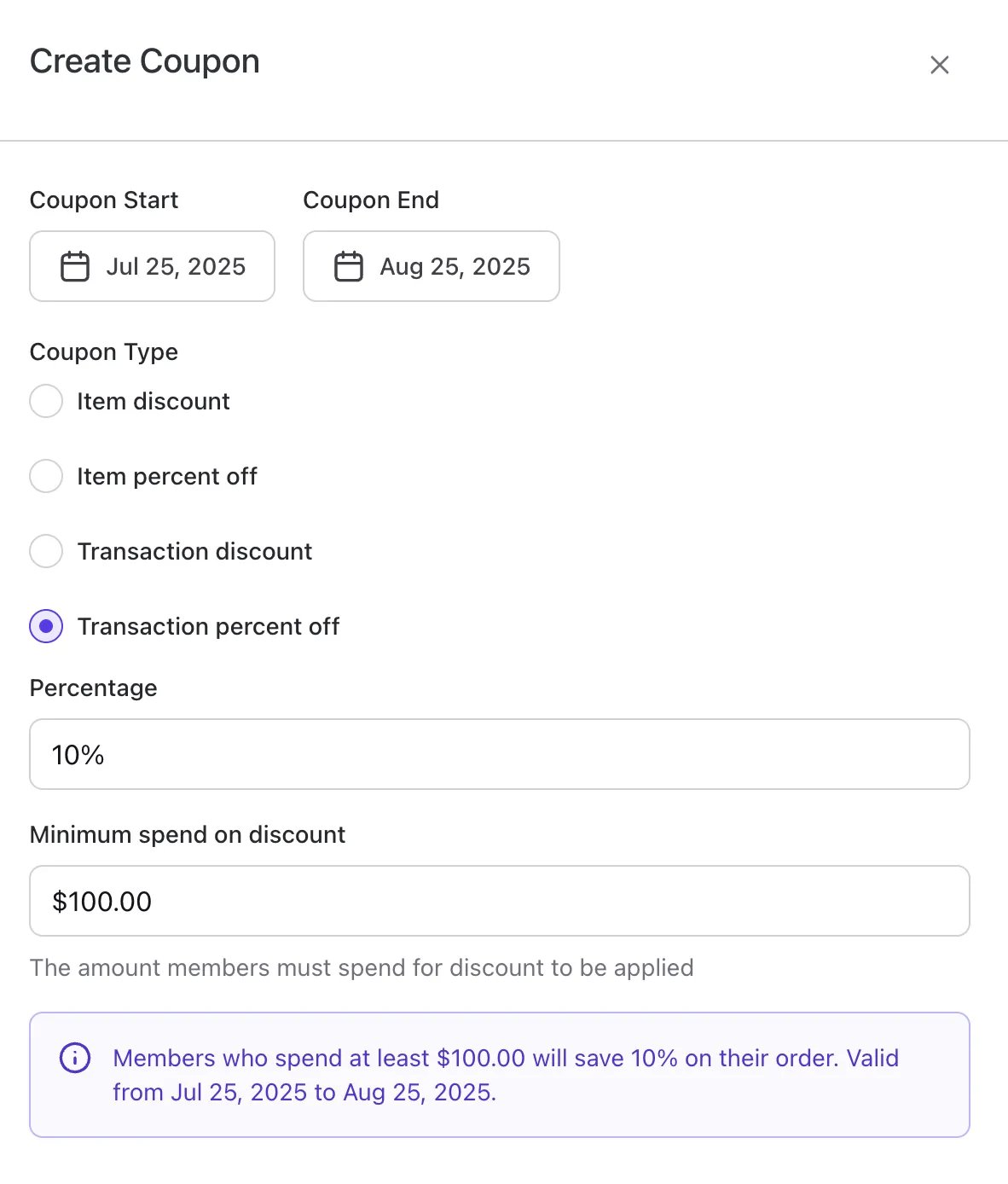
This coupon applies a percentage discount to the entire purchase.
1. Select the **Transaction percent off** radio button.
2. In the **Percentage** field, enter the discount percentage.
3. Set the **Coupon Start** and **Coupon End** dates.
4. Optionally, set a **Minimum spend on discount**.
5. When finished adding or editing coupon details, click **Save** at the bottom of the Campaign edit window.
#### Transaction Percent Off
This coupon applies a percentage discount to the entire purchase.
1. Select the **Transaction percent off** radio button.
2. In the **Percentage** field, enter the discount percentage.
3. Set the **Coupon Start** and **Coupon End** dates.
4. Optionally, set a **Minimum spend on discount**.
5. When finished adding or editing coupon details, click **Save** at the bottom of the Campaign edit window.
 ***
### Additional Campaign Information
* **Opting Out:** If a member has opted out by texting "STOP," they can opt back in at any time by texting "START" to the same number.
* **Compliance:** For the first message a member receives, it is recommended to include: *"Message & data rates apply. Text STOP to opt-out."* This helps avoid being flagged as spam by mobile carriers.
* **Promotional Restrictions:** Grocers are prohibited from promoting certain restricted product categories, including alcohol(exceptions may apply), tobacco, cannabis, CBD, vape/e-cigarettes, fireworks, kratom, prescription drugs, sweepstakes/lottery, firearms, and cryptocurrency.\
Failure to comply with these guidelines may result in the suspension of SMS campaign capabilities.
* **Billing:** Messages sent through the platform are billed separately and applied quarterly.
* **SMS** (text-only): \$0.01 per segment. Messages are billed per segment, so a message longer than 160 characters is split into multiple segments and each segment is billed separately.
* **MMS** (includes an image): \$0.03 per message. Each MMS is billed as a single message.
* Stores are only charged for successfully delivered messages. Failed or undelivered messages are not billed.
**💡Tip:** To grow your audience for these campaigns, see our guide on how to **[Generate a QR Code for Loyalty Sign-up](/customer-marketing/best-practices/generate-a-qr-code-for-loyalty-sign-up).**
## Related topics
- [Automated Campaign Messages & Coupons](/customer-marketing/campaigns-and-coupons/automated-campaign-messages-and-coupons.md)
- [How to review Campaigns reporting](/reporting/inventory-and-purchase-reports/how-to-review-campaigns-reporting.md)
- [Build Effective Automated Campaign Messages](/customer-marketing/best-practices/build-effective-automated-campaign-messages.md)
***
### Additional Campaign Information
* **Opting Out:** If a member has opted out by texting "STOP," they can opt back in at any time by texting "START" to the same number.
* **Compliance:** For the first message a member receives, it is recommended to include: *"Message & data rates apply. Text STOP to opt-out."* This helps avoid being flagged as spam by mobile carriers.
* **Promotional Restrictions:** Grocers are prohibited from promoting certain restricted product categories, including alcohol(exceptions may apply), tobacco, cannabis, CBD, vape/e-cigarettes, fireworks, kratom, prescription drugs, sweepstakes/lottery, firearms, and cryptocurrency.\
Failure to comply with these guidelines may result in the suspension of SMS campaign capabilities.
* **Billing:** Messages sent through the platform are billed separately and applied quarterly.
* **SMS** (text-only): \$0.01 per segment. Messages are billed per segment, so a message longer than 160 characters is split into multiple segments and each segment is billed separately.
* **MMS** (includes an image): \$0.03 per message. Each MMS is billed as a single message.
* Stores are only charged for successfully delivered messages. Failed or undelivered messages are not billed.
**💡Tip:** To grow your audience for these campaigns, see our guide on how to **[Generate a QR Code for Loyalty Sign-up](/customer-marketing/best-practices/generate-a-qr-code-for-loyalty-sign-up).**
## Related topics
- [Automated Campaign Messages & Coupons](/customer-marketing/campaigns-and-coupons/automated-campaign-messages-and-coupons.md)
- [How to review Campaigns reporting](/reporting/inventory-and-purchase-reports/how-to-review-campaigns-reporting.md)
- [Build Effective Automated Campaign Messages](/customer-marketing/best-practices/build-effective-automated-campaign-messages.md)