> ## Documentation Index
> Fetch the complete documentation index at: https://help.vori.com/llms.txt
> Use this file to discover all available pages before exploring further.
# Generate a QR Code for Loyalty Sign-up
> Learn how to create a scannable QR code to help shoppers easily join your loyalty program via text
When a shopper scans the code, it automatically opens a text message on their phone. The message will be addressed to your store's loyalty number with the word **"Join"** already filled in. All the shopper has to do is press **Send**.
### **Create Your Loyalty Sign-up QR Code**
Follow these steps to create a QR code for your loyalty program.
1. Locate your store's Loyalty phone number (e.g., (415) 728-9225).
2. Create your sign-up link using this specific format:
1. **sms:\[Your Phone Number]?\&body=Join**
2. Replace \[Your Phone Number] with your store’s number. Do not use any dashes or spaces (e.g., sms:14157289225?\&body=Join).
3. Navigate to the [free QR code generator website](https://www.qr-code-generator.com/solutions/sms-qr-code/).
4. Select the option to create a QR code from a **URL** or **Link**.
5. Paste the sms: link you created into the **URL** field.
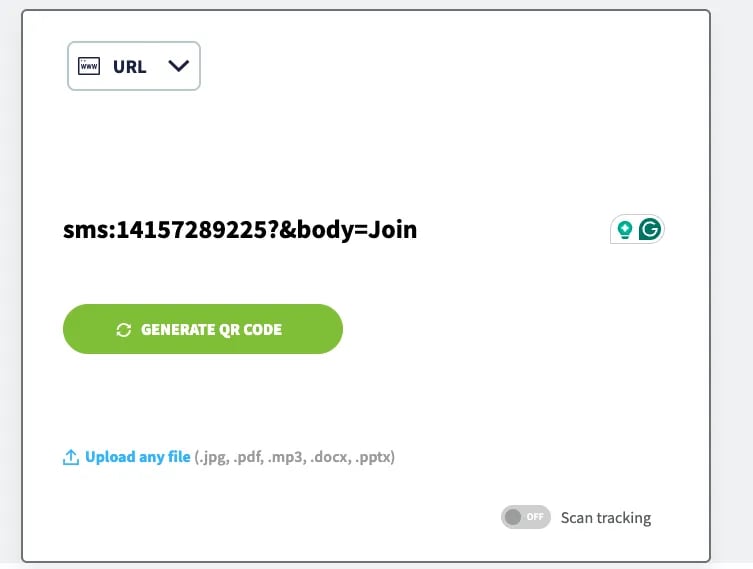 6. Select **Generate** and download the QR code image (PNG or JPG files work best).
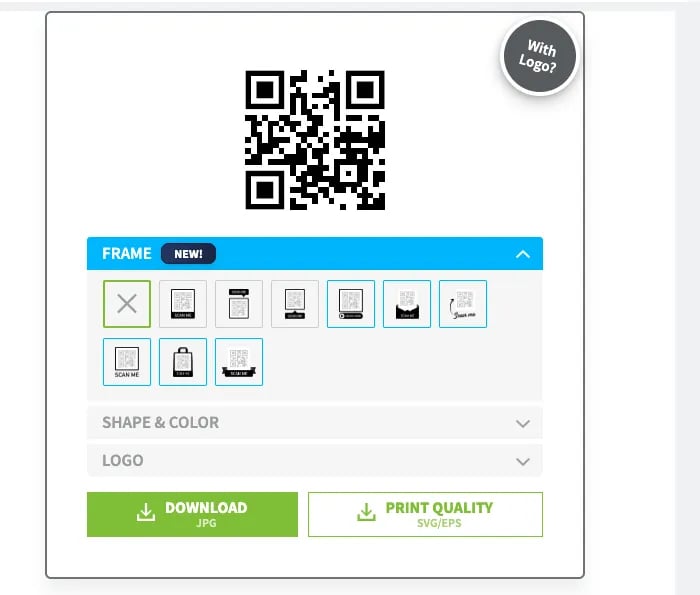 **✏️ Note:** The QR code included in your welcome email was created using this method. You only need to follow these steps if you wish to create new or additional QR codes.
***
### **Promote Your QR Code**
Place the QR code where shoppers can easily see and scan it to maximize sign-ups.
You can add your QR code to:
* In-store signage at the entrance, checkout counter, or in popular aisles.
* Printed materials like flyers or business cards.
* Your store’s website or social media pages.
**💡 Tip:** Test your QR code with your own phone before you print it on any materials to make sure it works correctly.
## Related topics
- [How to generate a Vusion Link login QR code from Vusion Manager](/electronic-shelf-labels-esls/how-to-generate-a-vusion-link-login-qr-code-from-vusion-manger.md)
- [Set Up Cashiers and Managers](/cashier-and-till-management/pos-user-access/set-up-cashiers-and-managers.md)
- [How to log into Vusion Link with a QR code generated from a different phone](/electronic-shelf-labels-esls/how-to-log-into-vusion-link-with-a-qr-code-generated-from-a-different-phone.md)
**✏️ Note:** The QR code included in your welcome email was created using this method. You only need to follow these steps if you wish to create new or additional QR codes.
***
### **Promote Your QR Code**
Place the QR code where shoppers can easily see and scan it to maximize sign-ups.
You can add your QR code to:
* In-store signage at the entrance, checkout counter, or in popular aisles.
* Printed materials like flyers or business cards.
* Your store’s website or social media pages.
**💡 Tip:** Test your QR code with your own phone before you print it on any materials to make sure it works correctly.
## Related topics
- [How to generate a Vusion Link login QR code from Vusion Manager](/electronic-shelf-labels-esls/how-to-generate-a-vusion-link-login-qr-code-from-vusion-manger.md)
- [Set Up Cashiers and Managers](/cashier-and-till-management/pos-user-access/set-up-cashiers-and-managers.md)
- [How to log into Vusion Link with a QR code generated from a different phone](/electronic-shelf-labels-esls/how-to-log-into-vusion-link-with-a-qr-code-generated-from-a-different-phone.md)