![vori-logo-black-horizontal-01 (1).png]](https://help.vori.com/hs-fs/hubfs/vori-logo-black-horizontal-01%20(1).png?height=42&name=vori-logo-black-horizontal-01%20(1).png)
Promotions should move product, protect margin, and bring shoppers back — not slow your team down. With Vori, you can create, update, and manage promotions right from your phone, whether you're walking the floor or reviewing performance after hours. When costs shift or inventory builds up, speed matters. This is how you stay ahead.
Table of Contents
Before You Start
Make sure:
-
The Vori OS app is installed on your mobile device.
-
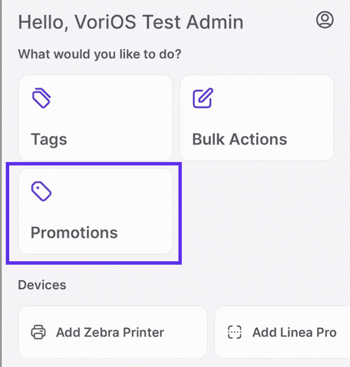
You’re logged in and can see the Promotions module from the Homepage.
Create a New Promotion
You can start a promotion in two ways:
-
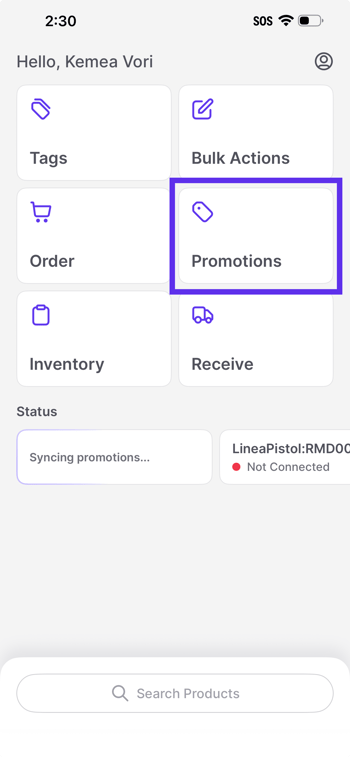
From the Promotions module
-
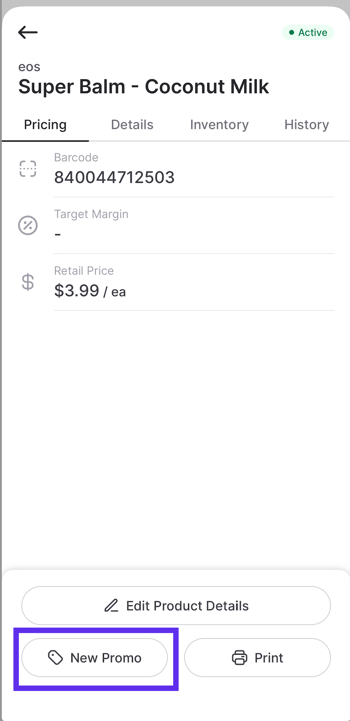
Directly from the Products page while you're on the floor
Choose the path that matches how you work.
Option 1: From the Promotions Module
-
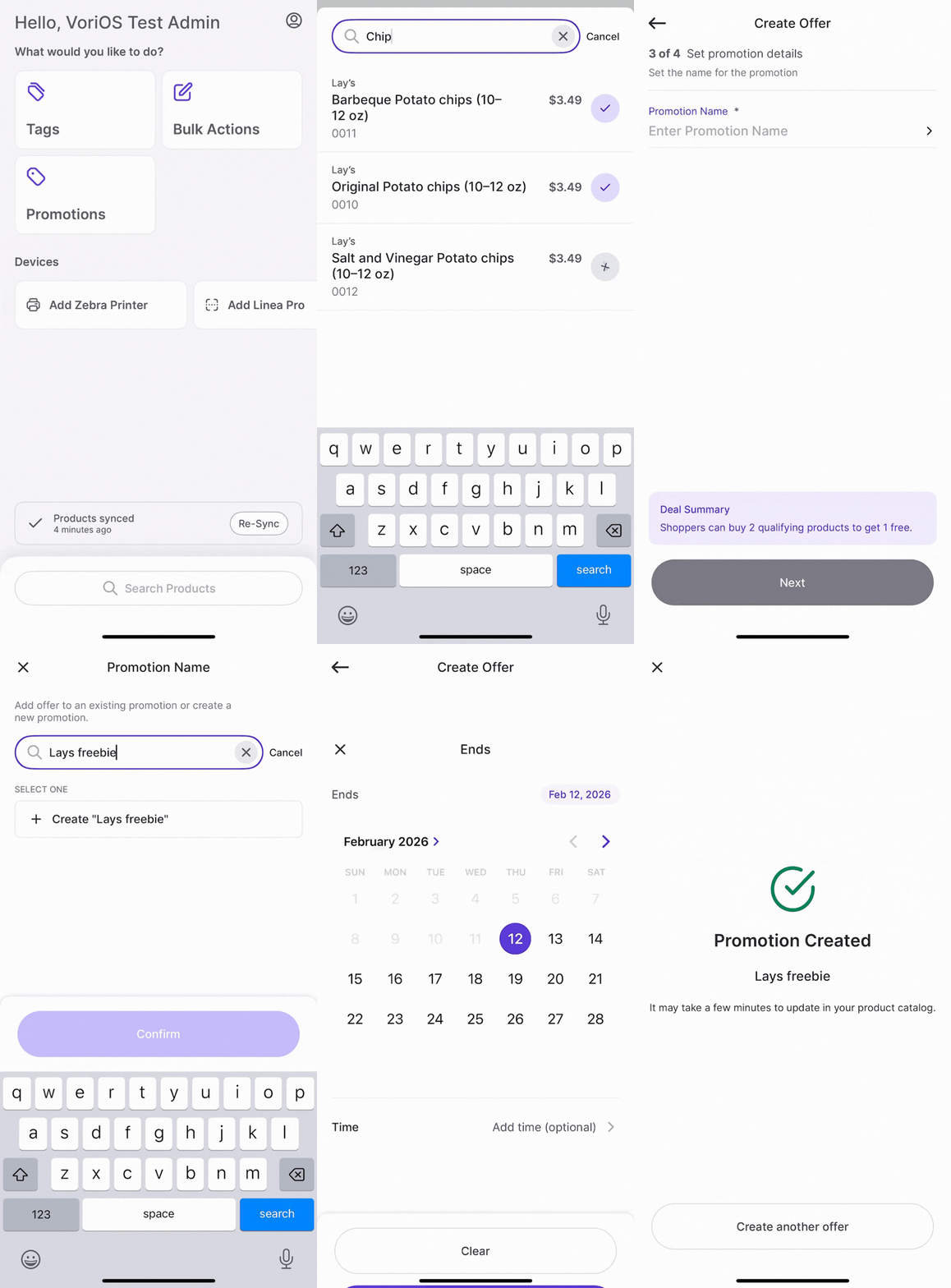
Select the Promotions module from the main menu.
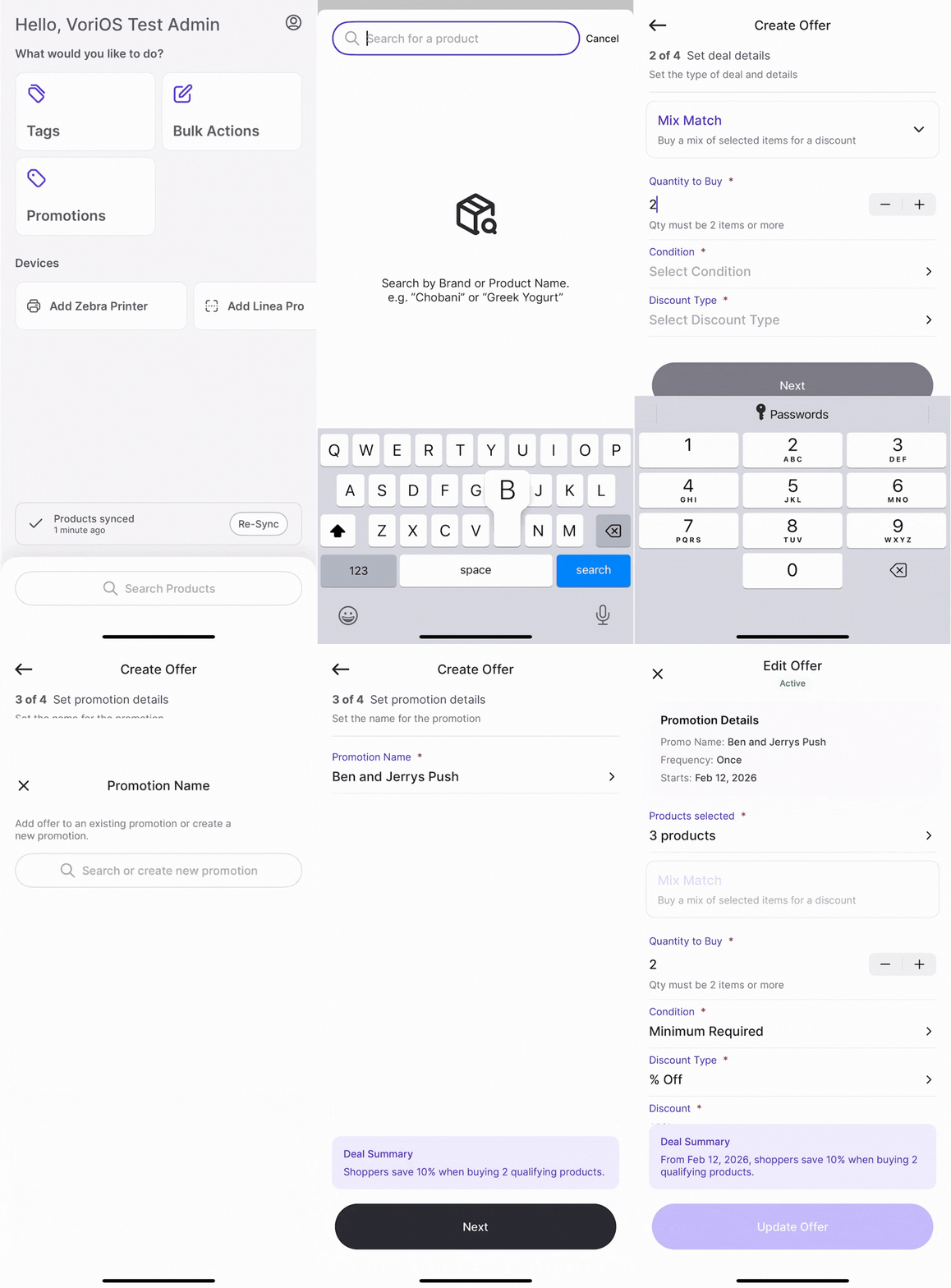
- Tap Create New Offer at the bottom of the screen.
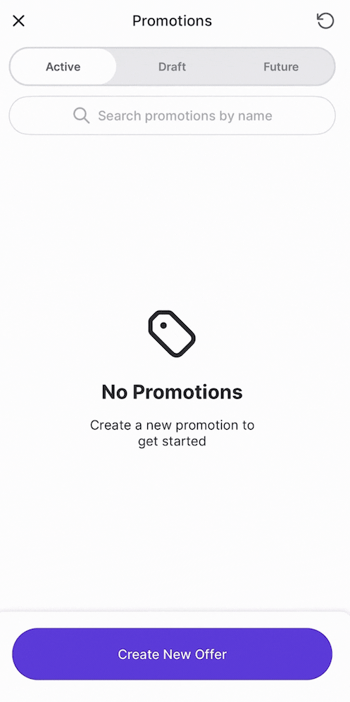
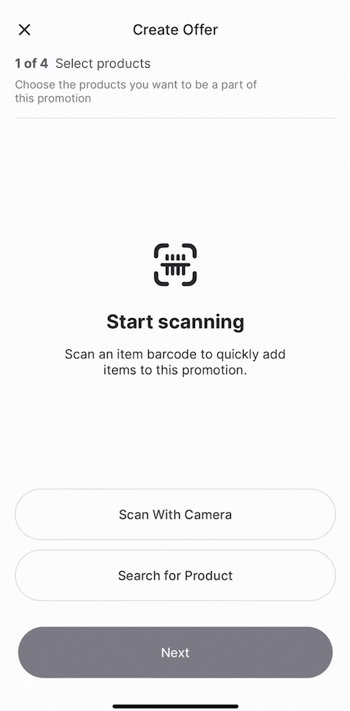
- Add items to your promotion:
- Scan With Camera or Linea Pro: Walk the aisle and scan barcodes continuously to add items fast.
- Search for Product: Manually search and tap the + next to each item. When you see the check mark, the item is locked in.
-
Tap Next to set your deal details:
- Deal Type
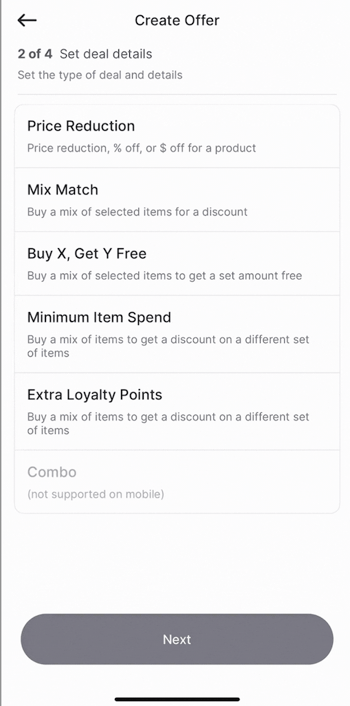
- Conditions
- Discount structure
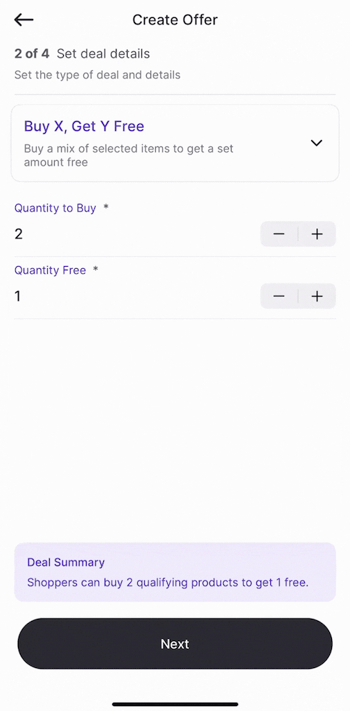
- Deal Type
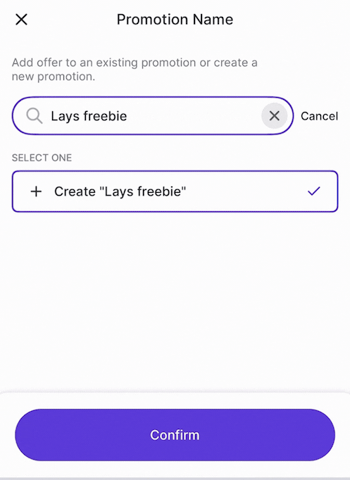
- Tap Next again to assign the offer to a promotion.
- Select an existing promotion, or
- Or enter a new name and select Confirm.
- Set the duration, frequency, date, and time of the promotion.
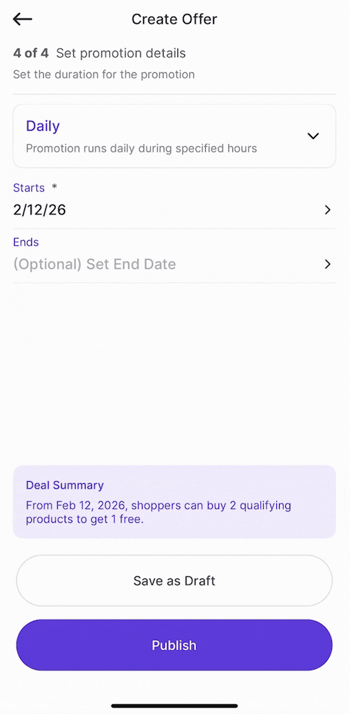
- Choose:
- Save as Draft (if you’re still refining) or
- Publish to go live immediately.
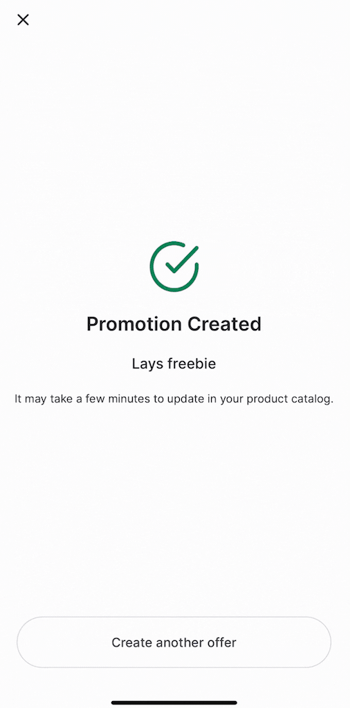
- You’ll see a Promotion Created confirmation, and your promotion is officially working for you. The promotion will also be housed under Active, Draft, or Future, depending on its details.
Full Walkthrough
Option 2: From the Products Page
If you’re already on the floor adjusting pricing or reviewing items:
-
Use the Search bar or Scan to find the product.
-
Tap New Promo at the bottom of the screen.
-
Follow the same steps above to:
-
Add items
-
Set deal details
-
Publish or save as a draft
-
Managing Variable-Weight Item Promotions
Variable-weight items support specific promotion types depending on your store setup:
-
Standard Promotions: Use the standard Promotions module to run a percentage-off promotion. Other promotion types are not supported for these items.
-
Manual Price Updates: If you are not running a percentage-off promotion, you must update the price either manually or through Cost Changes.
Edit a Promotion
Accurate promotions protect shopper trust and your margins.
From the Promotions Module
-
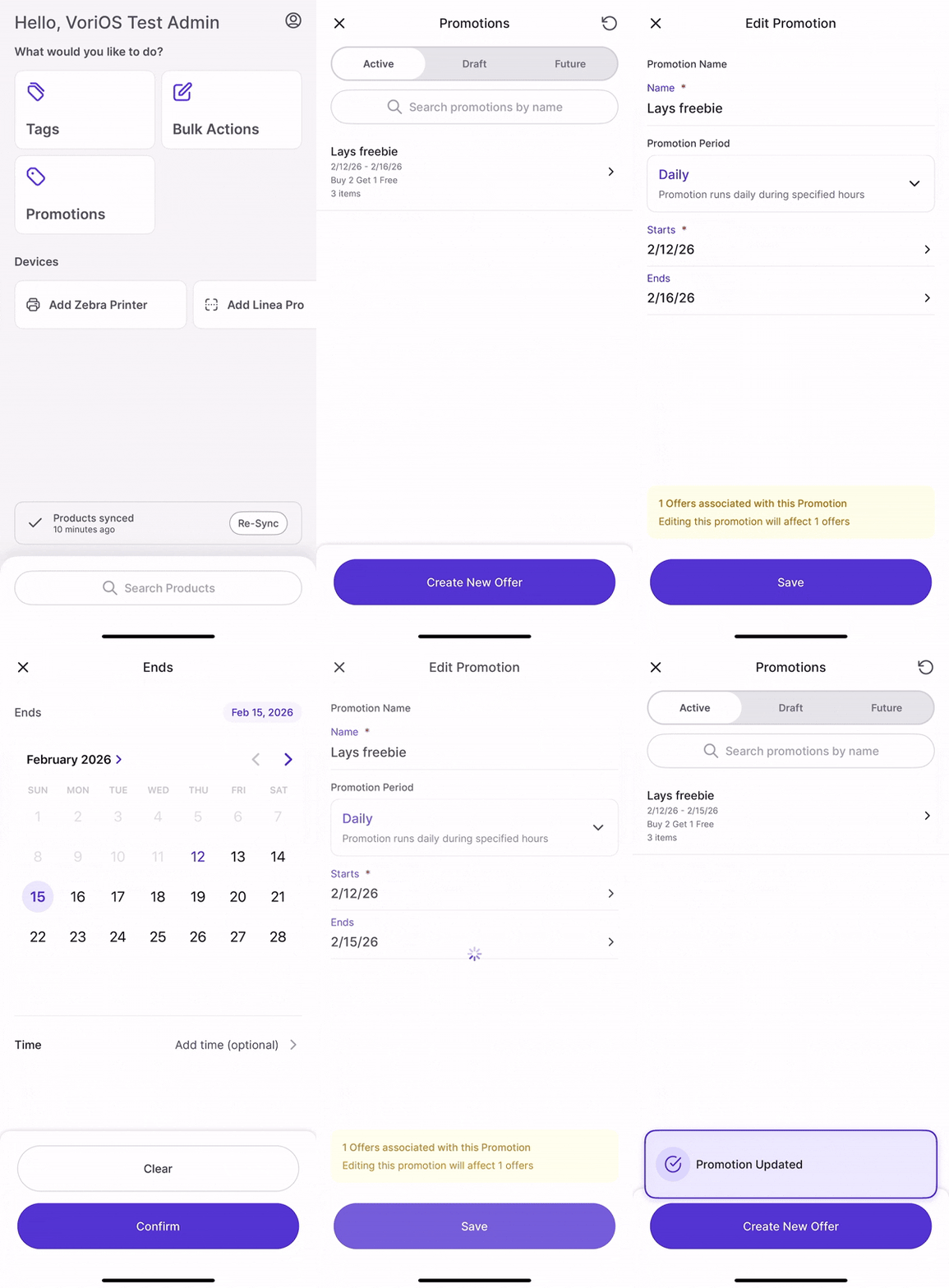
Open Promotions.
-
Tap the promotion you want to update.
-
Edit Promotion
-
Select Edit Promotions to update the promotion period, frequency, date, and time.
- Select the item on promotion to edit the offer type.
-
-
Make your changes.
-
Tap Save or Update Offer.
-
A confirmation banner will appear at the bottom of your screen.
From the Products Page (Updating the Offer Only)
-
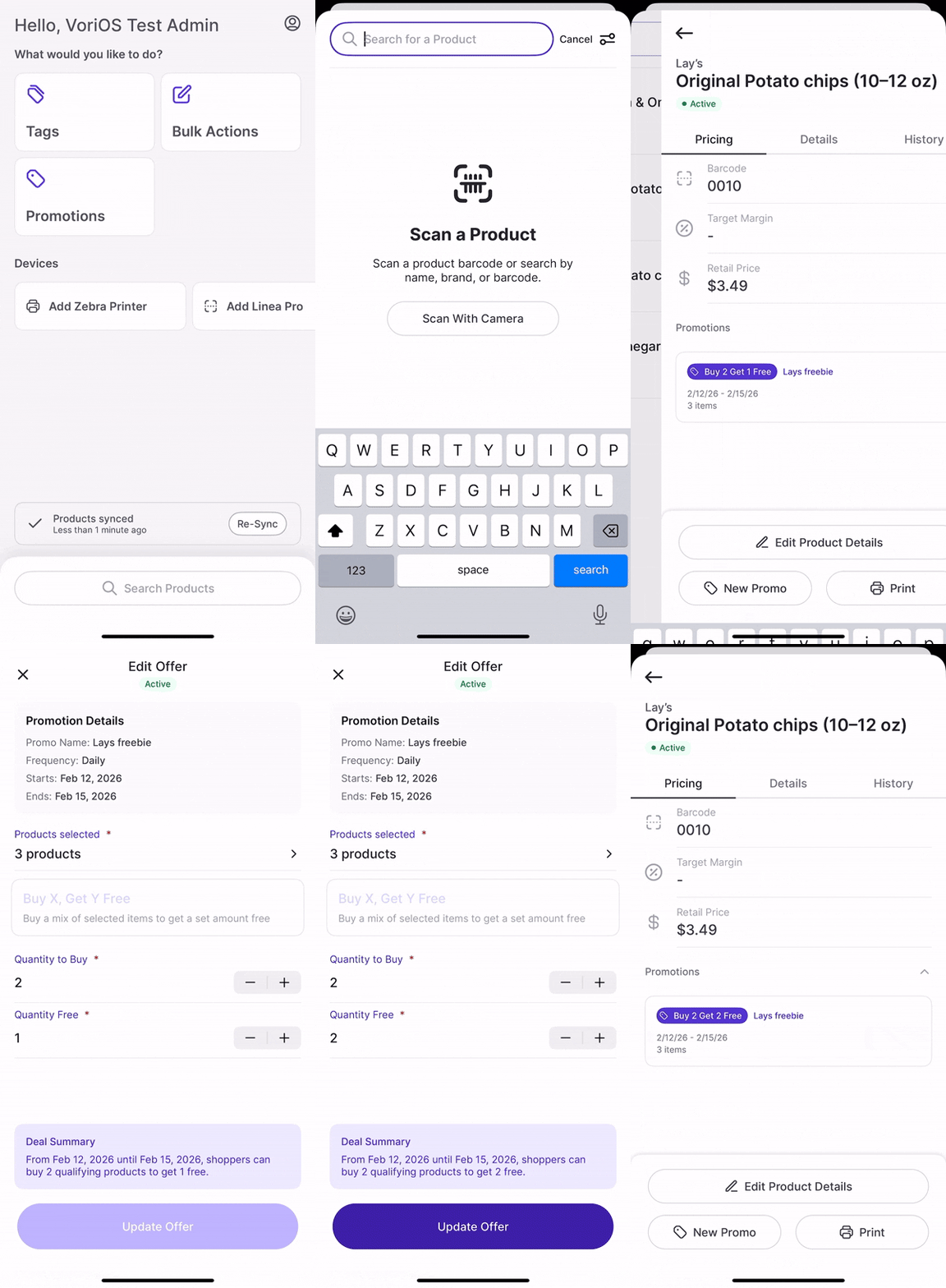
Scan or search for the product already on promotion. (Look for the purple tag next to the retail price.)
-
Tap the product.
-
Tap the active promotion.
-
Select View Promo.
-
Make your changes to the offer.
-
Tap Update Offer.
Duplicate Promotion
Running recurring sales? Don’t start from scratch.
-
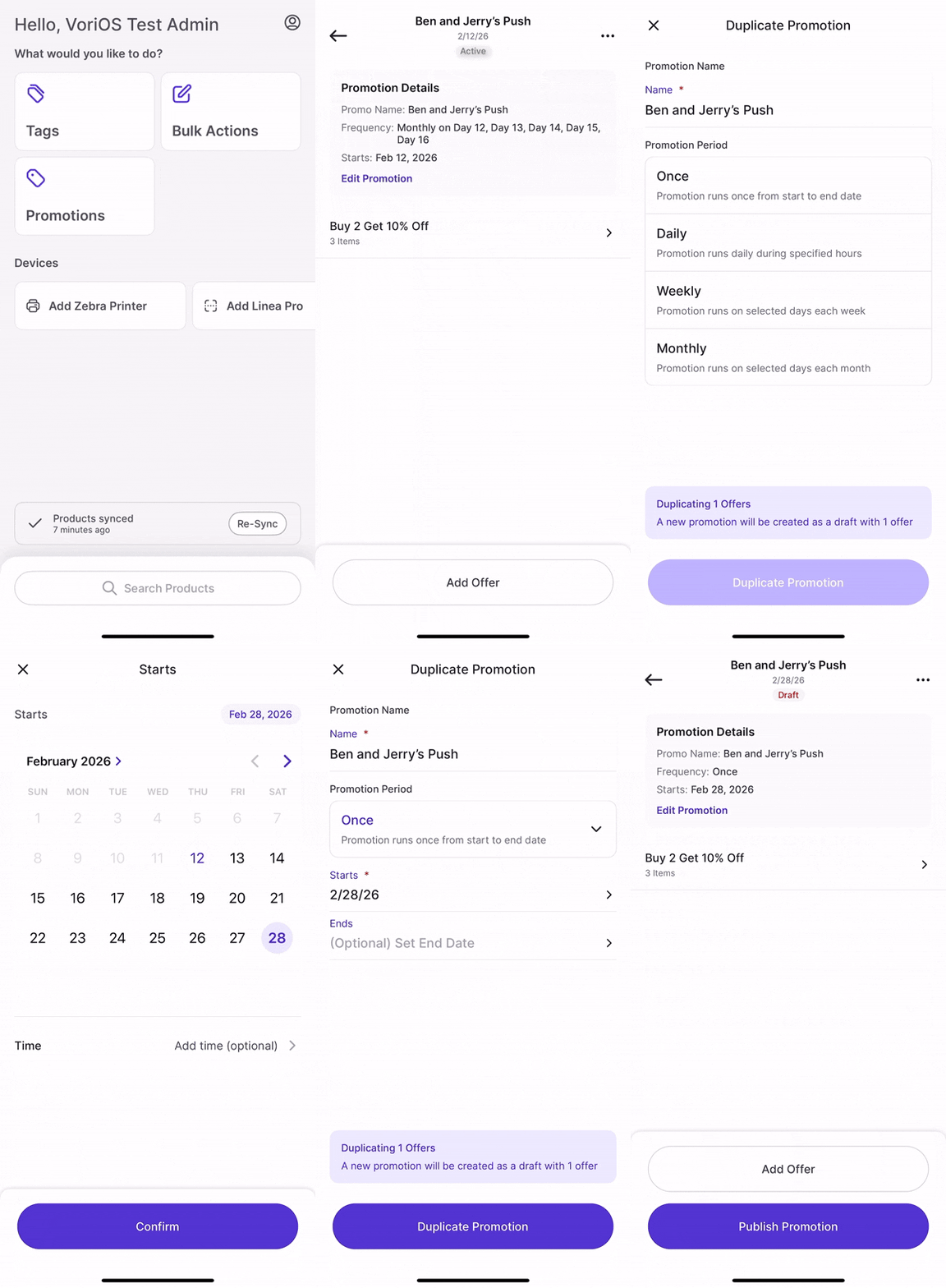
Open Promotions.
-
Select the promotion you want to copy.
-
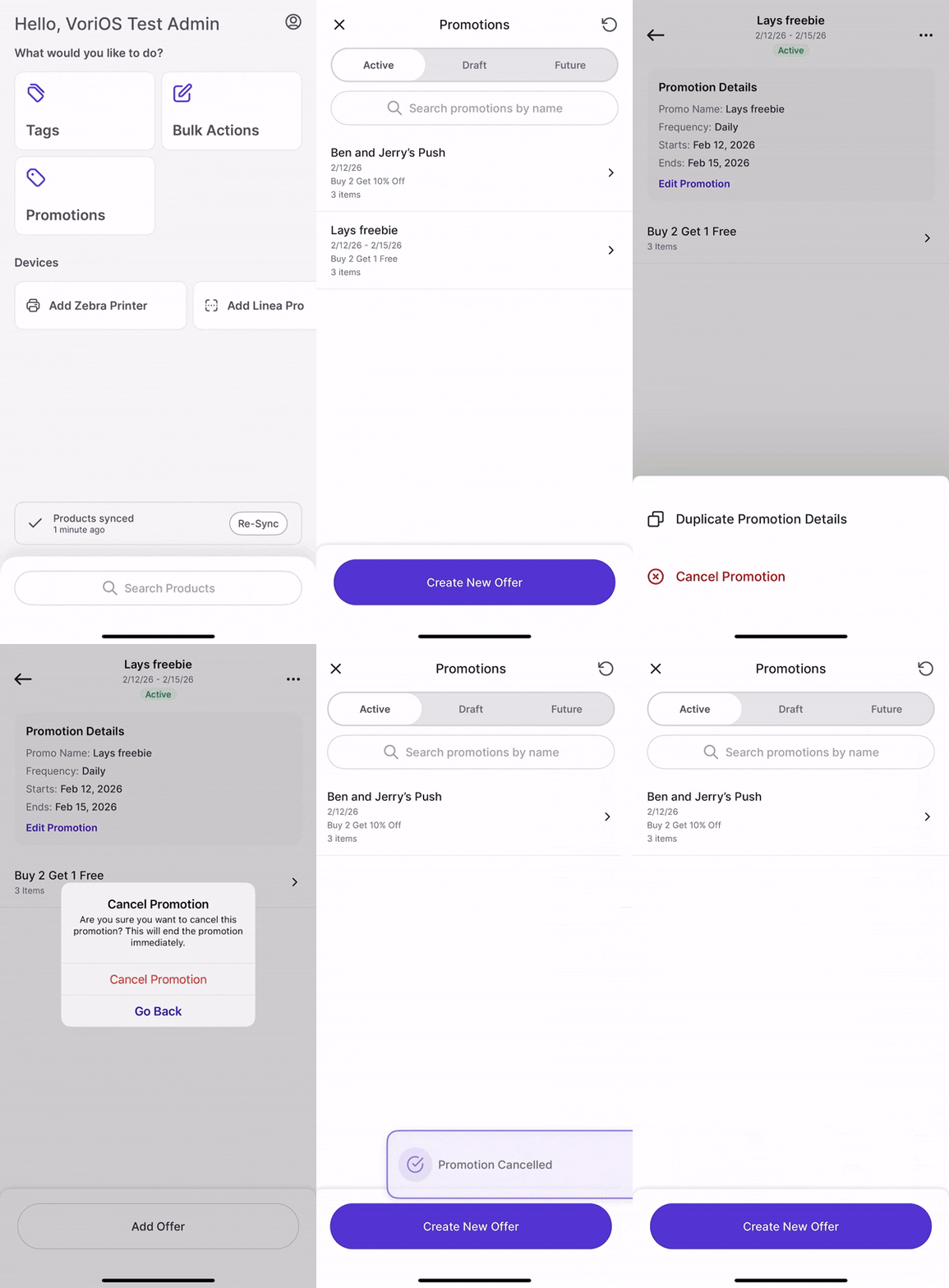
Tap the three dots (top right).
-
Select Duplicate Promotion Details.
-
Review and adjust as needed.
-
Tap Save.
-
The new promotion will save as a Draft, ready when you are to publish.
Cancel a Promotion
If you need to end a sale early, you can do so in a few taps.
-
Open the Promotions module and select the active promotion.
-
Tap the three dots at the top right and select Cancel Promotion.
-
When the confirmation pop-up appears, tap Cancel Promotion to finalize.