> ## Documentation Index
> Fetch the complete documentation index at: https://help.vori.com/llms.txt
> Use this file to discover all available pages before exploring further.
# Troubleshoot Invoice Upload or Scan Formatting Issues
> Follow these steps if you notice incorrect product or vendor mappings after uploading an invoice
If an invoice looks strange after upload (e.g., unexpected vendor names, mismatched products, or missing cost data), it’s usually due to formatting issues during the scan or upload process. This may include mismatches in invoice numbers, amounts due, or layout quirks that seem alarming but **don’t affect how Vori tracks product cost changes.** As long as the **vendor and product mappings are correct,** your pricing data will be accurate.
**✏️Note:** Vori tracks cost changes based only on matched vendor and product information. Fields like invoice number, date, or amount due don’t affect product pricing or reporting.
**💡 Tip:** **A human should always review invoices** for accuracy before accepting.
### Step 1: Check the Invoice Preview or Original Scan
Start by reviewing the **invoice preview** in the Back Office—or compare it to your **saved scan** of the original invoice if available. This is especially helpful if there’s a delay between invoice upload and review.
Look for:
* Unexpected or **incorrect vendor matches**.
* Wrong Vendor Name
* Incorrect Store Name
* Inaccurate Address: Ship to Address or Bill to Address
* Products matched to the wrong catalog items.
* Wrong product code.
* Description
* UPC
* Missing or inaccurate costs.
**✏️ Note:** Mapping errors do not affect how Vori tracks cost history for products—they only impact how the invoice displays in this view.
***
### Common Upload Mistakes to Check For
If invoice mapping looks off, it often ties back to formatting issues in the uploaded scan. Check for:
* **Missing vendor name** or **store address** in the header.
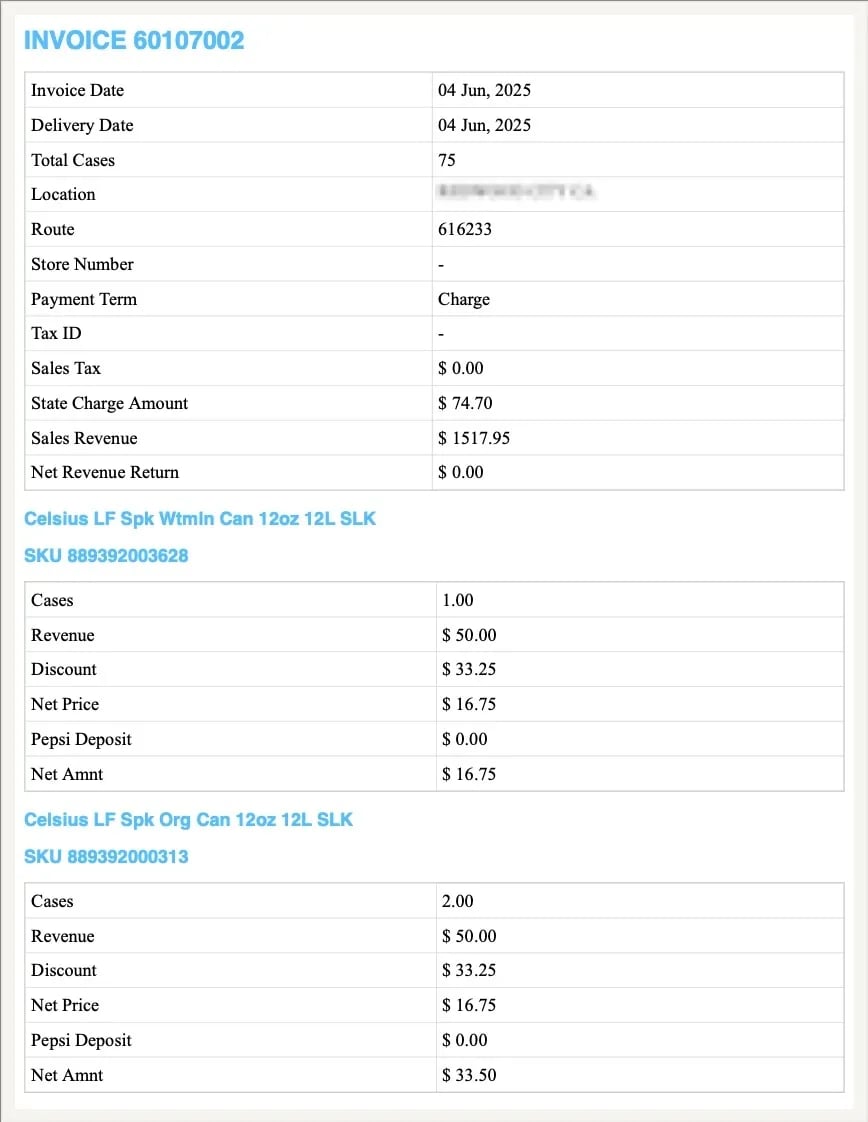 * **Handwritten invoices.**
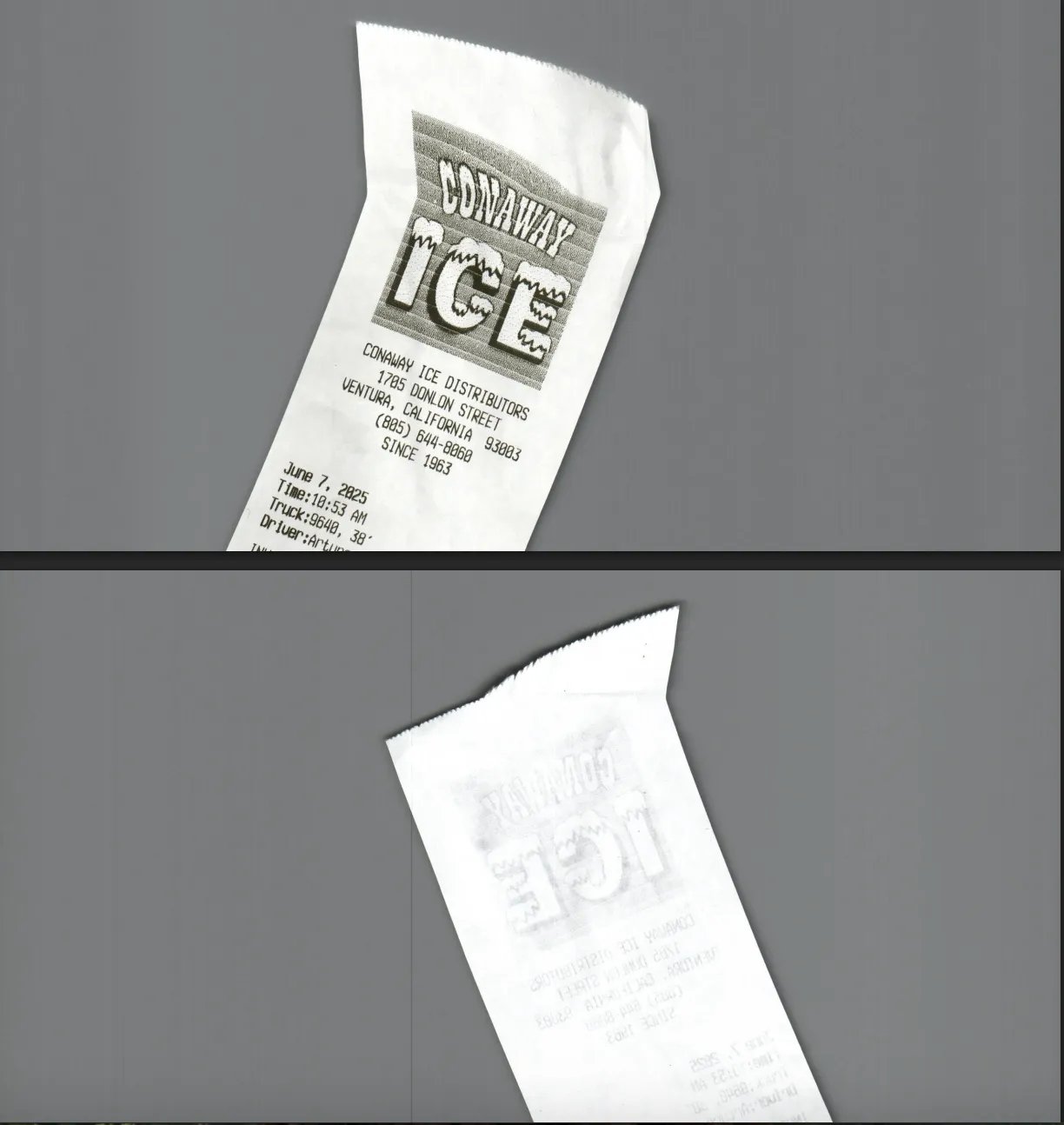
* **Carbon copy paper** scans that are faint or blurry.
* **Off-center or incomplete scans** (e.g., page is cut off or crooked).
* **Handwritten invoices.**
* **Carbon copy paper** scans that are faint or blurry.
* **Off-center or incomplete scans** (e.g., page is cut off or crooked).
 * **Multi-page invoices are uploaded separately** instead of in one session. If your invoice spans multiple pages, upload them together in the same session.
* ****Extra-long receipts (Extend Receipts)****
Extend may distort extra-long receipts due to how it adjusts aspect ratios, stretching the image to fit, which can blow out the formatting and make the invoice unreadable.
Like handwritten invoices, we do our best to extract the correct data, but accuracy isn't guaranteed.
* **Invoices listing a sales rep** (e.g., “John Smith LLC”) instead of the vendor.
**💡 Tip:** Comparing the invoice preview to your saved scan is the fastest way to spot these issues, especially if you’re reviewing an older or delayed upload.
***
### Step 2: Review Vendor and Header Details
Vori maps invoices to vendors using the header info at the top of the invoice.
Check that the invoice includes:
* **Vendor name** or **Ship From** address
* **Store name**, **Ship To**, or **Bill To** address
* Product details like **UPC**, **code**, or **description**
**⚠️ Caution:** If the vendor is listed as a rep’s name or the info is missing or illegible, the invoice may fail to upload.
***
### Step 3: Correct Mismatched Products or Pricing
If line items are mapped incorrectly, you can manually fix them before finalizing.
**To correct a mismatch:**
1. Search your catalog for the correct product.
2. Check that the **UPC** or description matches.
3. Use the invoice editor to remap or update the cost.
***
### Step 4: Flag Recurring or Severe Issues
If the same issues keep happening or an invoice fails, reach out to Vori Support.
**Contact Vori Support if:**
* Most invoices from a vendor are mapping incorrectly
* Vendor or product details are consistently missing
* You’re unsure how to resolve a failed upload
**📎 Please include a copy of the invoice and a brief description of the issue when submitting a ticket.**
## Related topics
- [Upload Invoices to Vori](/invoicing-cost-changes-and-smart-pricing/invoice-upload/upload-invoices-to-vori.md)
- [How to troubleshoot ESL linking issues with Type-2 UPCs](/electronic-shelf-labels-esls/how-to-troubleshoot-esl-linking-issues-with-type-2-upcs.md)
- [Troubleshoot Camera Scanner Connection Issues with the VoriOS app](/hardware-and-peripherals/handheld-and-mobile-devices/troubleshoot-camera-scanner-connection-issues-with-the-vori-os-app.md)
* **Multi-page invoices are uploaded separately** instead of in one session. If your invoice spans multiple pages, upload them together in the same session.
* ****Extra-long receipts (Extend Receipts)****
Extend may distort extra-long receipts due to how it adjusts aspect ratios, stretching the image to fit, which can blow out the formatting and make the invoice unreadable.
Like handwritten invoices, we do our best to extract the correct data, but accuracy isn't guaranteed.
* **Invoices listing a sales rep** (e.g., “John Smith LLC”) instead of the vendor.
**💡 Tip:** Comparing the invoice preview to your saved scan is the fastest way to spot these issues, especially if you’re reviewing an older or delayed upload.
***
### Step 2: Review Vendor and Header Details
Vori maps invoices to vendors using the header info at the top of the invoice.
Check that the invoice includes:
* **Vendor name** or **Ship From** address
* **Store name**, **Ship To**, or **Bill To** address
* Product details like **UPC**, **code**, or **description**
**⚠️ Caution:** If the vendor is listed as a rep’s name or the info is missing or illegible, the invoice may fail to upload.
***
### Step 3: Correct Mismatched Products or Pricing
If line items are mapped incorrectly, you can manually fix them before finalizing.
**To correct a mismatch:**
1. Search your catalog for the correct product.
2. Check that the **UPC** or description matches.
3. Use the invoice editor to remap or update the cost.
***
### Step 4: Flag Recurring or Severe Issues
If the same issues keep happening or an invoice fails, reach out to Vori Support.
**Contact Vori Support if:**
* Most invoices from a vendor are mapping incorrectly
* Vendor or product details are consistently missing
* You’re unsure how to resolve a failed upload
**📎 Please include a copy of the invoice and a brief description of the issue when submitting a ticket.**
## Related topics
- [Upload Invoices to Vori](/invoicing-cost-changes-and-smart-pricing/invoice-upload/upload-invoices-to-vori.md)
- [How to troubleshoot ESL linking issues with Type-2 UPCs](/electronic-shelf-labels-esls/how-to-troubleshoot-esl-linking-issues-with-type-2-upcs.md)
- [Troubleshoot Camera Scanner Connection Issues with the VoriOS app](/hardware-and-peripherals/handheld-and-mobile-devices/troubleshoot-camera-scanner-connection-issues-with-the-vori-os-app.md)