![vori-logo-black-horizontal-01 (1).png]](https://help.vori.com/hs-fs/hubfs/vori-logo-black-horizontal-01%20(1).png?height=42&name=vori-logo-black-horizontal-01%20(1).png)
Table of Contents
Why Convert Handwritten Invoices to a PDF?
Vori uses advanced AI to scan your invoices and automatically match them to your store's products using UPCs, item codes, and descriptions.
Handwritten invoices are often difficult for systems to read accurately. If an invoice is illegible, Vori may reject it to prevent incorrect data from entering your system. By converting these notes into a digital PDF first, you ensure a 100% success rate with Vori’s automated cost changes.
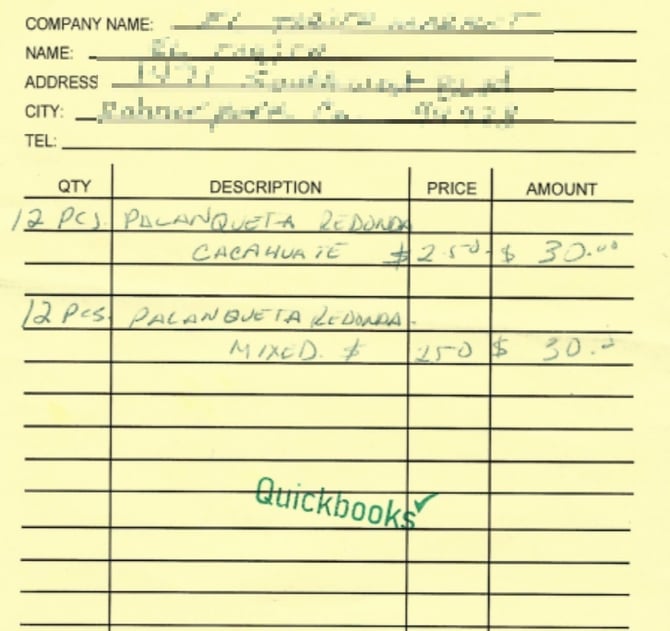
Getting Started with AI
To begin, you will need to choose an AI "Chat" tool. We recommend using either ChatGPT (by OpenAI) or Gemini (by Google).
-
Create an Account: Visit chatgpt.com or gemini.google.com.
-
Use the Free Version: You do not need a paid subscription to convert invoices; the free versions are highly capable.
-
Download the App: If you prefer to take photos directly from your phone, download the ChatGPT or Gemini app from the App Store or Google Play Store.
How to Use the Invoice Prompt
Once you have logged into your AI tool, you can use the following "Prompt" (a set of instructions) to process your invoice.
The Step-by-Step Process:
-
Take a clear photo of your handwritten invoice.
-
Upload the photo to the ChatGPT or Gemini.
-
Copy and paste the text below into the chat box:
"Please read this handwritten invoice and convert it into a structured table. Include columns for UPC/Item Code, Description, Case Size, and Price. Once the table is created, please provide a link to download this data as a PDF file."
Coaching the AI for Better Results
Because handwriting and vendor abbreviations can be tricky, you may need to "coach" the AI. If the first result isn't perfect, send a follow-up message with more details:
-
Explain Abbreviations: If your vendor uses abbreviations on the invoice, for example "GP" for "Green Papaya," tell the AI: "On this invoice, 'GP' stands for 'Green Papaya.' Please update the description column."
-
Clarify Columns: If the AI is confused about which number is the price, tell it: "The far-right column is the unit price, and the middle column is the quantity."
-
Fix Item Codes: If an item code is misread, simply type: "Line 4 should have Item Code 12345, not 12845."
Exporting and Uploading to Vori
Once the AI displays the correct table and provides a download link:
-
Download the PDF: Click the link provided by the AI to save the file to your computer or phone.
-
Log into Vori: Navigate to the Invoices section in your Vori Back Office.
-
Import: Upload the newly created PDF.
Because the text is now digitally clear, the Vori system will be able to process the invoice accurately, including cost changes and product associations.
Troubleshooting
The AI says it cannot generate a PDF.
Some free versions of AI may occasionally have trouble generating a direct PDF download.
-
The Workaround: Ask the AI to "Format the invoice as a clean table." You can then highlight the table with your mouse, Copy it, and Paste it into a Google Doc or Word document. Save that document as a PDF and upload it to Vori.
The photo is too blurry.
If the AI says it cannot read the image, try retaking the photo in a well-lit area, ensuring the camera is flat and parallel to the paper.