![vori-logo-black-horizontal-01 (1).png]](https://help.vori.com/hs-fs/hubfs/vori-logo-black-horizontal-01%20(1).png?height=42&name=vori-logo-black-horizontal-01%20(1).png)
Cashiers can look up any product's current price without adding it to a transaction. The Price Check tool pulls live pricing data directly from your catalog, so your team gets the right number without guessing, and shoppers never have to wait for a manager.
Table of Contents
How to Use Price Check
- From the POS home screen, tap the barcode scanner icon in the bottom navigation bar.
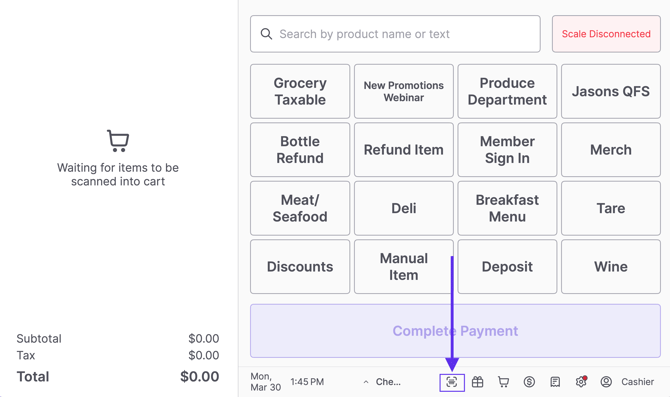
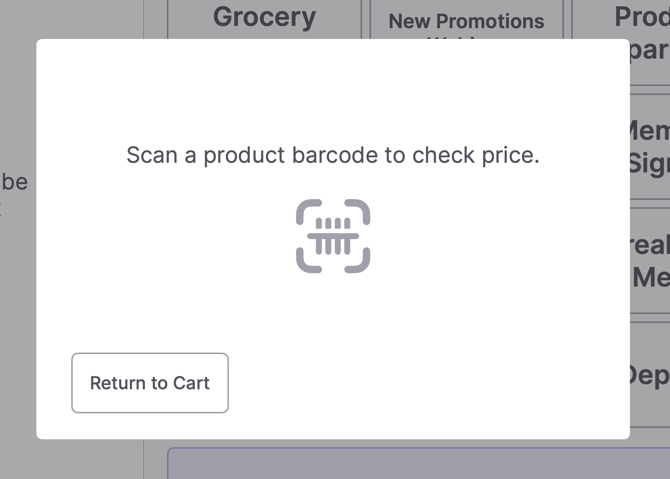
- When the Price Check screen opens, scan the product barcode.
- The product name, barcode, and current price will display on screen.
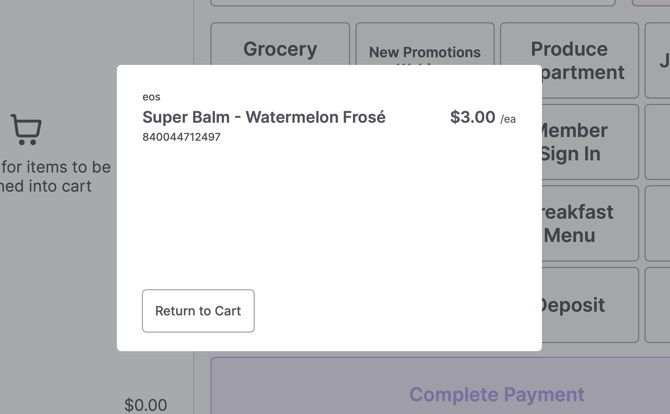
- Tap Return to Cart to go back to the active transaction.
✏️ Note: Price Check opens as an overlay and does not affect any items already in the cart.
What Price Check Shows
When you scan a product, you'll see:
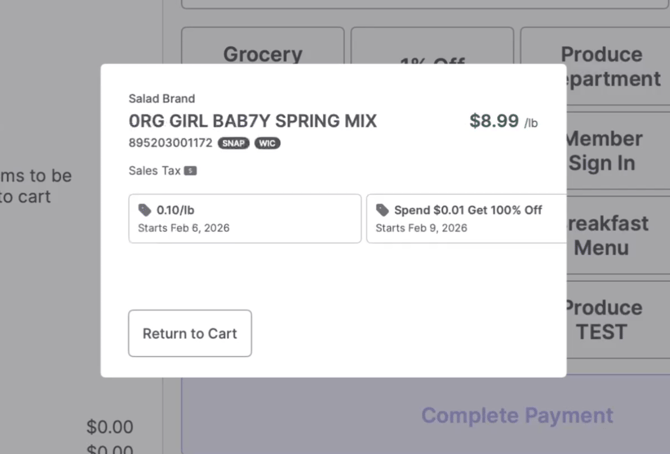
- Product name and brand
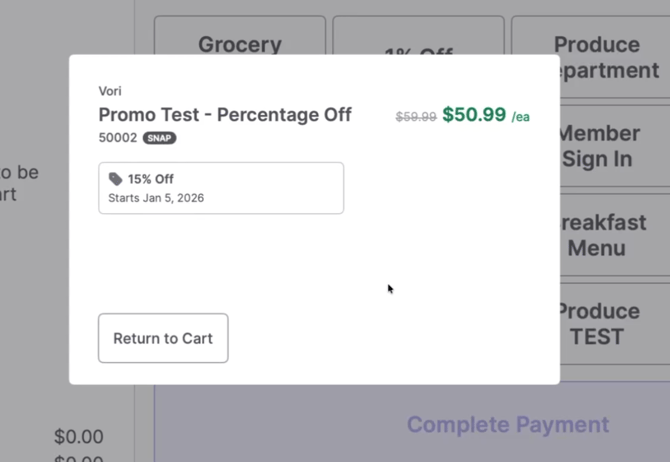
- Current sell price — with the original price struck through if a promotion is active
- Barcode (UPC)
- SNAP and/or WIC eligibility — displayed as a badge next to the barcode when applicable
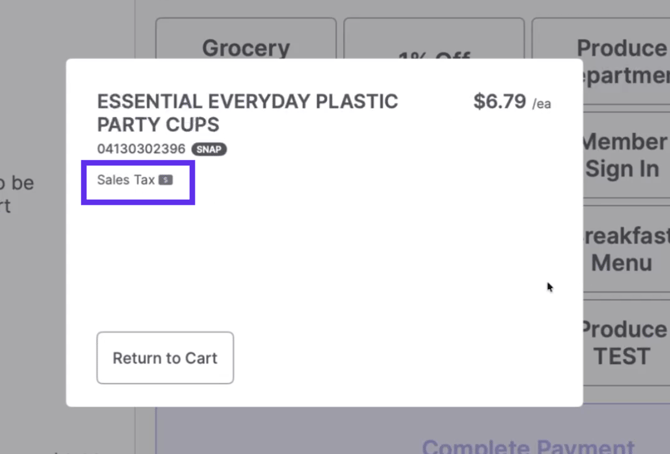
- Sales tax status — shown when the product is taxable
- Active promotions — including the discount type, amount, and start date (or full date range for timed promotions)
✏️ Note: If a product has multiple active promotions, each one will display as its own card so your team can see exactly what's running.
When to Use It
Price Check is useful any time there's a question about what a product rings up at — whether a shopper asks before checkout, a shelf tag looks off, or a cashier wants to confirm a price before scanning into a live transaction.
💡 Tip: Price Check works from an empty cart or mid-transaction. You won't lose any cart progress by opening it.