> ## Documentation Index
> Fetch the complete documentation index at: https://help.vori.com/llms.txt
> Use this file to discover all available pages before exploring further.
# Create and Manage Discounts
> Learn how to create, edit, and manage discounts for your store.
✏️ **Note:** This article describes features ([app.vori.com](http://app.vori.com)). For instructions on accessing it, view our guide: [Access the New Back Office.](/vori-setup-and-troubleshooting/access-the-new-vori-back-office)
***
### How to Create a New Discount
You can create a new discount for your store to apply to your shopper's orders.
1. From the left hand navigation window, go to **Point of Sale**.
2. Select **Discounts**.
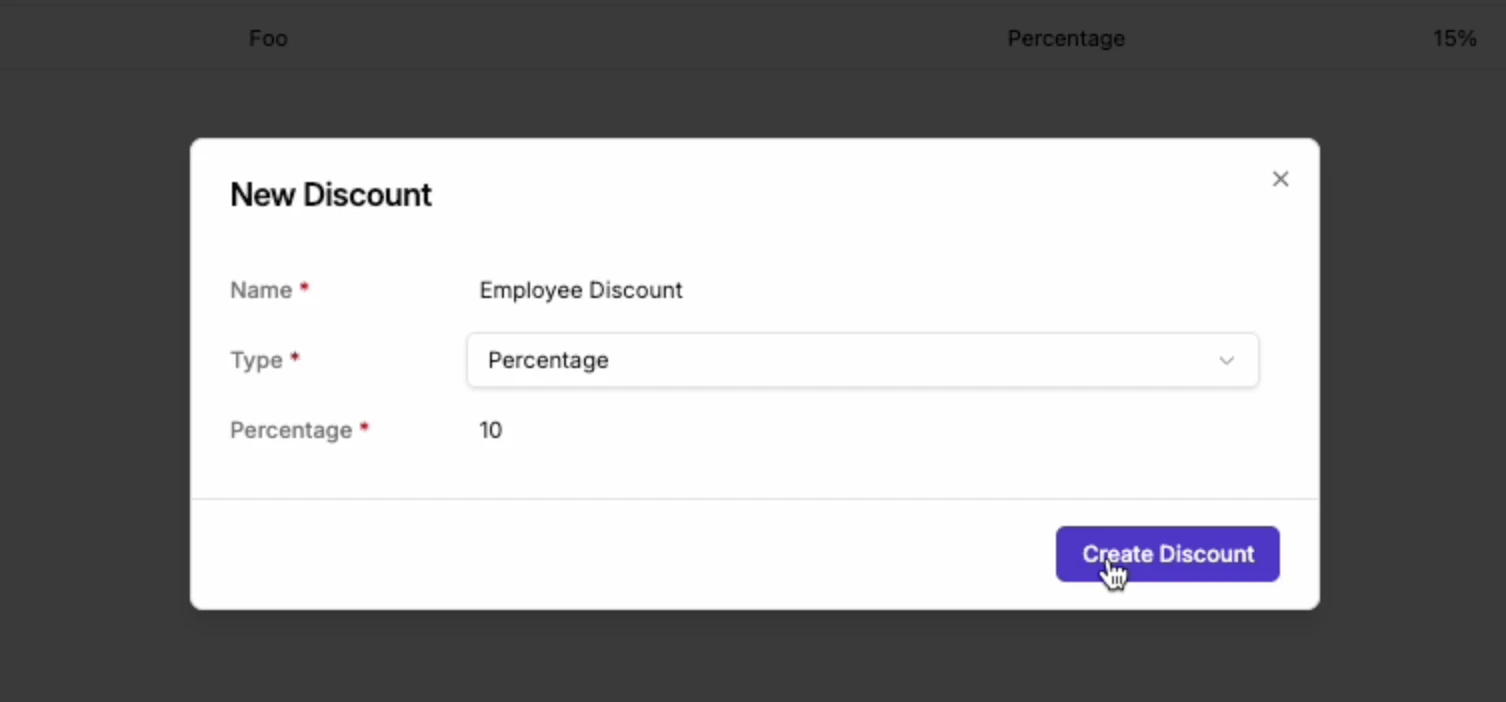
3. Click the **New Discount** button in the top right corner.
4. Enter a name for the discount (e.g., Employee Discount).
5. Select the **Type** of discount you want to create:
* **Fixed Amount** reduces a item by a specific dollar value.
* **Percentage** reduces a item by a specific percentage.
6. Enter a value for the discount.
7. Click **Create Discount**. A message at the bottom of the screen will confirm that the discount was created successfully.
 ***
### How to Edit a Discount
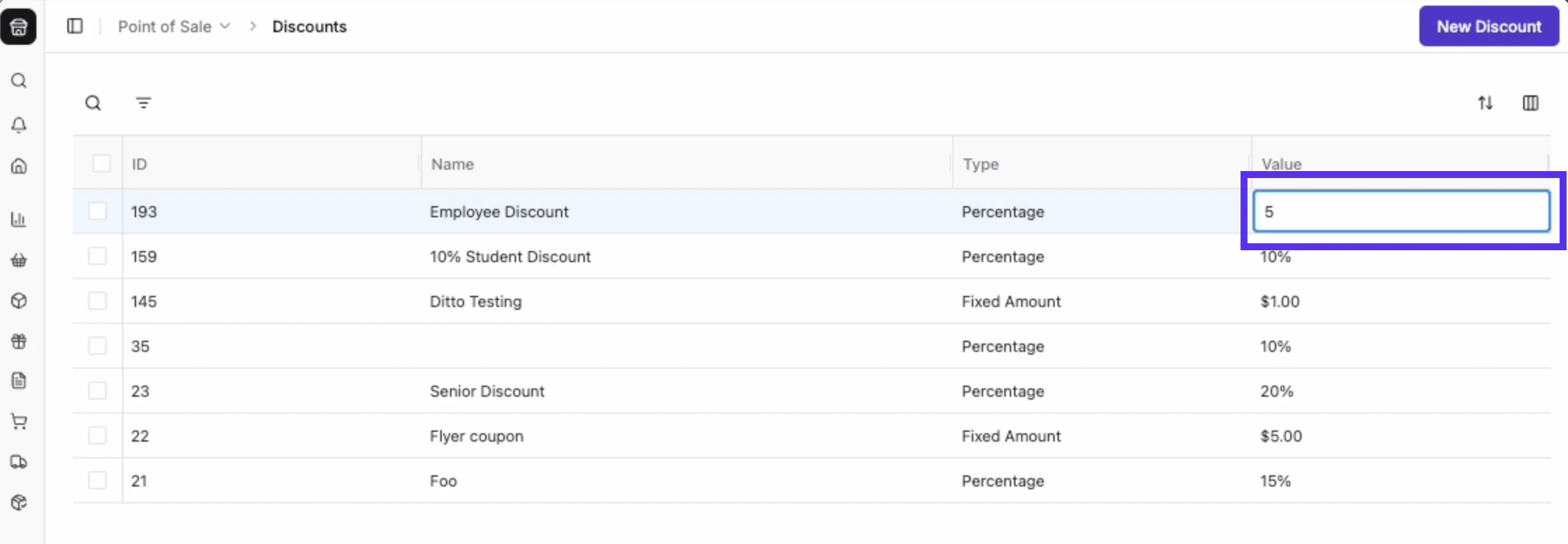
You can easily change the name, type, or value of a discount at any time.
1. Click on the cell you want to edit.
2. Update the **Name**, **Type**, or **Value** as needed.
3. Click anywhere outside the editable field to save your changes.
***
### How to Edit a Discount
You can easily change the name, type, or value of a discount at any time.
1. Click on the cell you want to edit.
2. Update the **Name**, **Type**, or **Value** as needed.
3. Click anywhere outside the editable field to save your changes.
 ***
### How to Delete a Discount
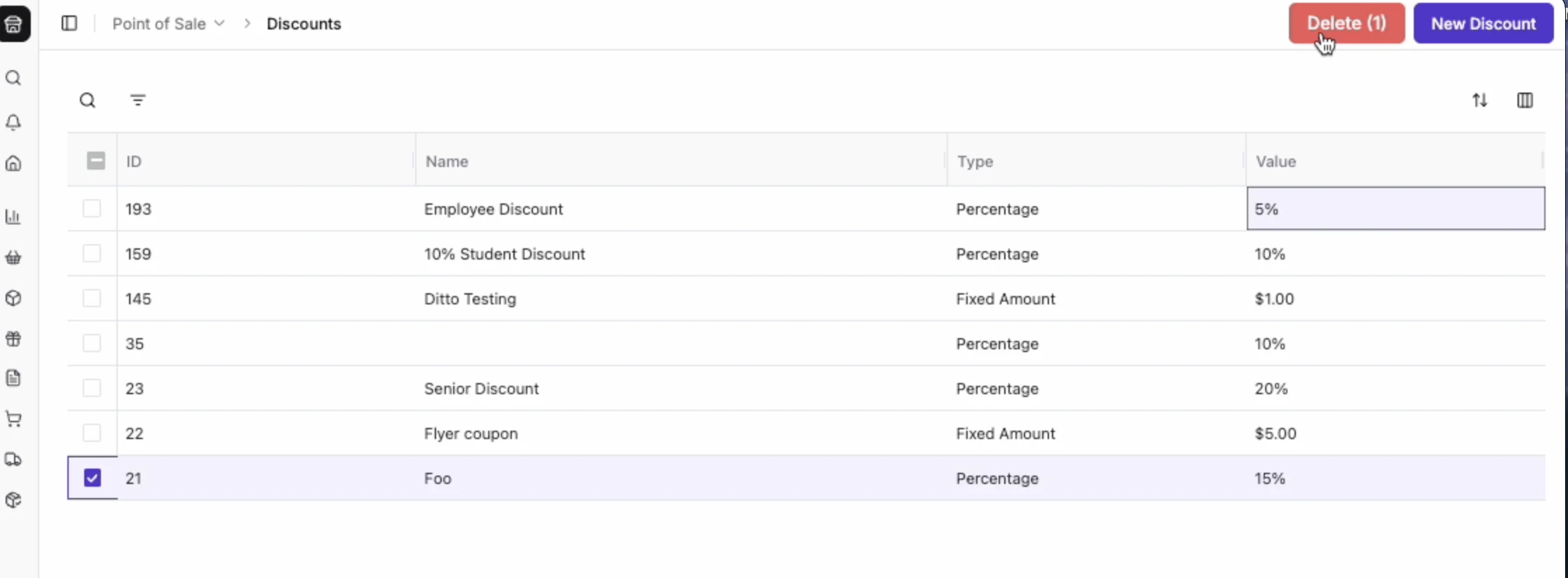
1. Check the box to the left of the discount you want to delete. You can select multiple discounts.
2. Click the **Delete** button at the top of the page.
3. A pop-up will appear asking you to confirm the deletion. Click **Delete**. A message at the bottom of the screen will confirm that the discount was deleted.
***
### How to Delete a Discount
1. Check the box to the left of the discount you want to delete. You can select multiple discounts.
2. Click the **Delete** button at the top of the page.
3. A pop-up will appear asking you to confirm the deletion. Click **Delete**. A message at the bottom of the screen will confirm that the discount was deleted.
 ***
### How to Search and Filter Discounts
You can search and filter your discounts to find what you need quickly
***
### How to Search and Filter Discounts
You can search and filter your discounts to find what you need quickly
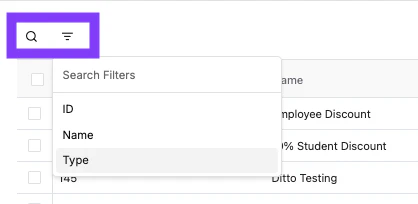 1. To search, type the discount **Name** or **ID** in the 🔍 search bar. The results will automatically update as you type.
2. To filter, click the **Filter** button to the right of the 🔍 search bar. You can filter by:
* **ID**: Search for a specific discount ID number.
* **Name**: Filter by the discount name.
* **Type**: Filter by discount type (**Fixed Amount** or **Percentage**).
1. To search, type the discount **Name** or **ID** in the 🔍 search bar. The results will automatically update as you type.
2. To filter, click the **Filter** button to the right of the 🔍 search bar. You can filter by:
* **ID**: Search for a specific discount ID number.
* **Name**: Filter by the discount name.
* **Type**: Filter by discount type (**Fixed Amount** or **Percentage**).