> ## Documentation Index
> Fetch the complete documentation index at: https://help.vori.com/llms.txt
> Use this file to discover all available pages before exploring further.
# Set Up Cashiers and Managers
> Learn how to create and customize POS user profiles for your store team to ensure secure and efficient checkout operations.
Set your team up with the right access so checkout stays fast, secure, and simple.
## Before You Begin
* Log in to the **New Back Office** as an Owner or Manager.
* Navigate to **Point of Sale → Cashiers** to access your team roster.
* Have the employee's **first name and last name** ready.
Users created here only have access to the POS. To create additional admin users for the dashboard or ordering, contact Vori Support.
***
## Your Cashiers Page
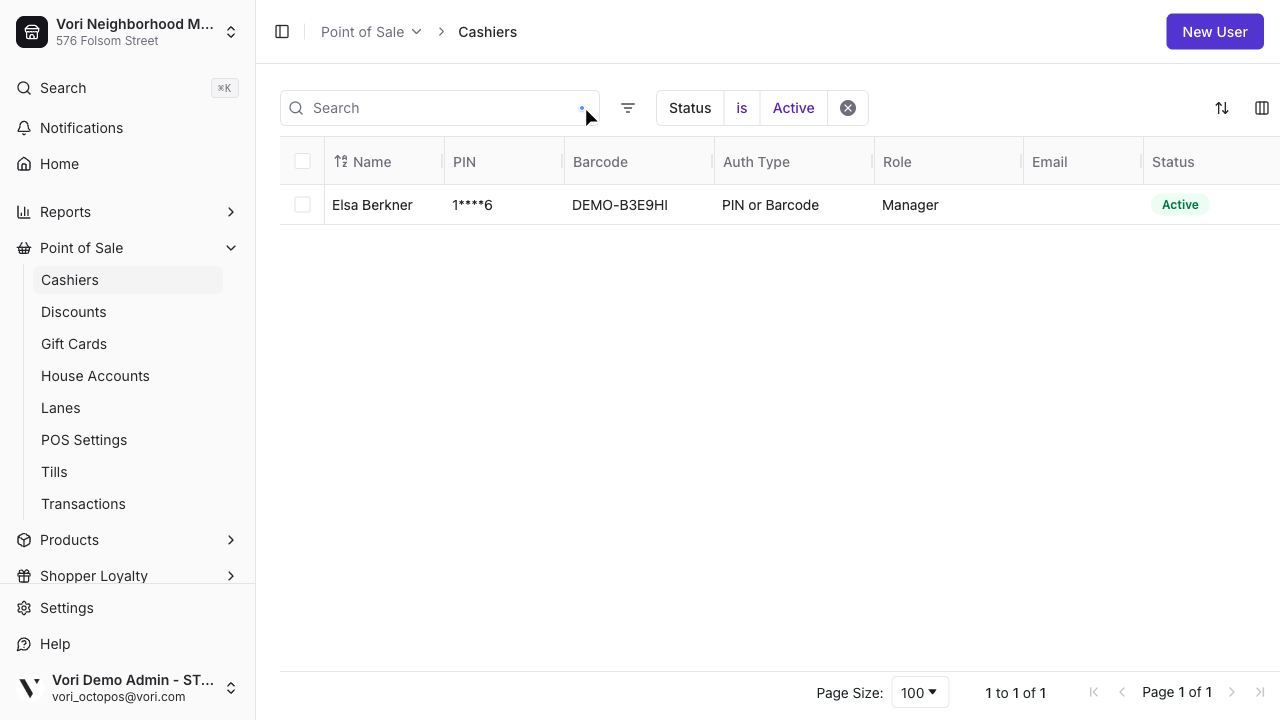
The Cashiers page shows every employee on your team with their current PIN, barcode, authentication type, role, and status.
Use the toolbar above the grid to find who you're looking for:
Click a column header to sort. Click again to reverse the order.
Click the search icon in the toolbar and start typing. The grid filters as you type.
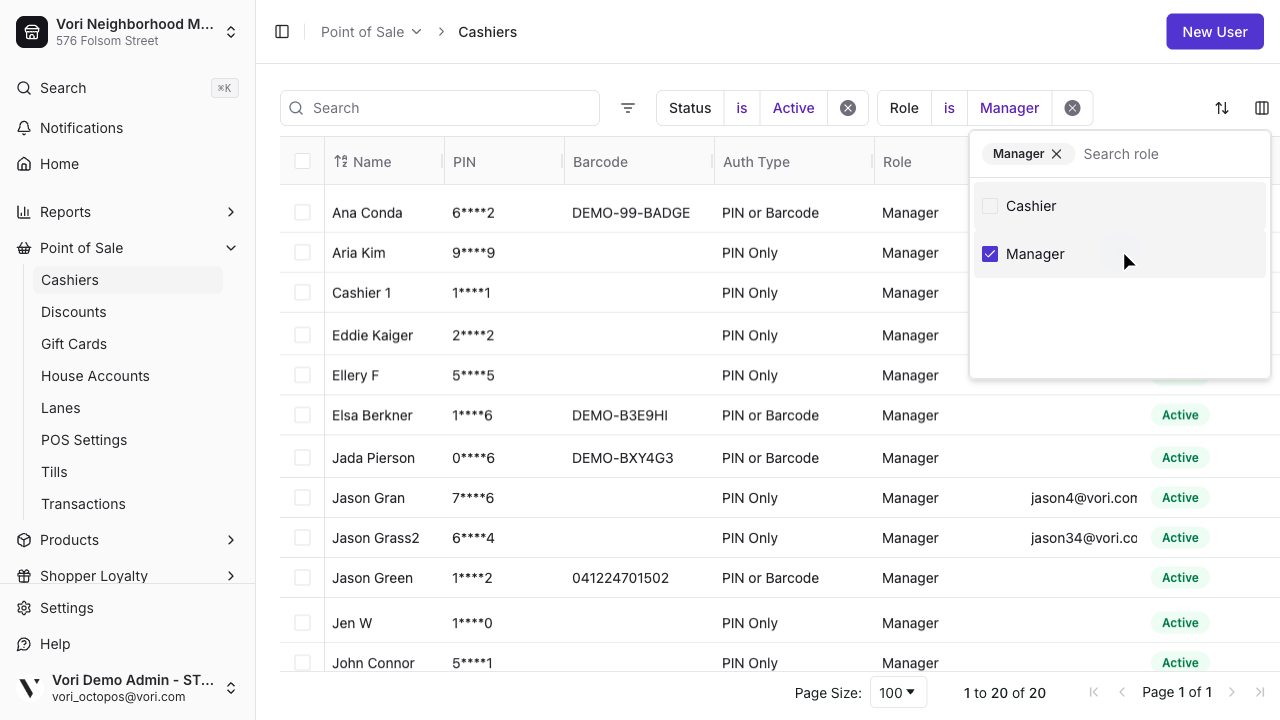
Click the filter icon and select a column — for example, Role to see only your managers.
Click the filter tag to change the value, or click **×** to clear it.
***
## Create a New POS User
Adding a new team member takes less than a minute.
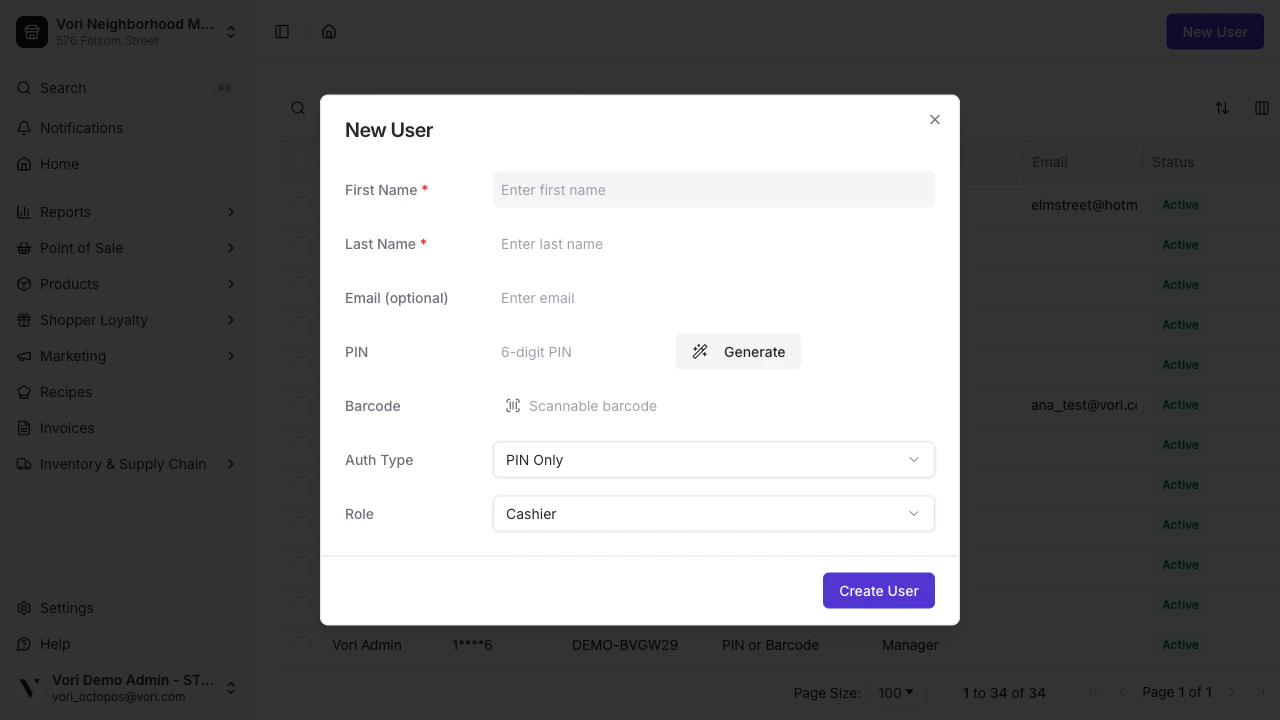
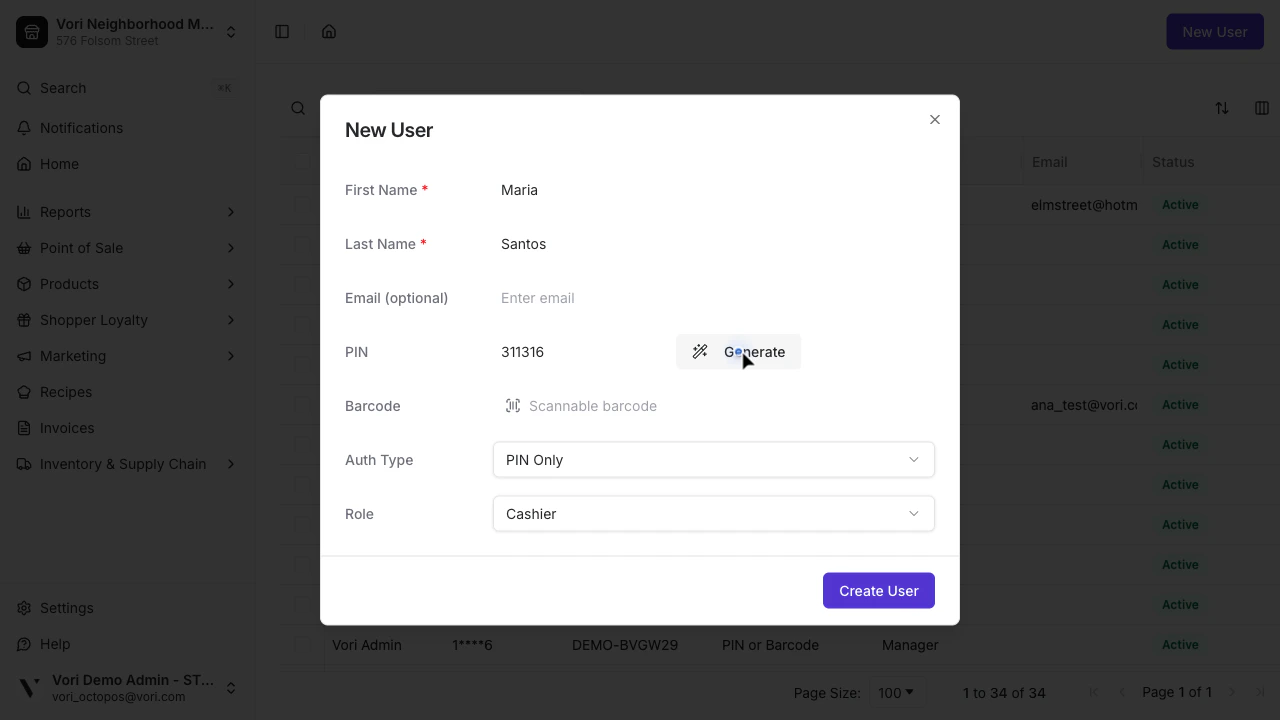
Select **New User** in the top right corner of the Cashiers page.
These are required. Email is optional.
Create or generate a **6-digit PIN**. Vori creates a unique code automatically — no duplicates.
Use a memorable number sequence, such as the last 6 digits of the employee's phone number or their birthday.
Select **Cashier** or **Manager**. Cashier is the default.
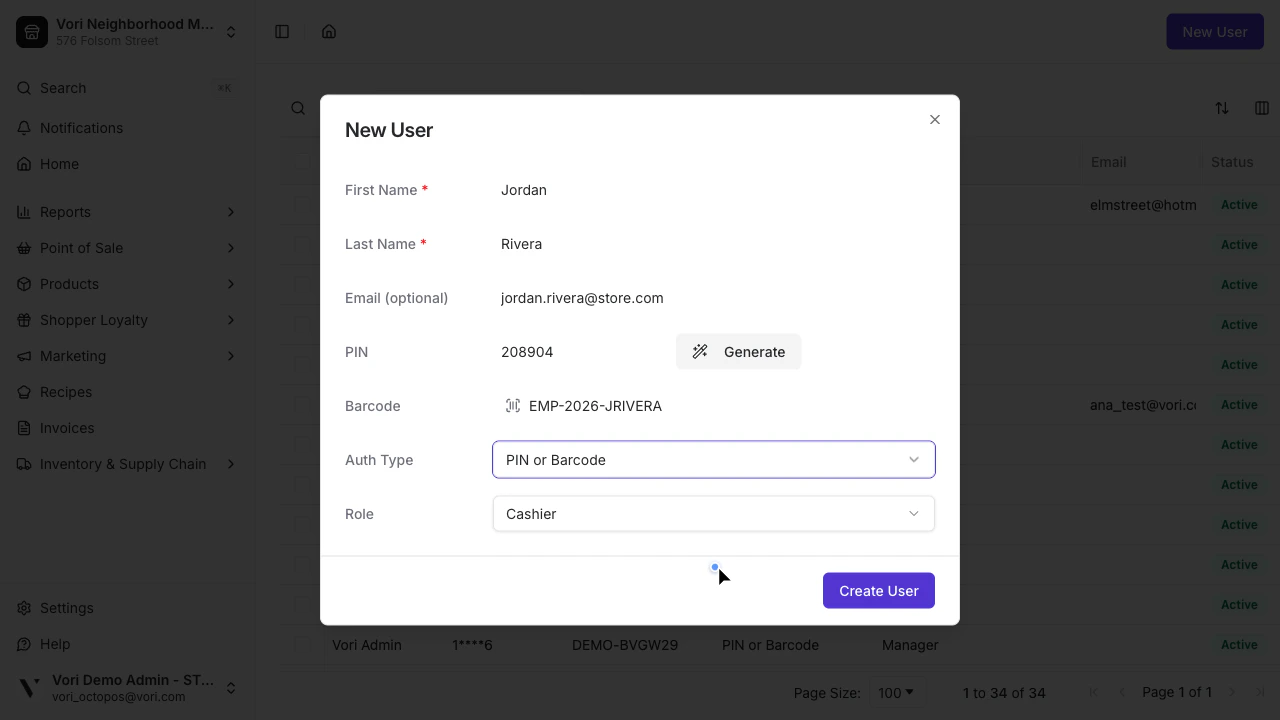
Choose how this employee will sign in at the register. **PIN Only** is the default and works for most of your team.
| Auth Type | How they sign in |
| --------------- | --------------------------------- |
| PIN Only | 6-digit PIN at the register |
| Barcode Only | Badge scan only — no PIN fallback |
| PIN or Barcode | Either method works |
| PIN and Barcode | Both are required every time |
To use any barcode option, enter the employee's badge barcode in the **Barcode** field. You can scan it with a USB barcode scanner or type the value manually.
Vori supports the following barcode formats:
* **QR Code**
* **Code 128**
* **Code 39**
Your store supplies its own badge cards — Vori doesn't provide them. Many stores generate a free barcode at [Kenco Label](https://www.kencolabel.com/barcodes), choose one of the formats above, then print it, laminate it, and clip it to a lanyard the cashier scans at the register. You can also order pre-printed badge cards from a label vendor if you'd rather not make your own.
The employee is added to your roster and can log in to the POS immediately.
***
## Edit or Deactivate an Existing User
Turnover happens. Keep your store secure by updating user details or deactivating staff who no longer work at your location.
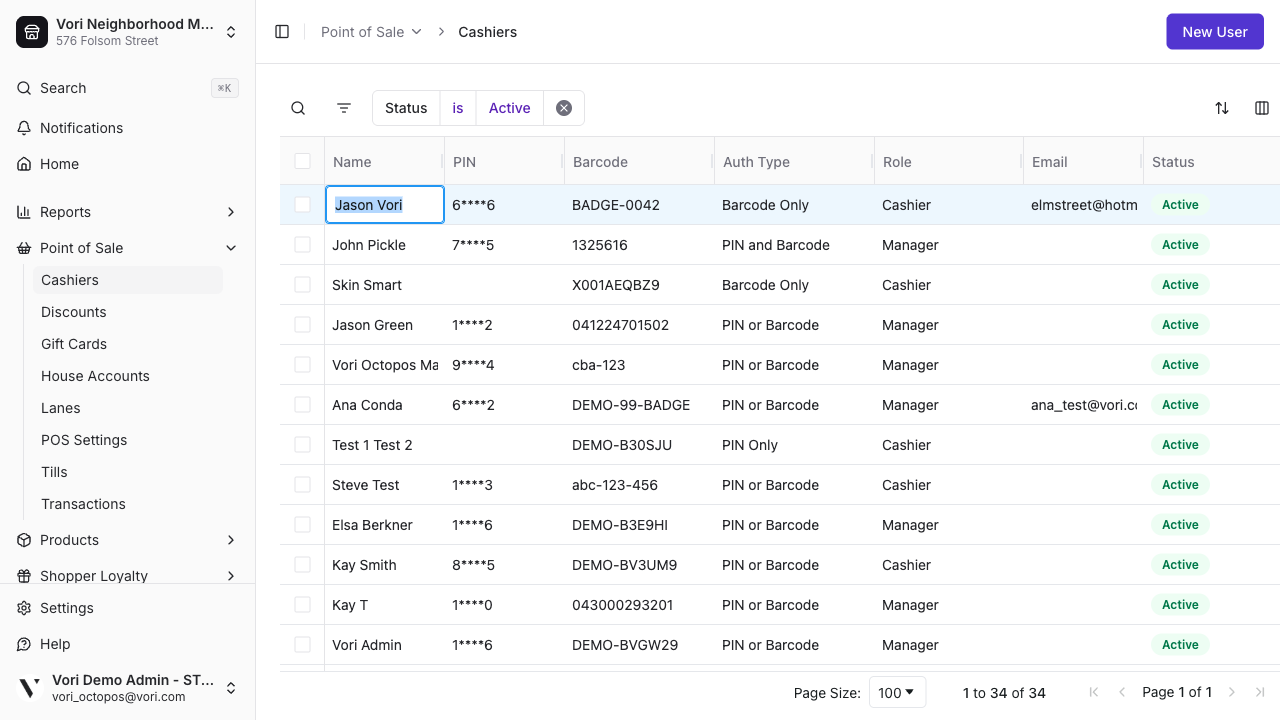
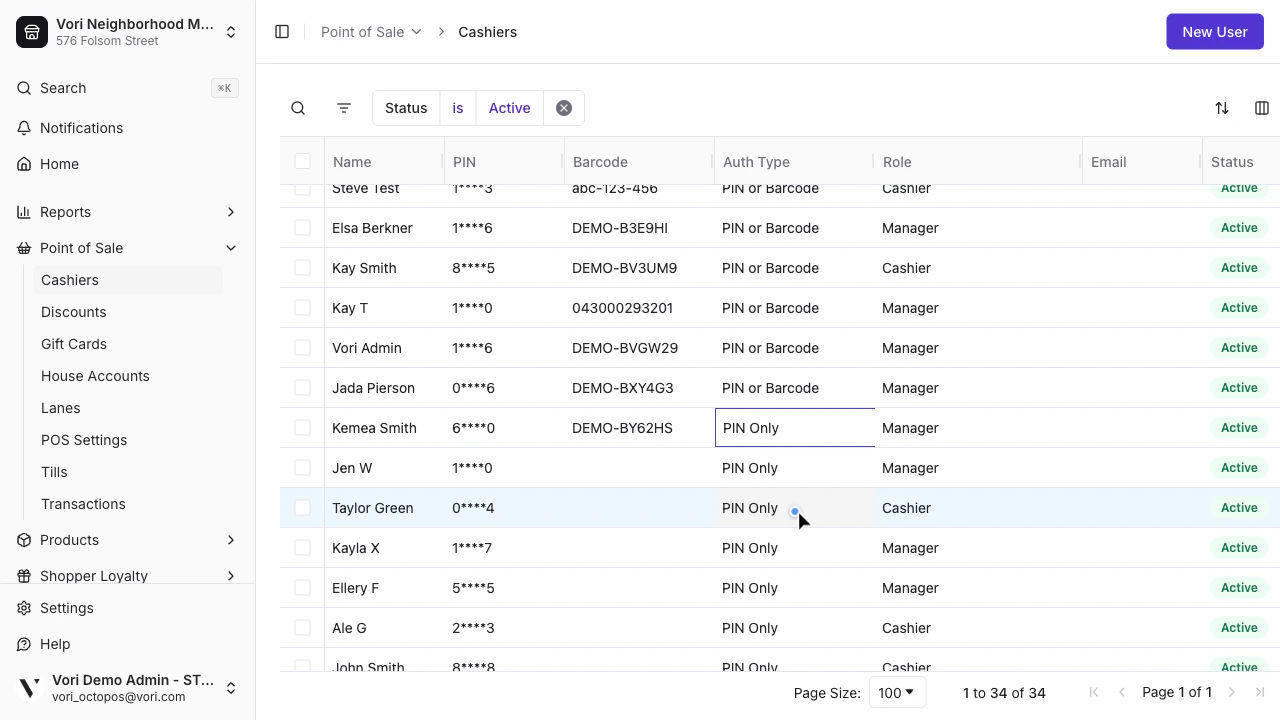
Everything in the Cashiers grid is editable inline — no need to delete and re-add an employee.
Click the field you want to update — Name, Role, PIN, Barcode, or Auth Type. The cell enters edit mode immediately.
To change the Auth Type, click the cell and then click the dropdown arrow on the right to open the options.
Changes take effect immediately.
Change **Status** from **Active** to **Inactive**. The employee will no longer be able to log in to the POS.
If you're adding barcode access to an existing PIN-only employee, enter the barcode value first — then change the Auth Type. Auth type options that require a barcode will not save without one.
➡️ **Next Up:** To customize specific manager permissions and POS behaviors, visit [**Customize Your POS Settings.**](/cashier-and-till-management/till-management/customize-your-pos-settings)
 Click the filter tag to change the value, or click **×** to clear it.
 Use the toolbar above the grid to find who you're looking for:
 Changes take effect immediately.