> ## Documentation Index
> Fetch the complete documentation index at: https://help.vori.com/llms.txt
> Use this file to discover all available pages before exploring further.
# Manage POS Logins, Tills, Timeouts, and Manual Updates
> Learn how to log in, log out, close tills, and change auto-logout time
### Log In to Vori POS
To start a till session:
1. Enter your **unique 6-digit PIN**.
* Each employee has a personal PIN for accurate reporting.
2. Tap **Open Till**.
3. Enter and confirm the **Opening Till Amount**.
**✏️** **Note:** Stores can configure tills to open with a preset amount. Learn more in the [**Back Office Till settings**](/cashier-and-till-management/till-management/customize-your-pos-settings) article.
***
### Log Out of Vori POS
To safely end your till session:
1. Tap your **Profile** (Cashier Name) in the bottom-right corner.
2. Tap **Log Out** on the pop-up window.
3. Confirm by tapping **Log Out** again.
***
### Closing A Till
To close your till:
1. Tap your **Profile** (Cashier Name) in the bottom-right corner of the screen.
2. Tap **Log Out** on the pop-up window.
3. Tap **Close Till**.
Depending on your store setting:
* If **Require Till Counting on Close** is enabled, you’ll be prompted to enter the final cash amount.
* If it’s disabled, the **Expected Till Amount** will auto-fill, and you'll be logged out immediately.
**✏️ Note:** The *Expected Till Amount* is automatically calculated using:
* ➕ Starting till amount
* ➕ Cash transactions
* ➖ Cash back
* ➕ Pay-ins
* ➖ Pay-outs
The **[Review Tills in Back Office View](/reporting/daily-and-shift-reports/review-and-print-the-till-report)** article details on how to edit till reports in the Back Office.
***
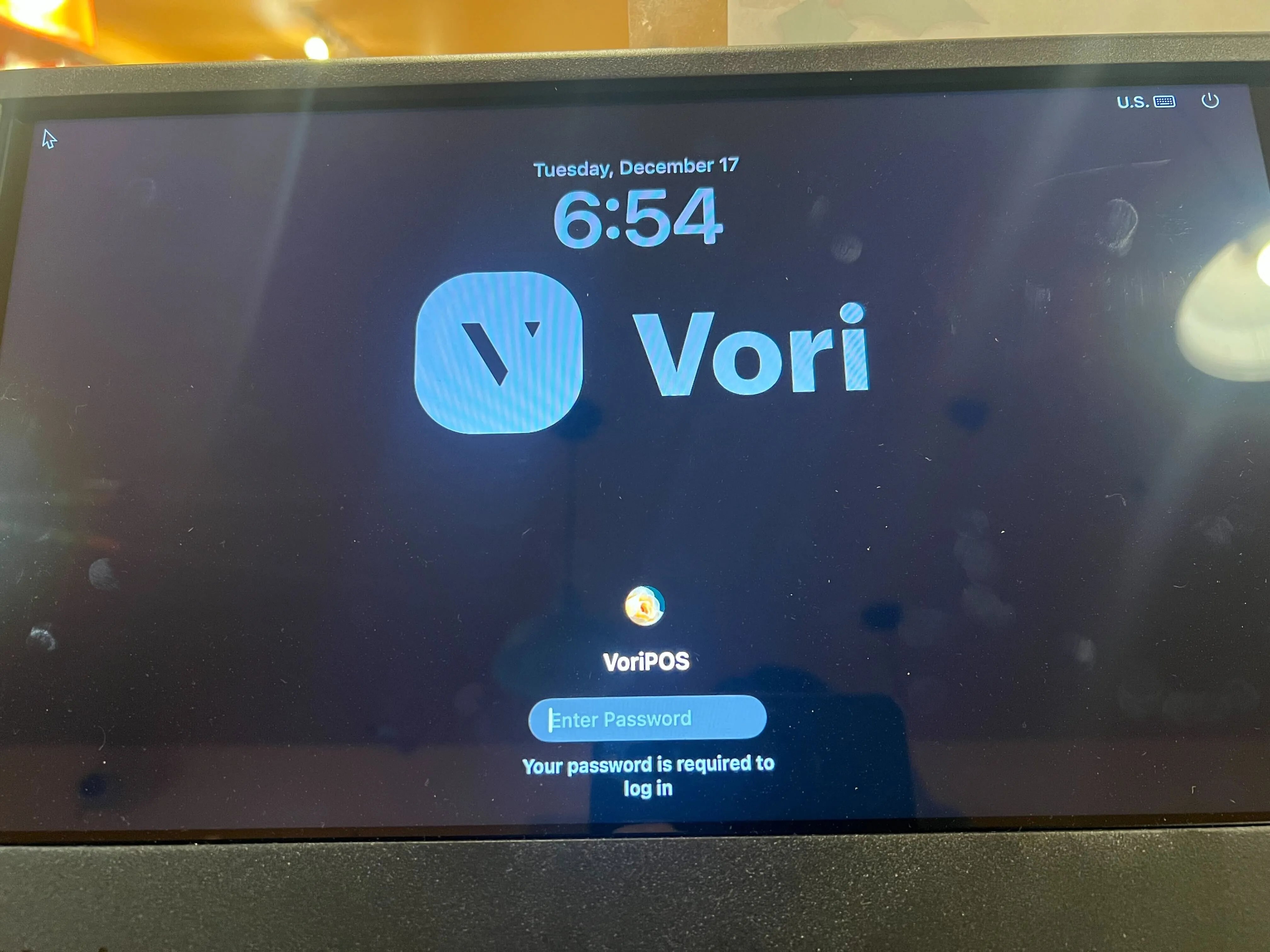
### Log In After a System Restart
If the POS IPad is power-cycled or restarted:
1. You’ll see an **admin password prompt** on startup.
2. Enter **654321** to unlock the device.
3. The cashier login screen will appear.
 ***
### Change the POS Auto-Logout Time
By default, the POS logs out a cashier after about 10 minutes of inactivity. You can adjust this time using the Developer Settings.
To change the auto-logout duration:
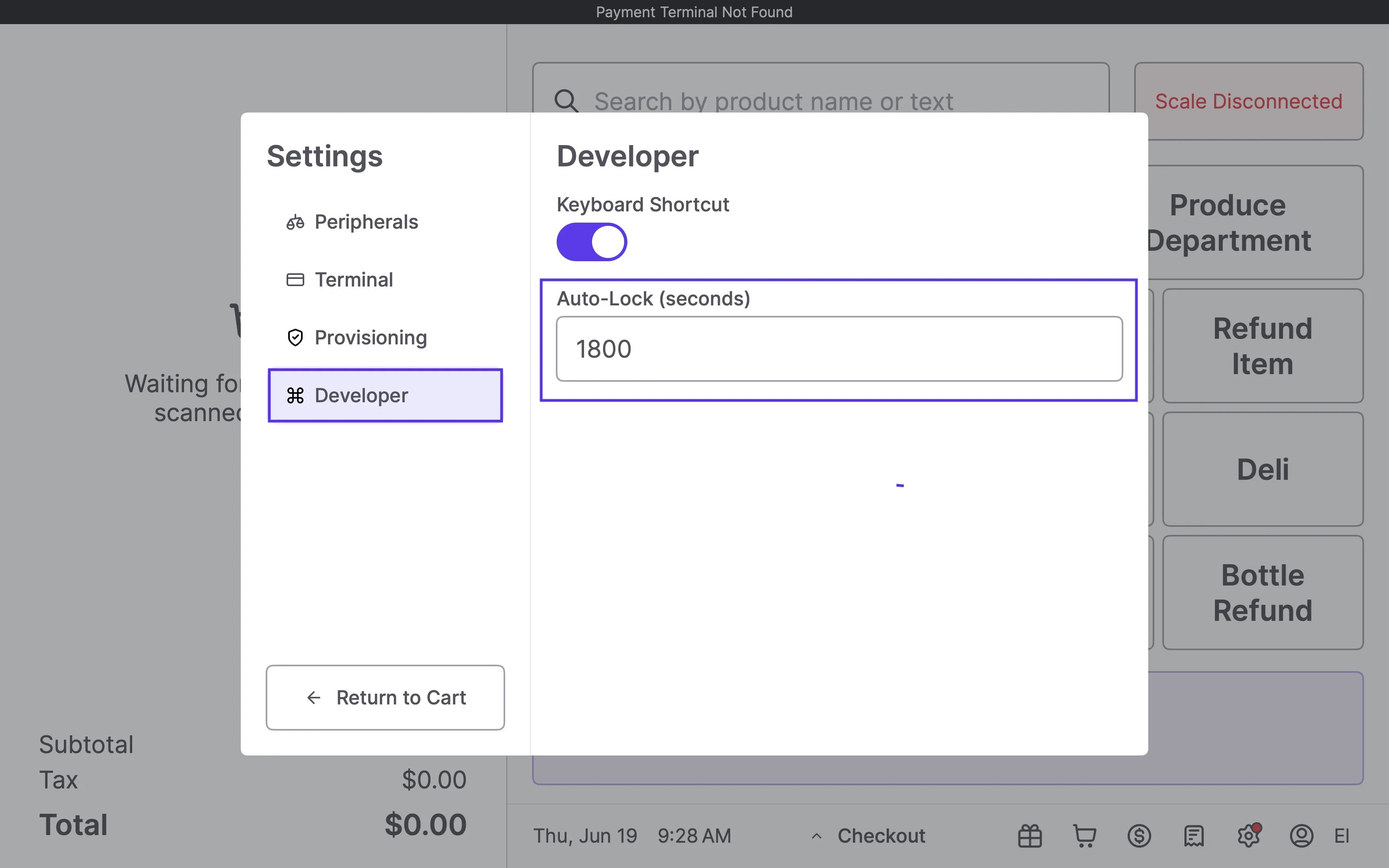
1. On the POS screen, **triple-tap** the **Date & Time** **Section**.
2. This will open the **Settings menu**. Tap **Developer**.
3. In the **Auto-Lock** field, enter the desired time **in seconds**.
1. **Important:** The minimum allowed time is **90 seconds**. If you enter a number lower than 90, the system will still default to a 90-second lockout.
***
### Change the POS Auto-Logout Time
By default, the POS logs out a cashier after about 10 minutes of inactivity. You can adjust this time using the Developer Settings.
To change the auto-logout duration:
1. On the POS screen, **triple-tap** the **Date & Time** **Section**.
2. This will open the **Settings menu**. Tap **Developer**.
3. In the **Auto-Lock** field, enter the desired time **in seconds**.
1. **Important:** The minimum allowed time is **90 seconds**. If you enter a number lower than 90, the system will still default to a 90-second lockout.
 4. Tap anywhere outside of the menu to close it.
1. **Note:** There is no "Save" or "Confirm" button. Clicking out automatically saves the entry.
5. Restart the Vori POS app.
1. The new time setting will not apply until the app has been fully restarted.
**💡 Tip:** While the minimum is 90 seconds, we recommend setting this to at least 300 seconds (5 minutes) to avoid logging out cashiers in the middle of active transactions.
#### Troubleshooting
**What if I can’t access Developer settings?**
* Confirm you're triple-tapping the **Date & Time** **Section** at the top of the POS screen.
* If it doesn’t work, try restarting the device and trying again.
* Still stuck? Contact the Vori Support Team.
***
## Related topics
- [Investigate and Resolve Till Discrepancies](/cashier-and-till-management/till-management/investigate-and-resolve-till-discrepancies.md)
- [Manage Users and Roles in Back Office](/cashier-and-till-management/pos-user-access/manage-users-and-roles-in-back-office.md)
- [Using the POS as a Cashier](/point-of-sale-pos/basic-cashier-functions/using-the-pos-as-a-cashier.md)
4. Tap anywhere outside of the menu to close it.
1. **Note:** There is no "Save" or "Confirm" button. Clicking out automatically saves the entry.
5. Restart the Vori POS app.
1. The new time setting will not apply until the app has been fully restarted.
**💡 Tip:** While the minimum is 90 seconds, we recommend setting this to at least 300 seconds (5 minutes) to avoid logging out cashiers in the middle of active transactions.
#### Troubleshooting
**What if I can’t access Developer settings?**
* Confirm you're triple-tapping the **Date & Time** **Section** at the top of the POS screen.
* If it doesn’t work, try restarting the device and trying again.
* Still stuck? Contact the Vori Support Team.
***
## Related topics
- [Investigate and Resolve Till Discrepancies](/cashier-and-till-management/till-management/investigate-and-resolve-till-discrepancies.md)
- [Manage Users and Roles in Back Office](/cashier-and-till-management/pos-user-access/manage-users-and-roles-in-back-office.md)
- [Using the POS as a Cashier](/point-of-sale-pos/basic-cashier-functions/using-the-pos-as-a-cashier.md)