> ## Documentation Index
> Fetch the complete documentation index at: https://help.vori.com/llms.txt
> Use this file to discover all available pages before exploring further.
# Process a Bottle Deposit Refund at the POS
> This article explains how to complete a bottle deposit refund using the Vori POS
### Introduction
Bottle deposit refunds can be processed through the POS when a shopper returns an eligible item. The system requires that an item associated with a bottle deposit be added to the basket before the refund can be issued. There are currently two ways to complete this workflow.
#### Requirements
To process a bottle refund at the POS, the cashier must first add an item that has an associated bottle deposit to the basket.
Bottle deposit refunds may be issued in one of two ways:
1. **Using the Quick Action button.**
2. **Using the item's detail menu.**
Directions for these two options can be found below.
***
### **Issuing a bottle refund using the Quick Action button**
1. Add the product with an associated bottle deposit to the basket.
2. Select the `Bottle Refund` Quick Action button on the cashier screen.
1. The product will convert from a sale item to the bottle refund.
***
### Issuing a bottle refund u**sing the item's detail menu**
1. Add the product with an associated bottle deposit to the basket.
2. Tap the item in the basket, then select `...More`.
3. Select `Bottle Refund`, then `Create Bottle Refund` to confirm the change.
1. The product will convert from a sale item to the bottle refund.
***
### Additional Notes:
1. The bottle refund button will always change the last scanned item in a basket, or the manually selected item.
1. To issue a bottle refund in the same transaction as selling a new item with a bottle attached, first issue the refund and then add the new item.
⚠️ **Caution -** It is not recommend to use a designated product labeled **B\*\*\*\*ottle Refund** to issue bottle deposit refunds. Bottle deposits are handled as item modifiers, not standalone products, through the POS.
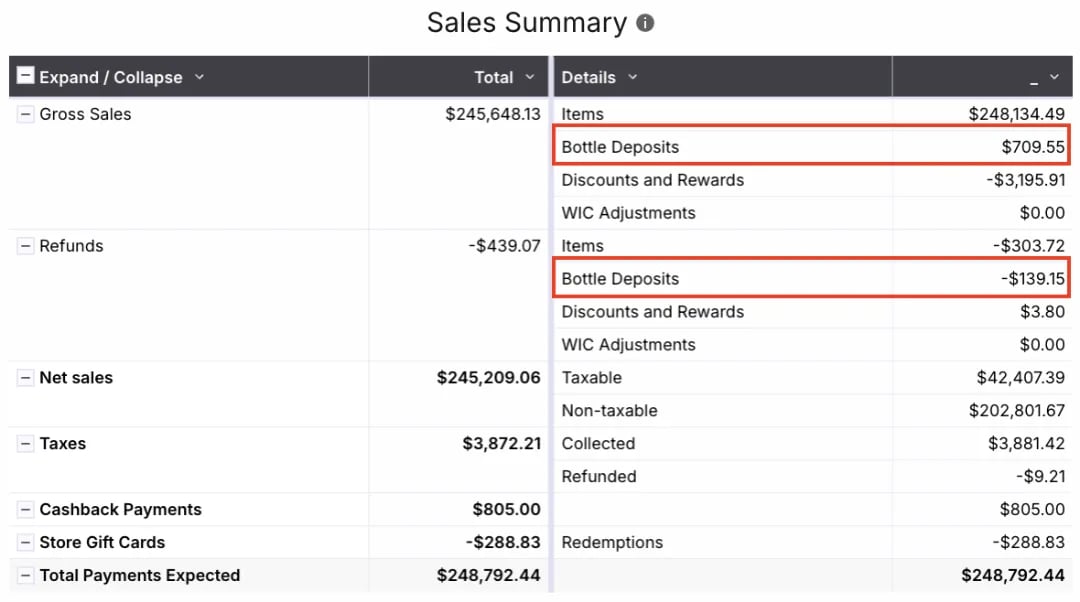
Using a **B\*\*\*\*ottle Refund** product will misreport the store's sales and tax data. Refer to the Sales Summary section of the Sales Overview report in Back Office for accurate tracking.
 ## Related topics
- [Frequently Asked Questions](/faqs.md)
- [Process Refunds on the POS](/point-of-sale-pos/basic-cashier-functions/process-refunds-on-the-pos.md)
- [Create Quick Actions in Back Office](/point-of-sale-pos/pos-customization-and-setup/create-quick-actions-in-back-office.md)
## Related topics
- [Frequently Asked Questions](/faqs.md)
- [Process Refunds on the POS](/point-of-sale-pos/basic-cashier-functions/process-refunds-on-the-pos.md)
- [Create Quick Actions in Back Office](/point-of-sale-pos/pos-customization-and-setup/create-quick-actions-in-back-office.md)