> ## Documentation Index
> Fetch the complete documentation index at: https://help.vori.com/llms.txt
> Use this file to discover all available pages before exploring further.
# Create and Manage Item Modifiers
> Discover the latest updates to the taxes and item modifier pages.
***
### Taxes
#### Create a New Tax
Follow these steps to create a new tax rate.
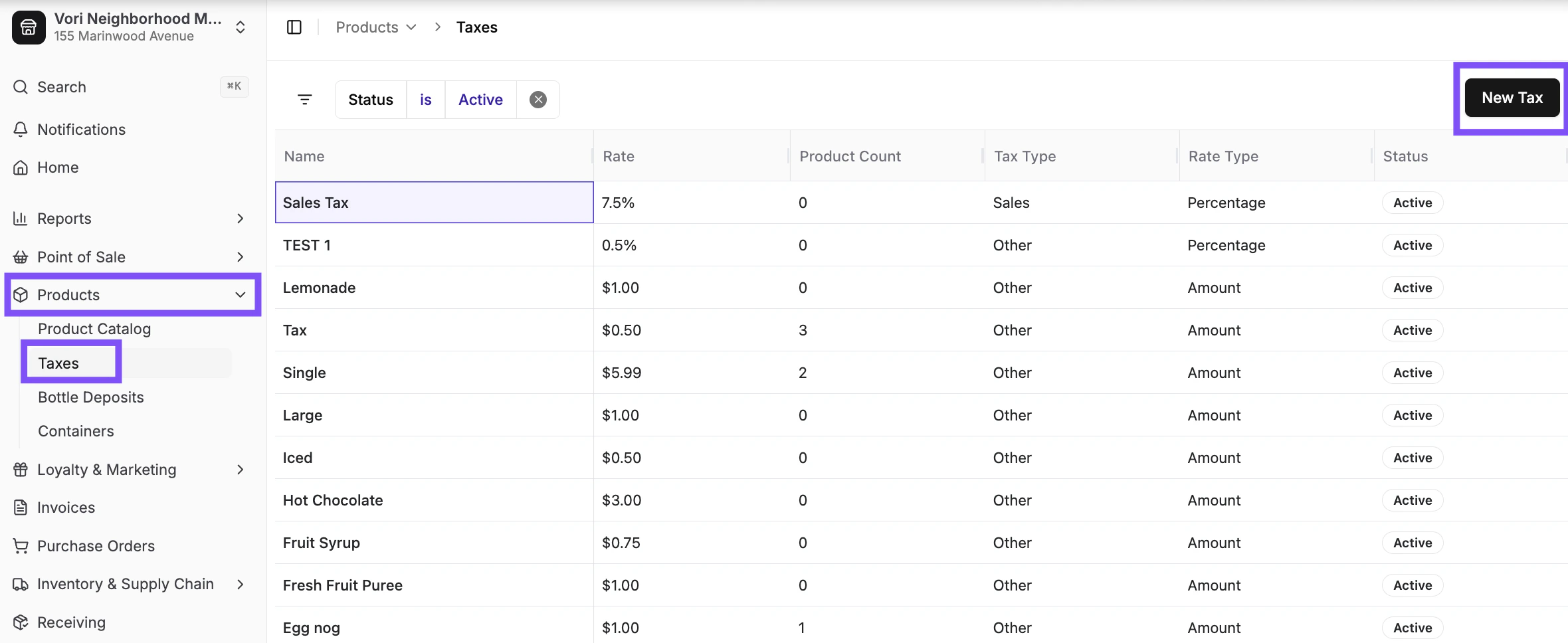
1. In the [New Back Office](https://app.vori.com/), select **Products** on the lefthand menu, then select **[Taxes](https://app.vori.com/retail/taxes)**.
2. Click the **New Tax** button in the top right corner to open the **Quick Create** window.
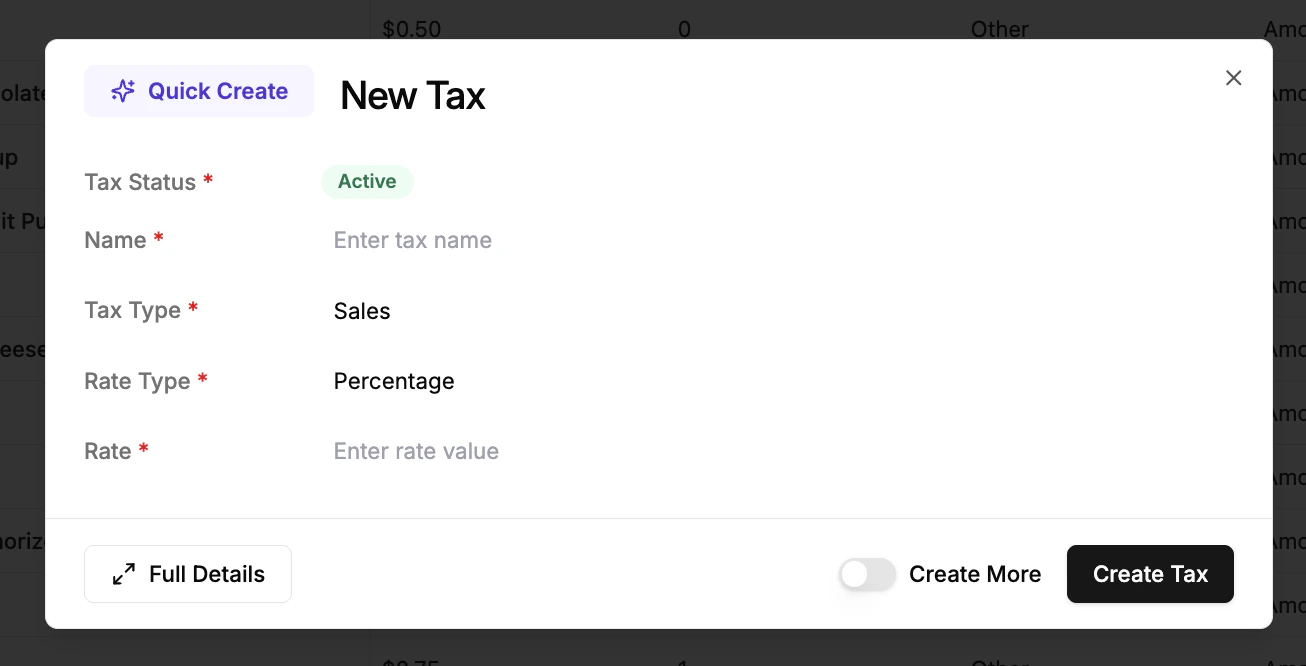
 3. Fill out the tax details:
* \*\*Tax Status:\*\*Active
* **Tax Name:** Enter an easily identifiable name.
* **Tax Type:** Choose **Sales** (if Sales Tax) or **Other** for reporting purposes.
* **Rate Type:** Select how the tax is calculated.
* **Amount:** A flat fee added to an item.
* **Percentage:** A rate calculated from the item's sales price.
* **Rate:** Enter the value for the amount or percentage.
4. Click **Create Tax** to save.
3. Fill out the tax details:
* \*\*Tax Status:\*\*Active
* **Tax Name:** Enter an easily identifiable name.
* **Tax Type:** Choose **Sales** (if Sales Tax) or **Other** for reporting purposes.
* **Rate Type:** Select how the tax is calculated.
* **Amount:** A flat fee added to an item.
* **Percentage:** A rate calculated from the item's sales price.
* **Rate:** Enter the value for the amount or percentage.
4. Click **Create Tax** to save.
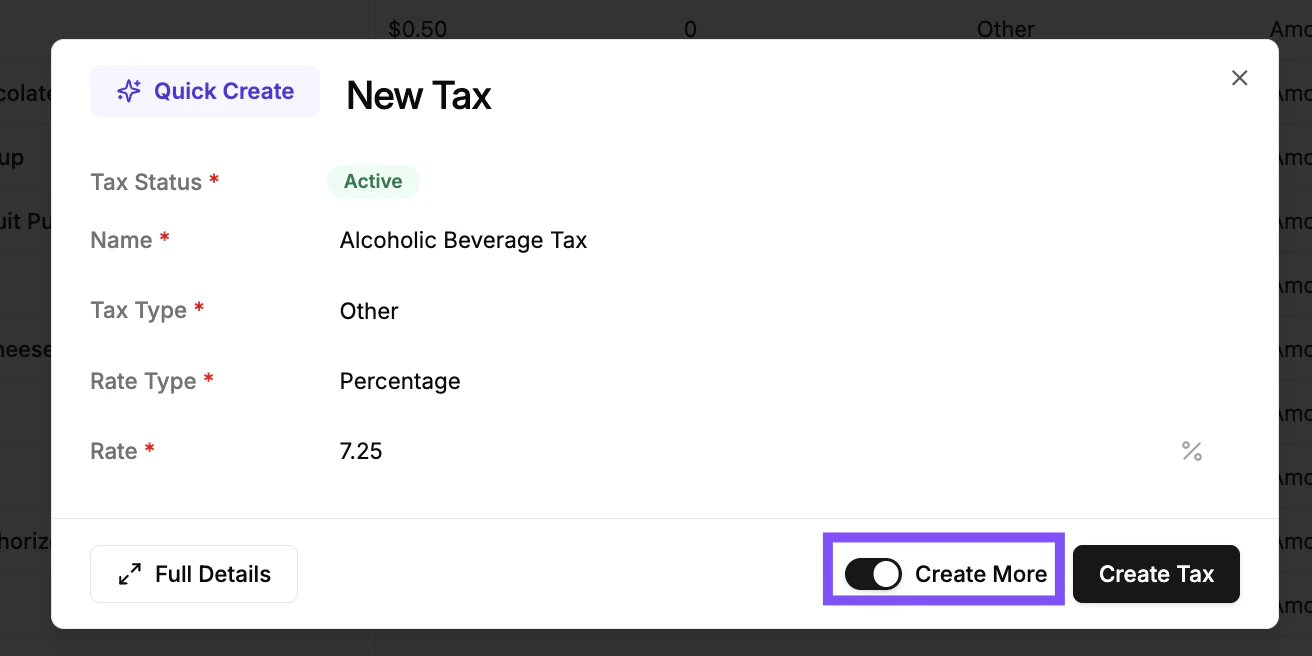
 💡 **Tip:** Toggle on the **Create More** to quickly add another tax after saving.
 #### Edit Taxes
Follow these steps to edit a tax rate.
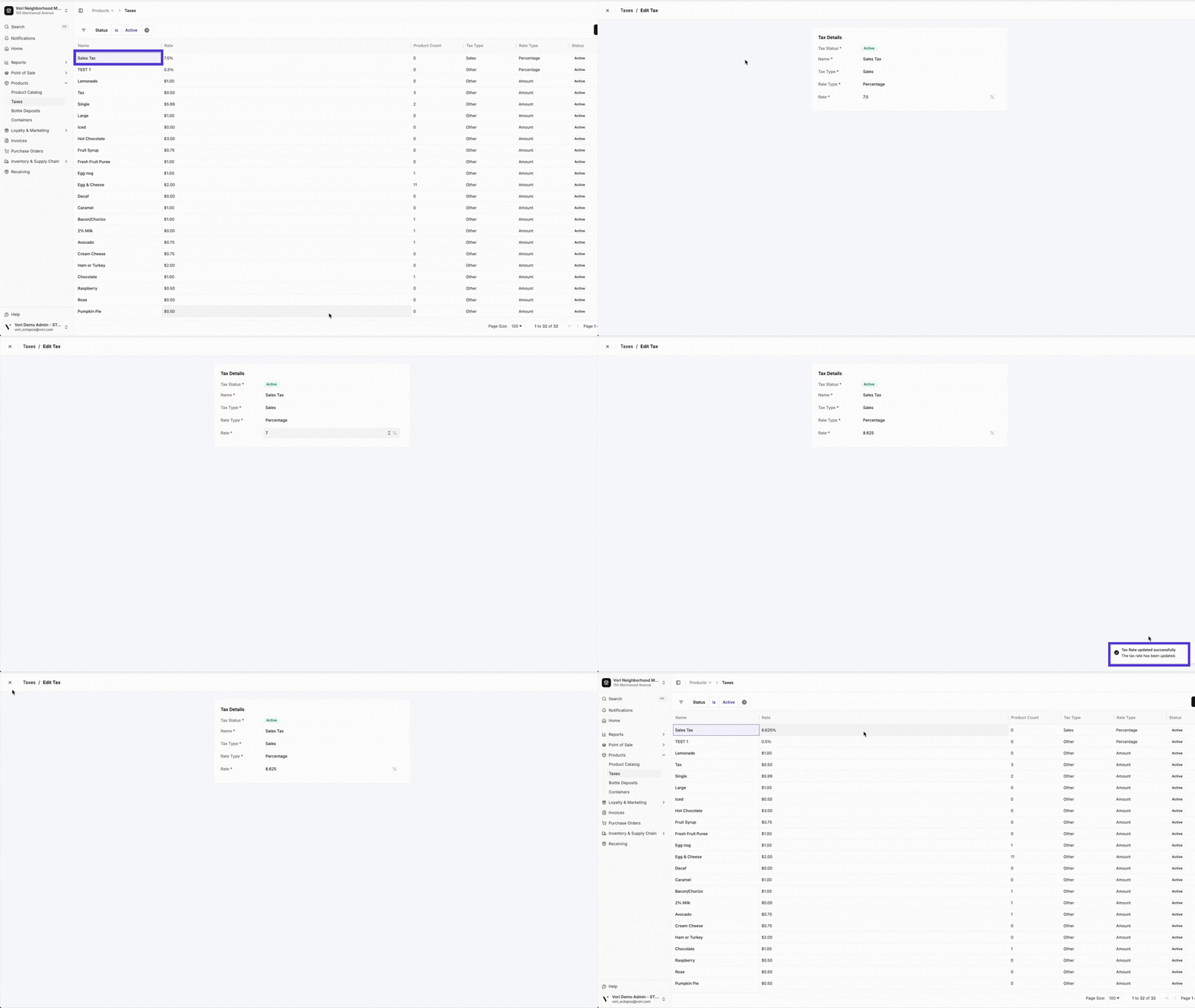
1. From the **Taxes** list, hover your cursor over the tax you wish to change.
2. Click the **Open** button that appears on the right side of the row.
3. On the **Edit Tax** page, update the necessary fields.
1. To change the status, click the **Tax Status** field and select **Active** or **Inactive** from the dropdown.
2. You can also edit the name, type, or rate.
4. Changes are saved automatically, and a confirmation message will appear in the bottom right corner.
#### Edit Taxes
Follow these steps to edit a tax rate.
1. From the **Taxes** list, hover your cursor over the tax you wish to change.
2. Click the **Open** button that appears on the right side of the row.
3. On the **Edit Tax** page, update the necessary fields.
1. To change the status, click the **Tax Status** field and select **Active** or **Inactive** from the dropdown.
2. You can also edit the name, type, or rate.
4. Changes are saved automatically, and a confirmation message will appear in the bottom right corner.
 #### Filter & Search the Taxes Catalog
You can easily find specific taxes using the search and filter options at the top of the list.
Use the search bar at the top of the page to quickly find a tax by its name.
1. In the search bar, type the name of the tax.
2. The list will update automatically to show matching results.
Use filters to narrow down the tax list by specific criteria.
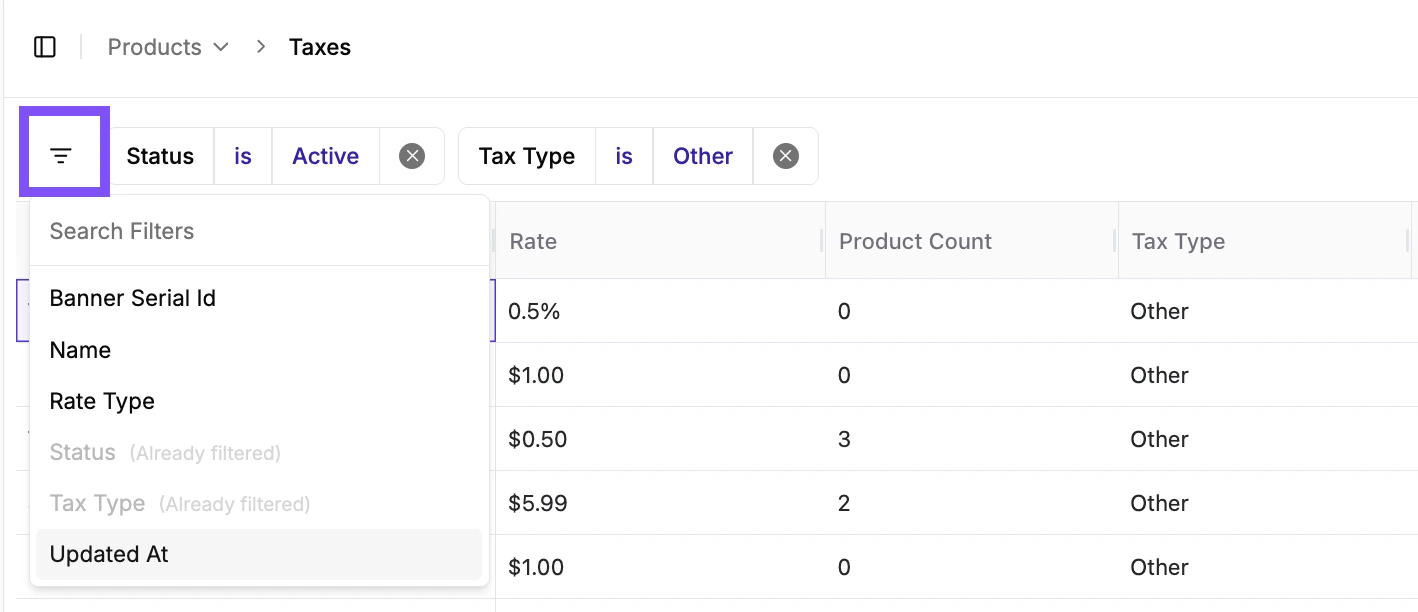
1. Click the **Filter icon** (three horizontal lines) on the top left of the table to open the **Search Filters** panel.
2. Select a category to filter by, such as **Status, Name,** **Rate Type** or **Tax Type**.
3. Choose a condition (e.g., is, equals, contains) and select a value.
4. You can combine multiple filters to narrow your results.\\
#### Filter & Search the Taxes Catalog
You can easily find specific taxes using the search and filter options at the top of the list.
Use the search bar at the top of the page to quickly find a tax by its name.
1. In the search bar, type the name of the tax.
2. The list will update automatically to show matching results.
Use filters to narrow down the tax list by specific criteria.
1. Click the **Filter icon** (three horizontal lines) on the top left of the table to open the **Search Filters** panel.
2. Select a category to filter by, such as **Status, Name,** **Rate Type** or **Tax Type**.
3. Choose a condition (e.g., is, equals, contains) and select a value.
4. You can combine multiple filters to narrow your results.\\
 ***
### Bottle Deposits
#### Create a New Bottle Deposit
Follow these steps to create a new bottle deposit item modifier.
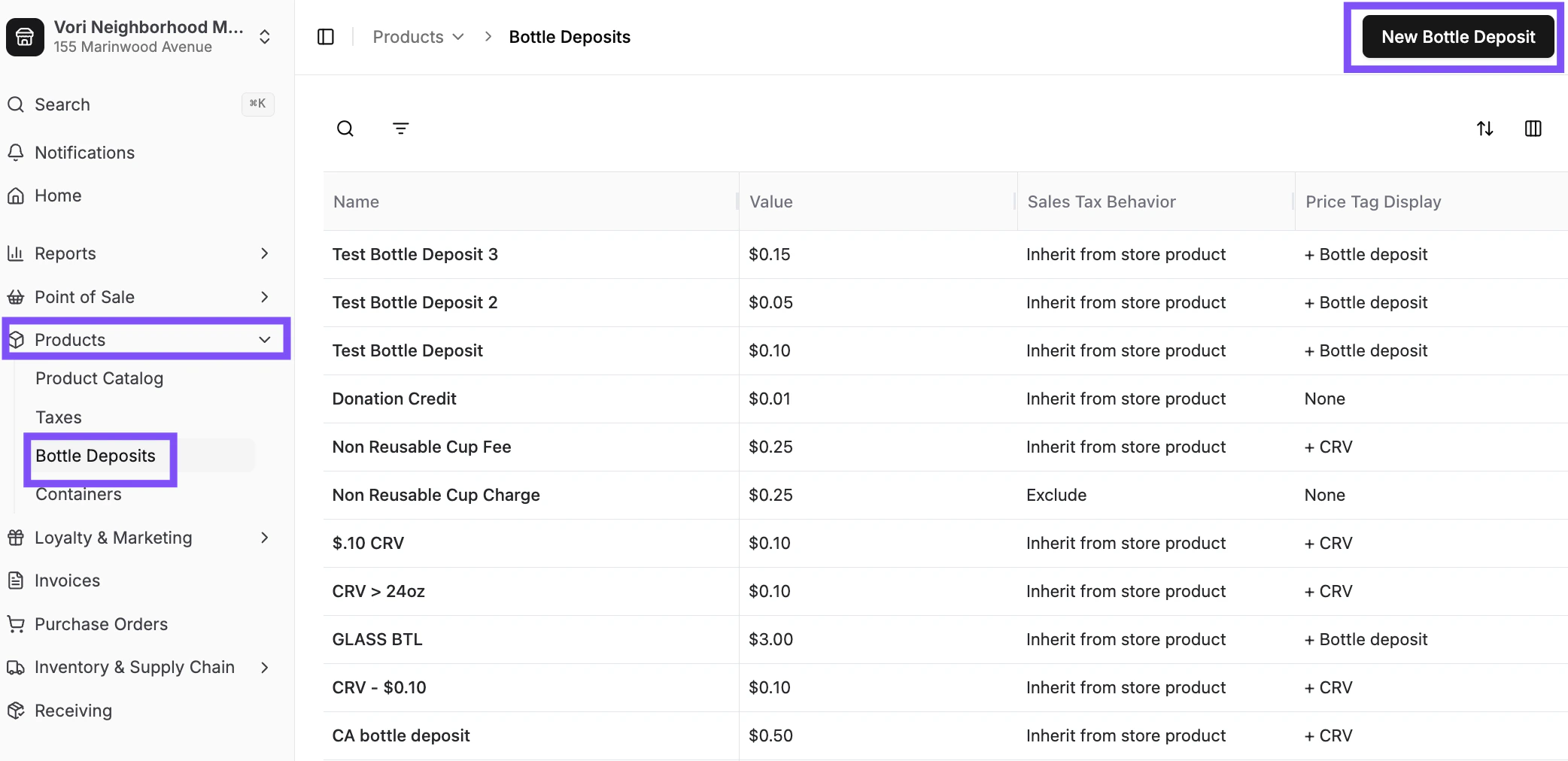
1. Navigate to **Products** > **[Bottle Deposits](https://app.vori.com/retail/bottle-deposits)** from the side menu.
2. Click **New Bottle Deposit** in the top right corner.\\
***
### Bottle Deposits
#### Create a New Bottle Deposit
Follow these steps to create a new bottle deposit item modifier.
1. Navigate to **Products** > **[Bottle Deposits](https://app.vori.com/retail/bottle-deposits)** from the side menu.
2. Click **New Bottle Deposit** in the top right corner.\\
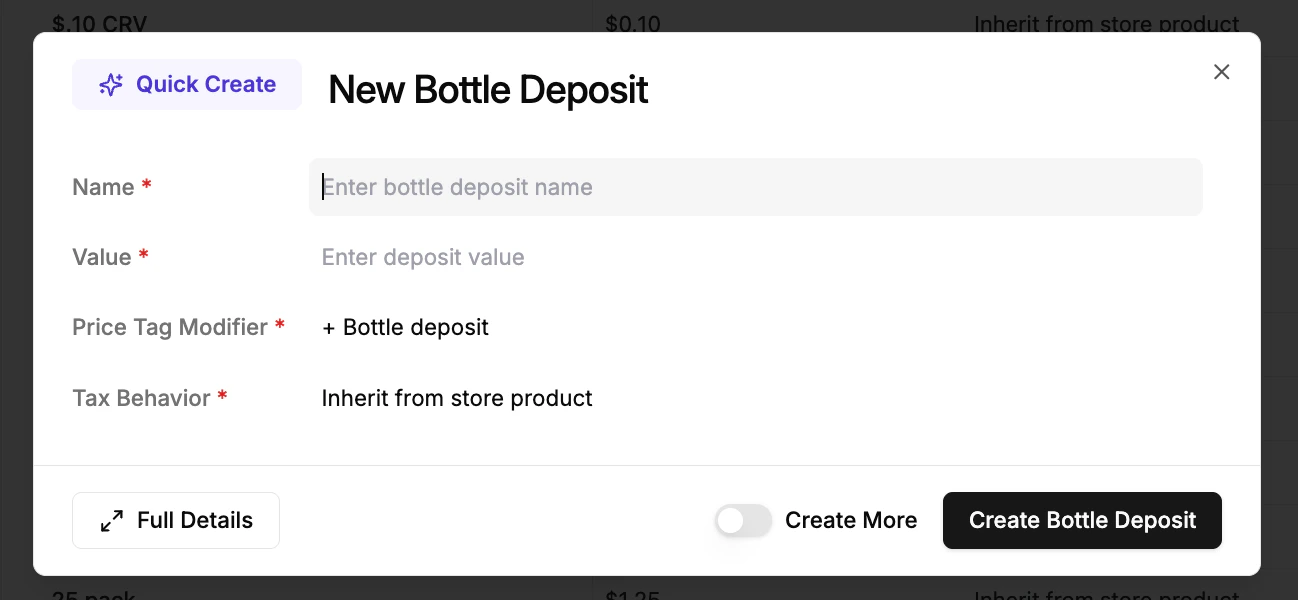
 3. In the **Quick Create** window, enter the deposit details:
* **Name:** Enter a clear name for the deposit (e.g., "CRV \< 24oz").
* **Value:** Input the dollar amount of the deposit (e.g., 0.05).
* **Price Tag Modifier:** Choose how the deposit is displayed on price tags.
* **Tax Behavior:** Select whether the deposit inherits tax from the product or is always excluded from tax.
4. Click **Create Bottle Deposit**.\\
3. In the **Quick Create** window, enter the deposit details:
* **Name:** Enter a clear name for the deposit (e.g., "CRV \< 24oz").
* **Value:** Input the dollar amount of the deposit (e.g., 0.05).
* **Price Tag Modifier:** Choose how the deposit is displayed on price tags.
* **Tax Behavior:** Select whether the deposit inherits tax from the product or is always excluded from tax.
4. Click **Create Bottle Deposit**.\\
 💡 **Tip:** Check the **Create More** box to quickly add another deposit after saving.
#### Edit a New Bottle Deposit
Follow these steps to edit a bottle deposit.
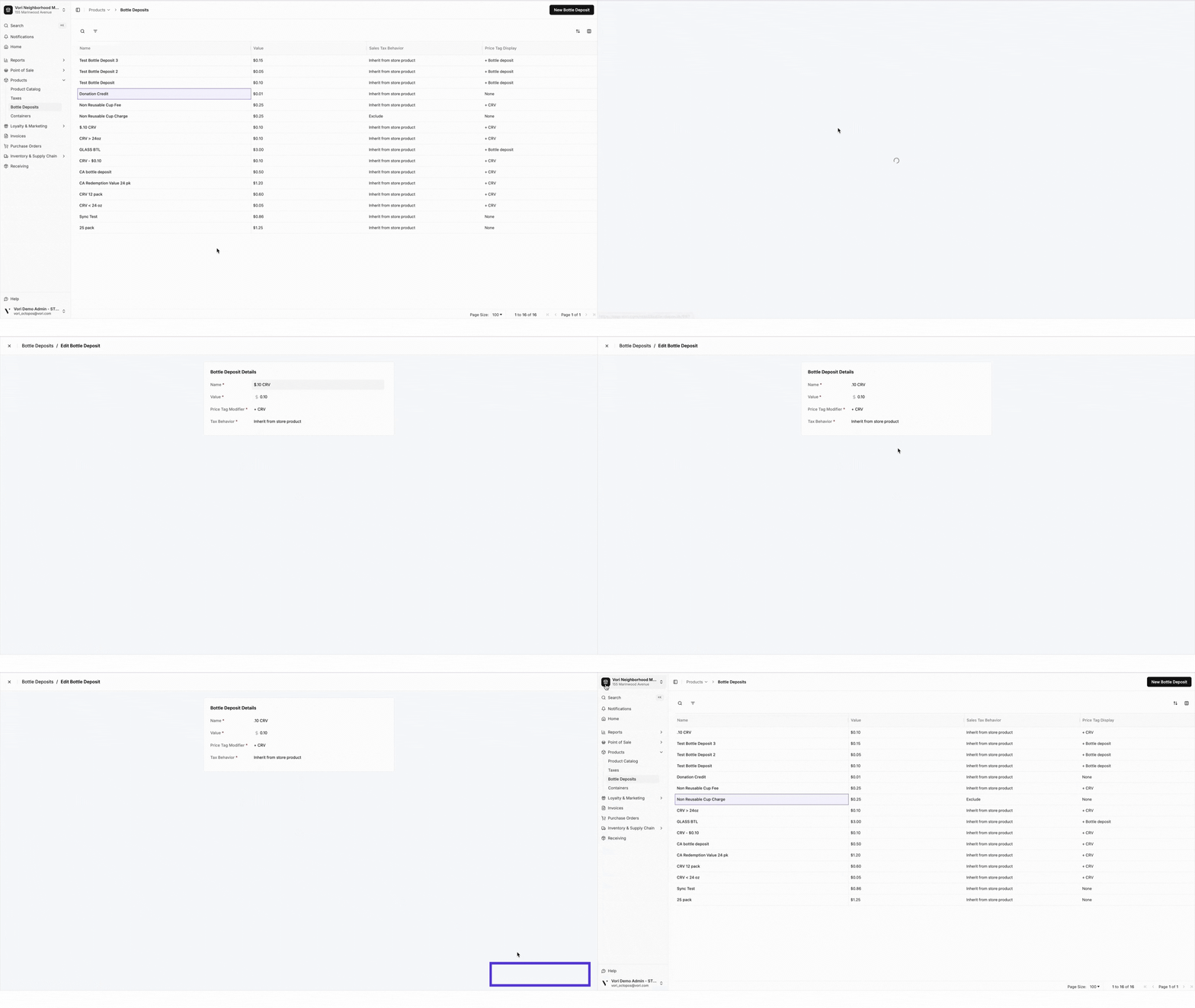
1. From the **Bottle Deposits** list, hover your cursor over the deposit you wish to change.
2. Click the **Open** button that appears on the right side of the row.
3. On the **Edit Bottle Deposit** page, update the necessary details.
4. Changes are saved automatically, and a confirmation message will appear in the bottom right corner.
💡 **Tip:** Check the **Create More** box to quickly add another deposit after saving.
#### Edit a New Bottle Deposit
Follow these steps to edit a bottle deposit.
1. From the **Bottle Deposits** list, hover your cursor over the deposit you wish to change.
2. Click the **Open** button that appears on the right side of the row.
3. On the **Edit Bottle Deposit** page, update the necessary details.
4. Changes are saved automatically, and a confirmation message will appear in the bottom right corner.
 #### Filter & Search Bottle Deposit Catalog
You can find specific bottle deposits using the search bar or the advanced filter options.
Use the search bar at the top of the page to quickly find a bottle deposit by its name.
1. In the search bar, type the name of the deposit.
2. The list will update automatically to show matching results.
Use filters to narrow down the tax list by specific criteria.
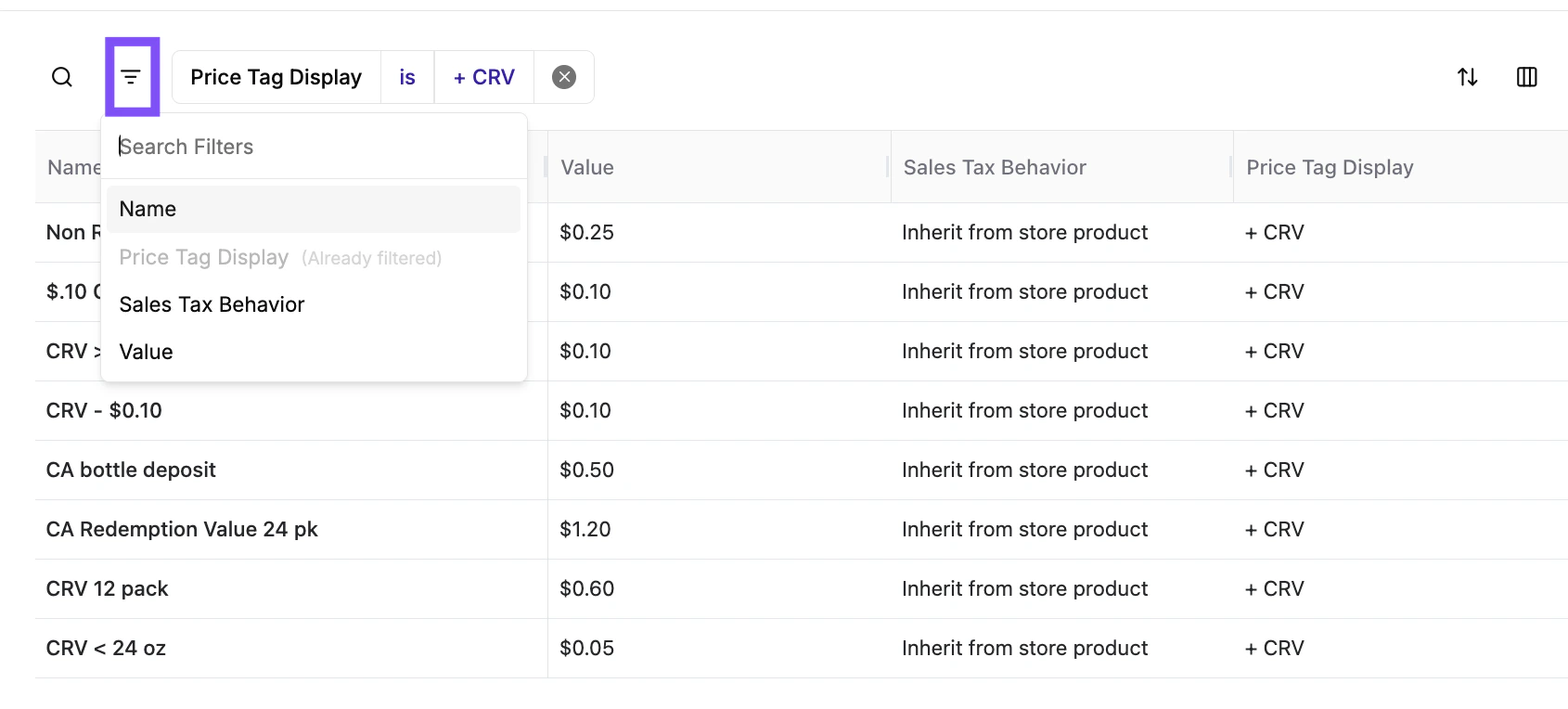
1. Click the **Filter icon** (three horizontal lines) on the top left of the table to open the **Search Filters** panel.
2. Select a category to filter by, such as **Name**, **Price Tag Display**, **Sales Tax Behavior**, or **Value**.
3. Choose a condition (e.g., is, in range) and select or enter a value.
4. You can combine multiple filters to narrow your results.
#### Filter & Search Bottle Deposit Catalog
You can find specific bottle deposits using the search bar or the advanced filter options.
Use the search bar at the top of the page to quickly find a bottle deposit by its name.
1. In the search bar, type the name of the deposit.
2. The list will update automatically to show matching results.
Use filters to narrow down the tax list by specific criteria.
1. Click the **Filter icon** (three horizontal lines) on the top left of the table to open the **Search Filters** panel.
2. Select a category to filter by, such as **Name**, **Price Tag Display**, **Sales Tax Behavior**, or **Value**.
3. Choose a condition (e.g., is, in range) and select or enter a value.
4. You can combine multiple filters to narrow your results.
 ***
### Tares
#### Create a New Tare
Follow these steps to create a new tare.
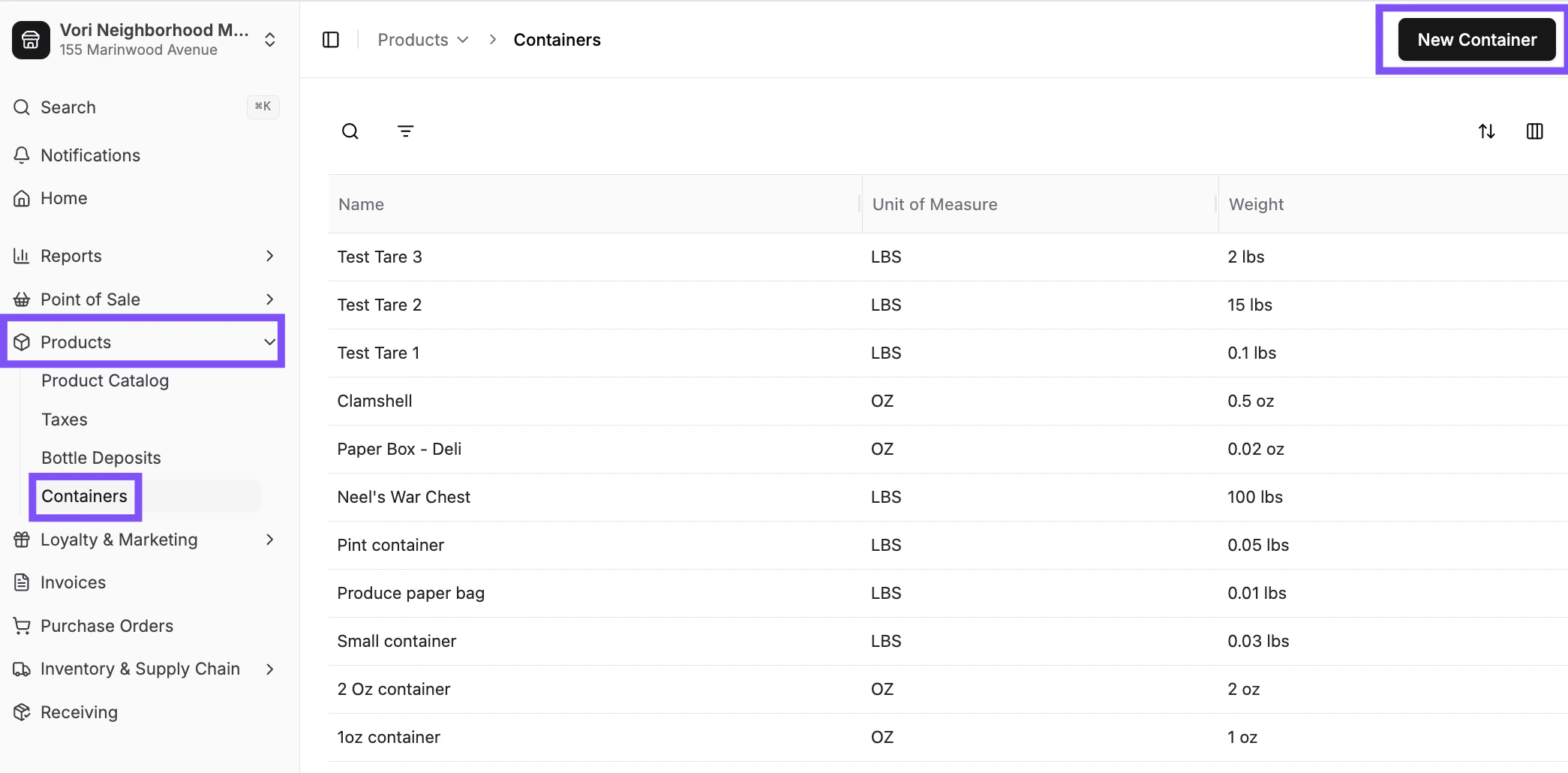
1. Navigate to **Products** > **[Containers](https://app.vori.com/retail/containers)** from the side menu.
2. Select **New Container** in the top right.
***
### Tares
#### Create a New Tare
Follow these steps to create a new tare.
1. Navigate to **Products** > **[Containers](https://app.vori.com/retail/containers)** from the side menu.
2. Select **New Container** in the top right.
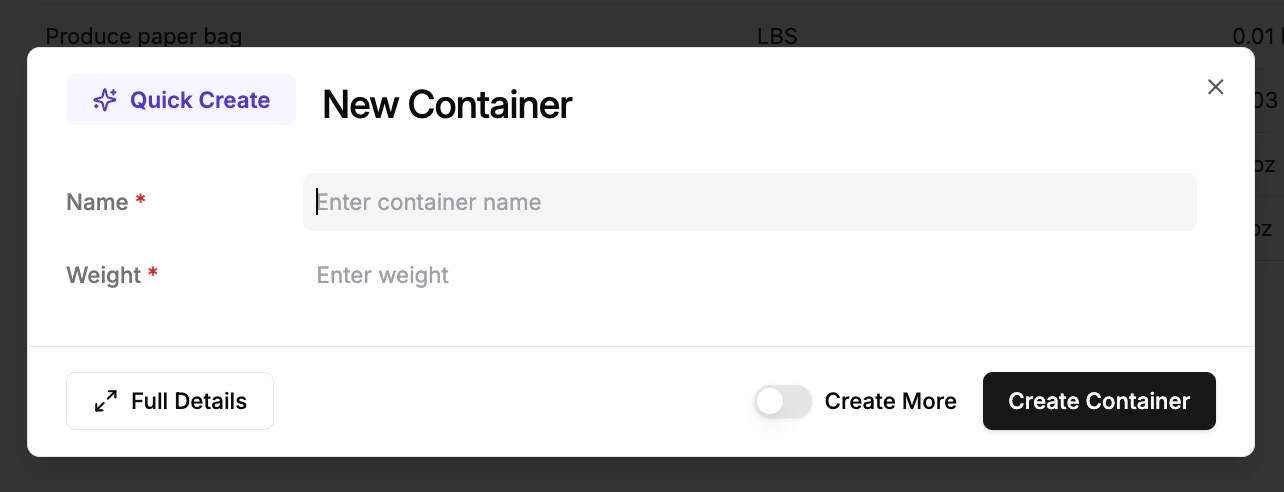
 3. Enter the container details:
* **Name:** Give the container a descriptive name (e.g., "Small Deli Container").
* **Weight:** Enter the container's weight and select the correct unit (e.g., LBS, OZ).
4. Click **Create Container**.
3. Enter the container details:
* **Name:** Give the container a descriptive name (e.g., "Small Deli Container").
* **Weight:** Enter the container's weight and select the correct unit (e.g., LBS, OZ).
4. Click **Create Container**.
 💡 **Tip:** Check the **Create More** box to quickly add another deposit after saving.
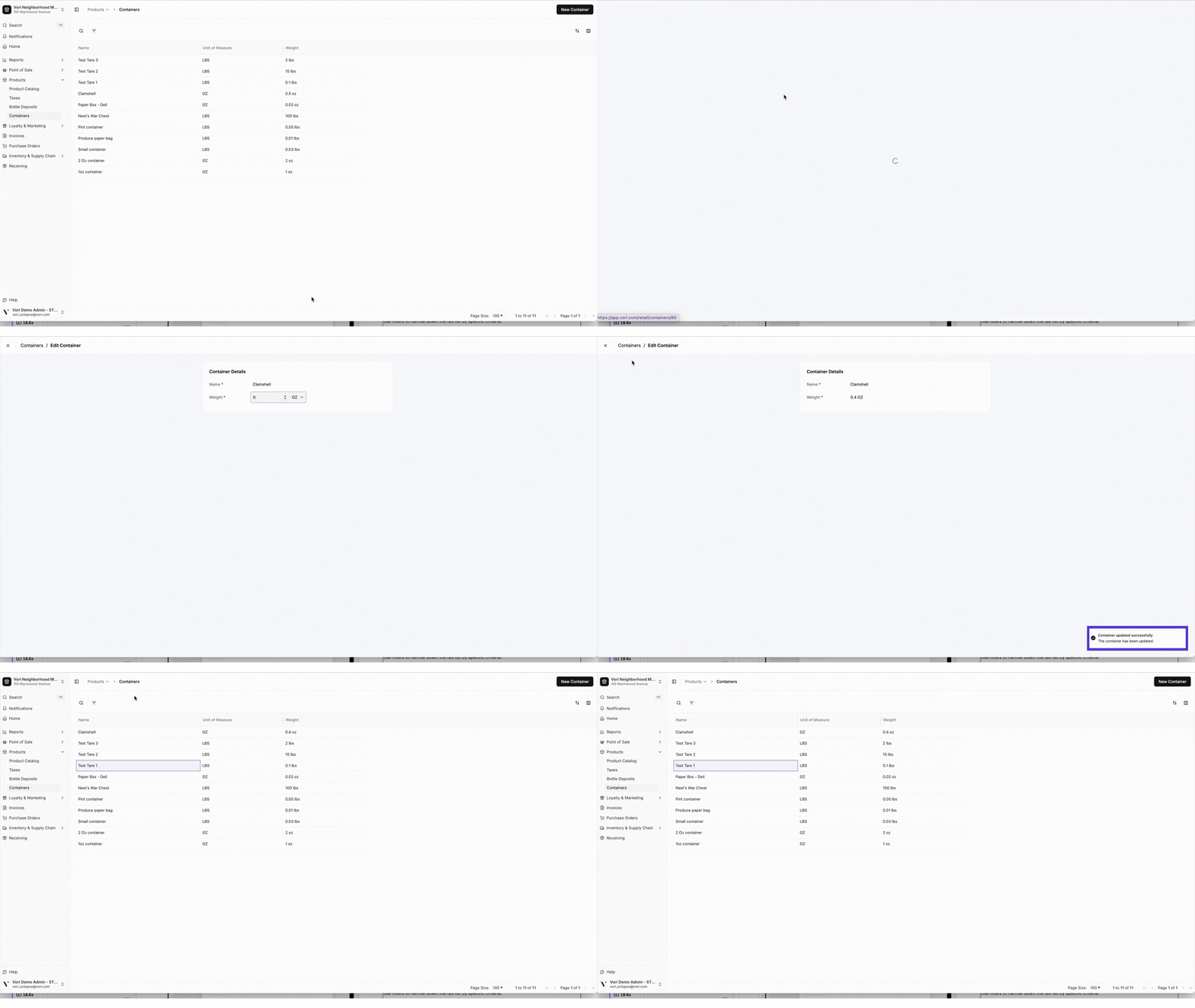
#### Edit a Tare
Follow these steps to edit a Tare.
1. From the **Containers** list, hover your cursor over the container you wish to change.
2. Click the **Open** button that appears on the right side of the row.
3. On the **Edit Container** page, update the necessary details.
4. Changes are saved automatically, and a confirmation message will appear in the bottom right corner.
💡 **Tip:** Check the **Create More** box to quickly add another deposit after saving.
#### Edit a Tare
Follow these steps to edit a Tare.
1. From the **Containers** list, hover your cursor over the container you wish to change.
2. Click the **Open** button that appears on the right side of the row.
3. On the **Edit Container** page, update the necessary details.
4. Changes are saved automatically, and a confirmation message will appear in the bottom right corner.
 #### Filter & Search the Tare Catalog
You can find specific tares using the search bar or the advanced filter options.
Use the search bar at the top of the page to quickly find a tare by its name.
1. In the search bar, type the name of the tare.
2. The list will update automatically to show matching results.
Use filters to narrow down the tax list by specific criteria.
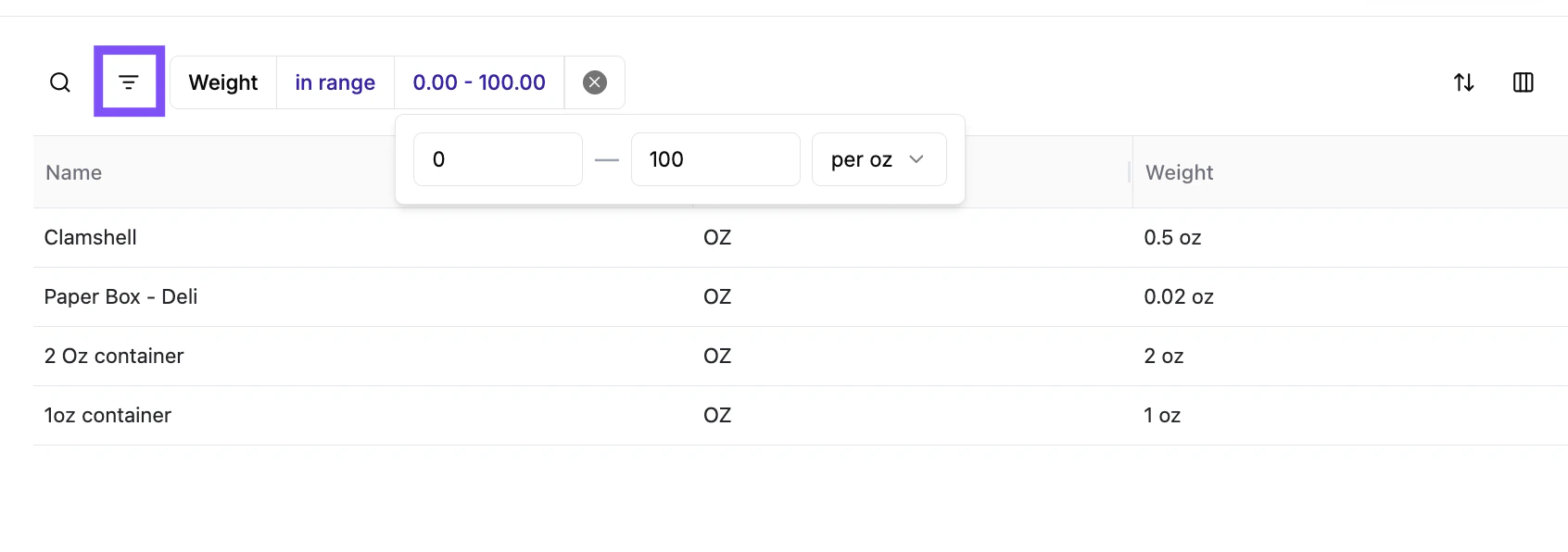
1. Click the **Filter icon** (three horizontal lines) on the top left of the table to open the **Search Filters** panel.
2. Select a category to filter by, such as **Name** or **Weight.**
3. Choose a condition (e.g., is, in range) and select or enter a value.
4. You can combine multiple filters to narrow your results.
#### Filter & Search the Tare Catalog
You can find specific tares using the search bar or the advanced filter options.
Use the search bar at the top of the page to quickly find a tare by its name.
1. In the search bar, type the name of the tare.
2. The list will update automatically to show matching results.
Use filters to narrow down the tax list by specific criteria.
1. Click the **Filter icon** (three horizontal lines) on the top left of the table to open the **Search Filters** panel.
2. Select a category to filter by, such as **Name** or **Weight.**
3. Choose a condition (e.g., is, in range) and select or enter a value.
4. You can combine multiple filters to narrow your results.