![vori-logo-black-horizontal-01 (1).png]](https://help.vori.com/hs-fs/hubfs/vori-logo-black-horizontal-01%20(1).png?height=42&name=vori-logo-black-horizontal-01%20(1).png)
Table of Contents
Before You Start
Make sure you have your tools ready so you can move fast on the floor.
Required Materials
- A registered and online ESL: The label must be active on your network.
👉 Follow the guide to register ESL - Vusion Link App: Installed on your iPhone and logged into your store profile.
- Product File: Ensure the item(s) are already on file in your product catalog in the New Back Office (app.vori.com).
Link a Product to an ESL
- Open the Vusion Link app on your iPhone.
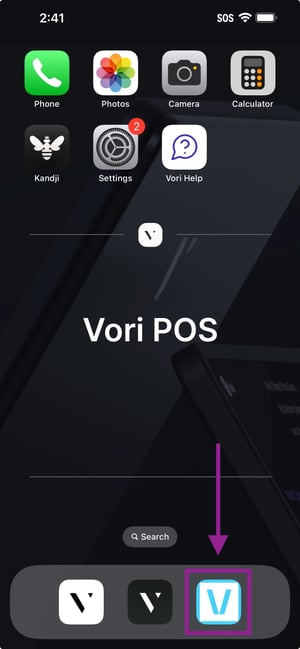
- Select the Signal icon when the "Ready to Scan" prompt appears.
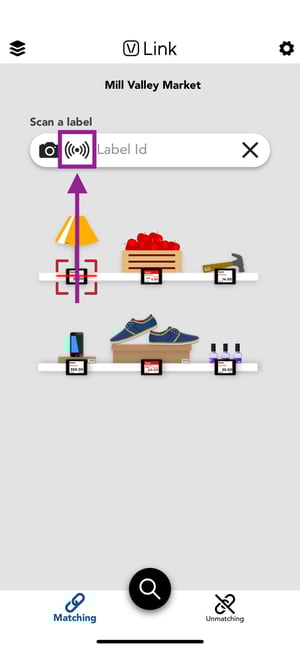
- Tap the top of your phone against the ESL tag to identify the label.
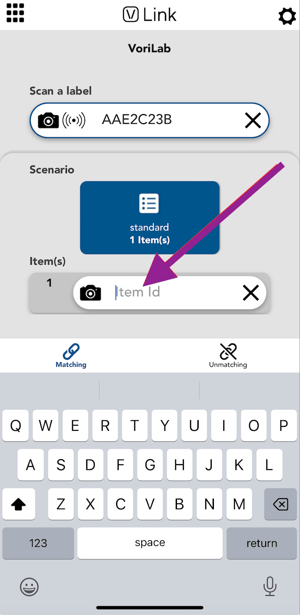
- Enter the product code using one of these methods:
- If the product has a barcode: Tap the Camera icon and scan the product barcode.
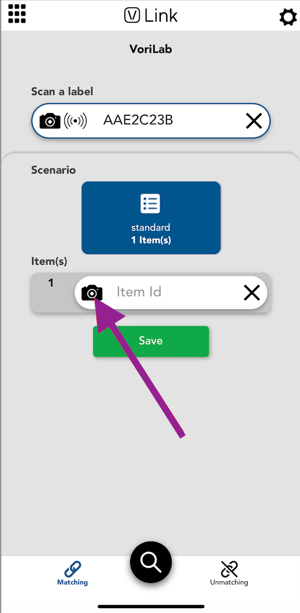
- If there is no barcode: Tap the Item ID field and manually type the product code (e.g., PLU code).
-
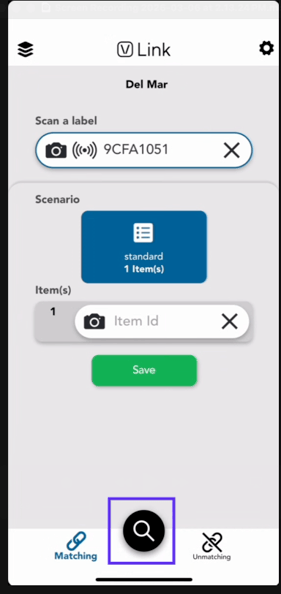
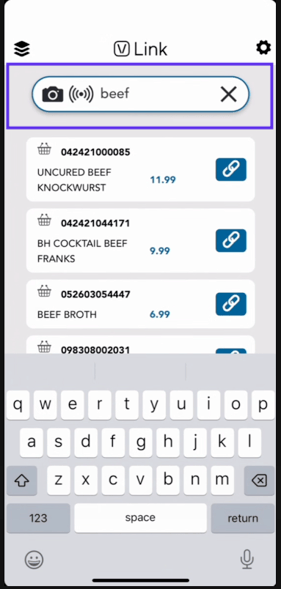
Search by Product Name: Tap out of the Item field and select the magnifying glass to search by product name. From there, enter the item in the search field, then tap the blue chain link to create the match.
 .
. 
- If the product has a barcode: Tap the Camera icon and scan the product barcode.
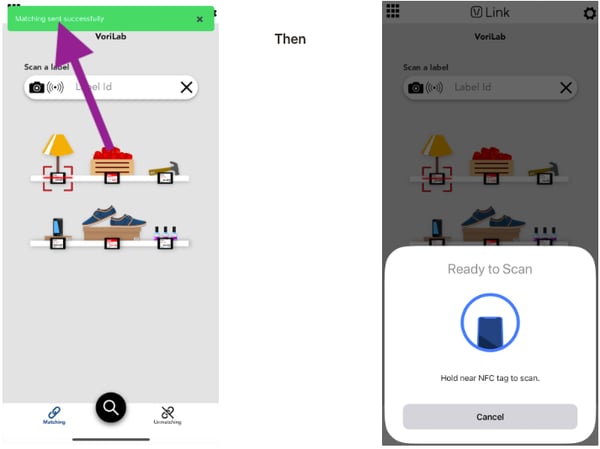
- Confirm the link: A green confirmation banner will appear at the top of the screen once successful.
- ✏️ Note: It may take up to 1 minute for the ESL to update depending on your signal strength.
- The "Ready to Scan" prompt will automatically reopen so you can move straight to the next item.
Troubleshooting
What if the ESL doesn't pair?
- Check Registration: Ensure the ESL is registered and within range of your access point.
- Retry: Try scanning the tag again or restart the app if it stalls.
- Verify Code: Double-check for typos if you entered the product code manually.
What if the ESL displays a question mark?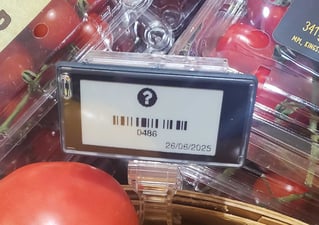
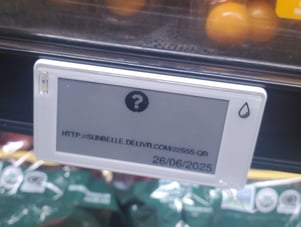
- Verify the item exists in your product catalog in the New Back Office.
- If it exists, try manually entering the code instead of scanning.
✏️ Note: You cannot link products that are not on file.