![vori-logo-black-horizontal-01 (1).png]](https://help.vori.com/hs-fs/hubfs/vori-logo-black-horizontal-01%20(1).png?height=42&name=vori-logo-black-horizontal-01%20(1).png)
Cashier Display
Viewing Rewards & Points
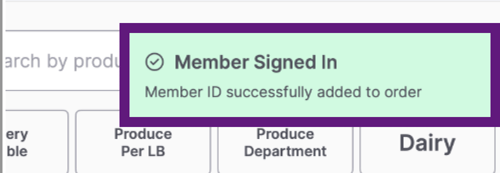
- When a member signs in on the shopper display, a notification appears on the cashier screen confirming that the member has signed up or logged in.
-
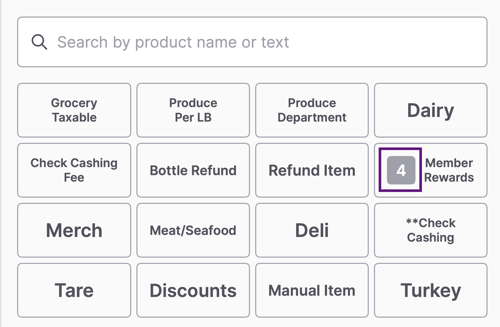
The number displayed on the Member Rewards button indicates the total number of redeemable rewards currently available to the member.
-
You can view their rewards balance in the Member Rewards tab in the quick actions panel.
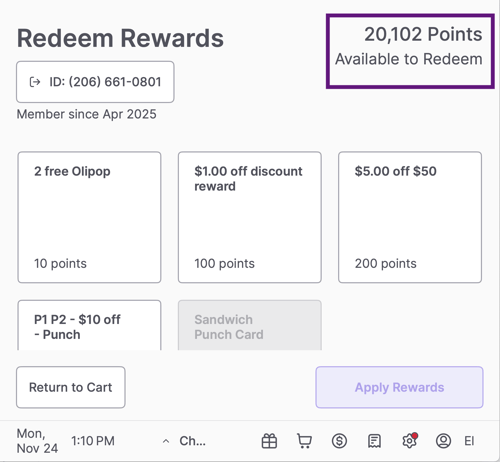
Redeem Rewards
- To redeem a reward, tap Member Rewards, choose the reward the shopper wants to use, and then select Apply Rewards.
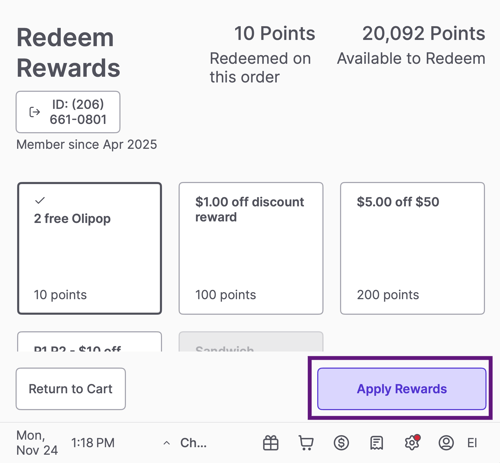
- Only one transaction-level reward can be redeemed per order. If one is selected, other transaction-level rewards will gray out automatically.
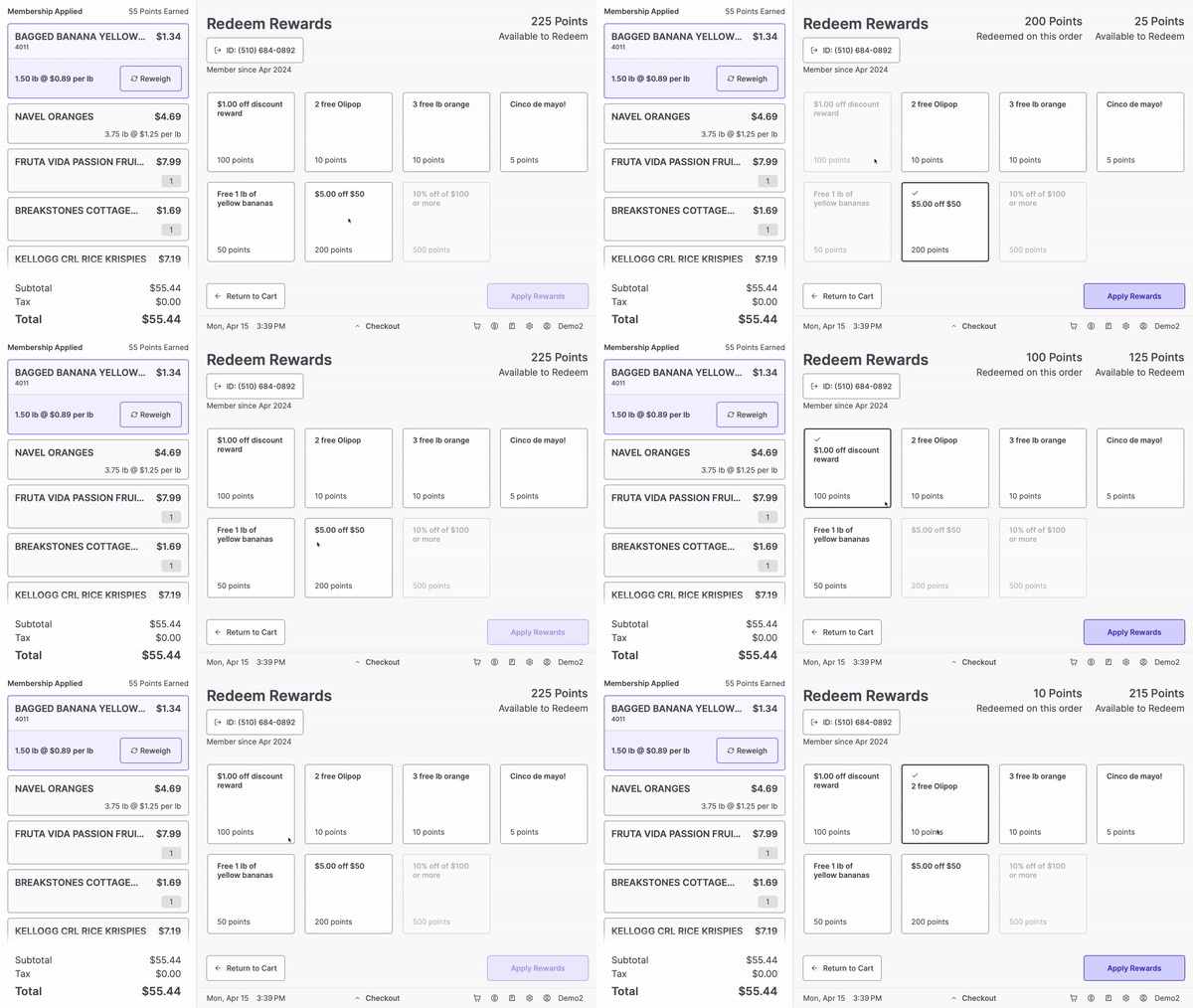
- If the reward is item-level, make sure the item is added to the cart before checkout.
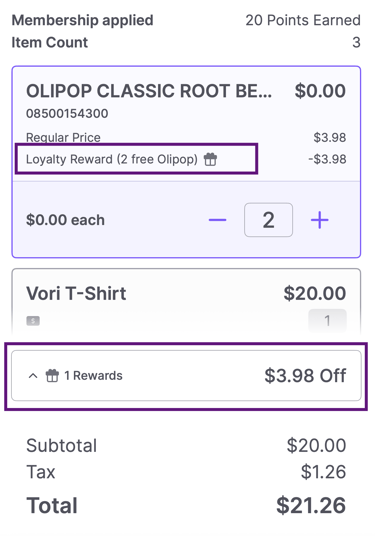
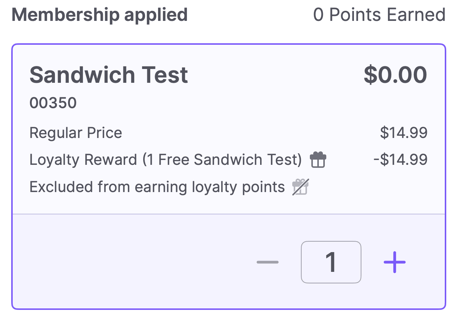
- If a reward is redeemed during the transaction, a collapsible gift box icon appears below the item, and above the Subtotal in the transaction panel. This helps you quickly see which reward(s) have been applied.
Troubleshooting Unapplied Offers
- To prevent confusion at checkout, the POS checks for reward eligibility before payment processing. If a shopper attempts to redeem a reward they have not qualified for, the system will display a window titled "Unapplied Offers."
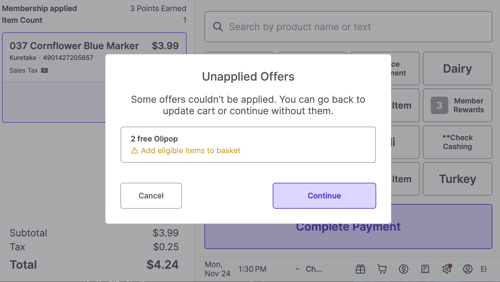
- This screen explains why the reward cannot be applied, so you can advise the shopper.
-
"Add eligible items to basket": The shopper is trying to use an item-specific reward, but does not have the correct item in their cart.
-
"Spend $XX.XX more": The shopper has not met the minimum purchase amount required for the reward.
-
How to resolve this: Tap Cancel to return to the cart and add the necessary items to meet the reward requirements, or tap Continue to proceed with payment without applying those specific rewards.
-
Shopper Display:
Redeem Rewards During Checkout
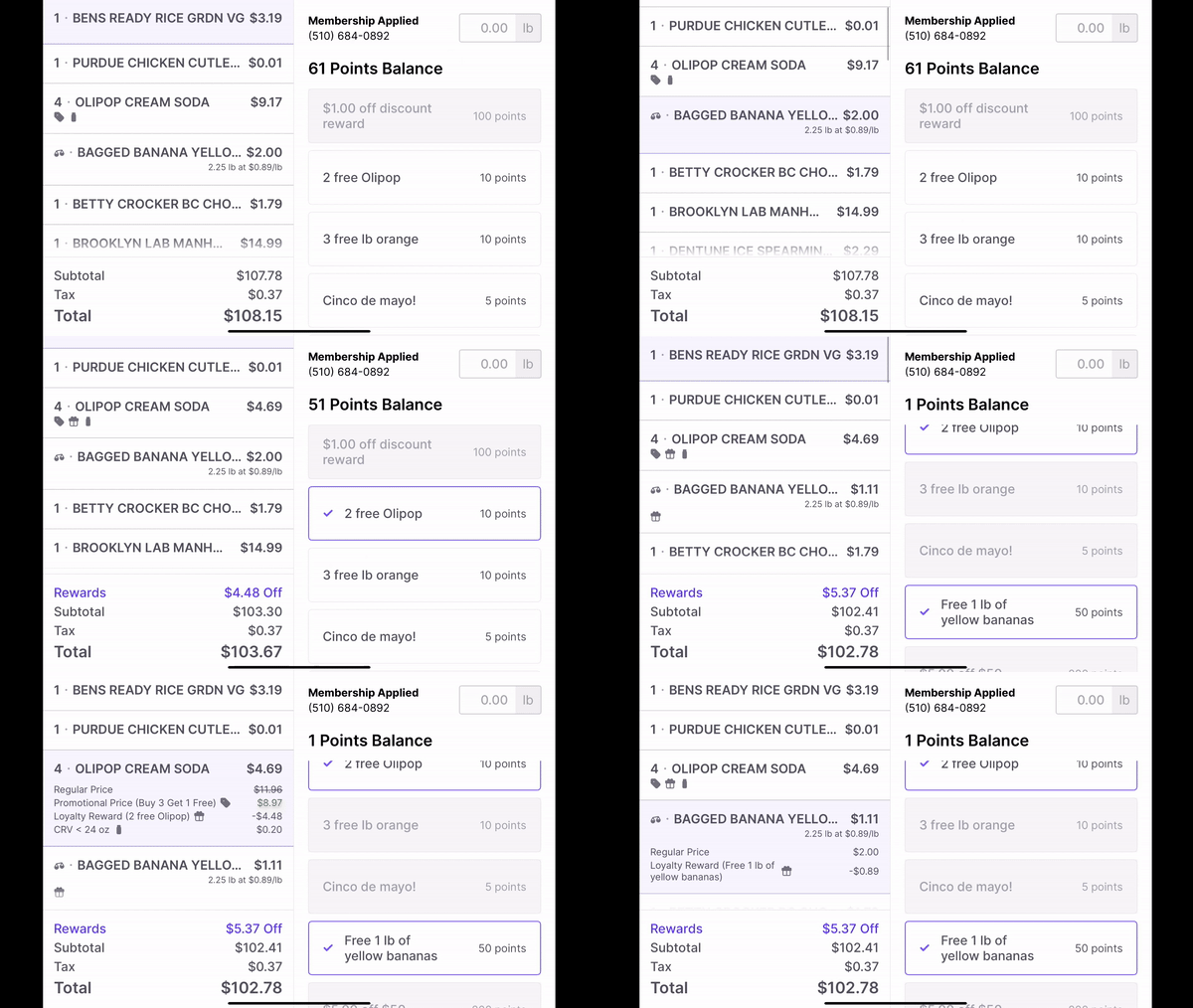
- Members can enter their phone number and select rewards to redeem, at any time before payment is collected.
- Once a reward is redeemed, a Rewards Total section appears in the lower-left transaction panel to confirm rewards have been applied.
Additional Notes
-
Members earn loyalty points on promotional items as long as loyalty is enabled for that department or item.
-
Members earn points on the subtotal only, not the taxed total.
-
Members earn one punch per item purchased.
-
If a member attempts to redeem an item-level reward without the corresponding item in their basket, the reward will not be applied and their points will be returned.
-
The same applies if they do not meet the minimum spend required for a basket-level reward.
-
Purchasing gift cards does not earn loyalty points. Paying with a gift card however does earn loyalty points. As a general rule, the payment method itself does not affect points earning.
-
Items can be excluded from earning points or punches while still remaining eligible for reward redemption if included in the reward selection.
💡 Tip: If your business operates multiple locations under the same banner, Loyalty points are aggregated across all stores. Members can earn and redeem points at any store within the banner.