![vori-logo-black-horizontal-01 (1).png]](https://help.vori.com/hs-fs/hubfs/vori-logo-black-horizontal-01%20(1).png?height=42&name=vori-logo-black-horizontal-01%20(1).png)
Set your team up with the right access so checkout stays fast, secure, and simple.
Table of Contents
Before You Begin
Before you begin:
-
Log in to the New Back Office.
-
Have the employee’s first name and last initial ready.
Create a New POS User
Adding a new team member takes less than a minute.
✏️ Note: Users created in this section only have access to the POS. To create additional admin users for the dashboard or ordering, please contact Vori Support.
- Navigate to Point of Sale in the left-hand menu.
- Tap Cashiers.
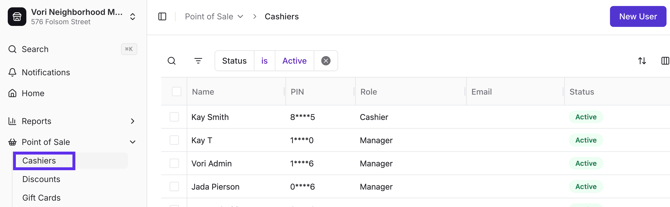
- Select New User.
-
Enter the user's First Name and Last Initial.
-
Enter an Email (optional).
-
Select either a Cashier or Manager role.
-
Create or generate a 6-digit PIN.
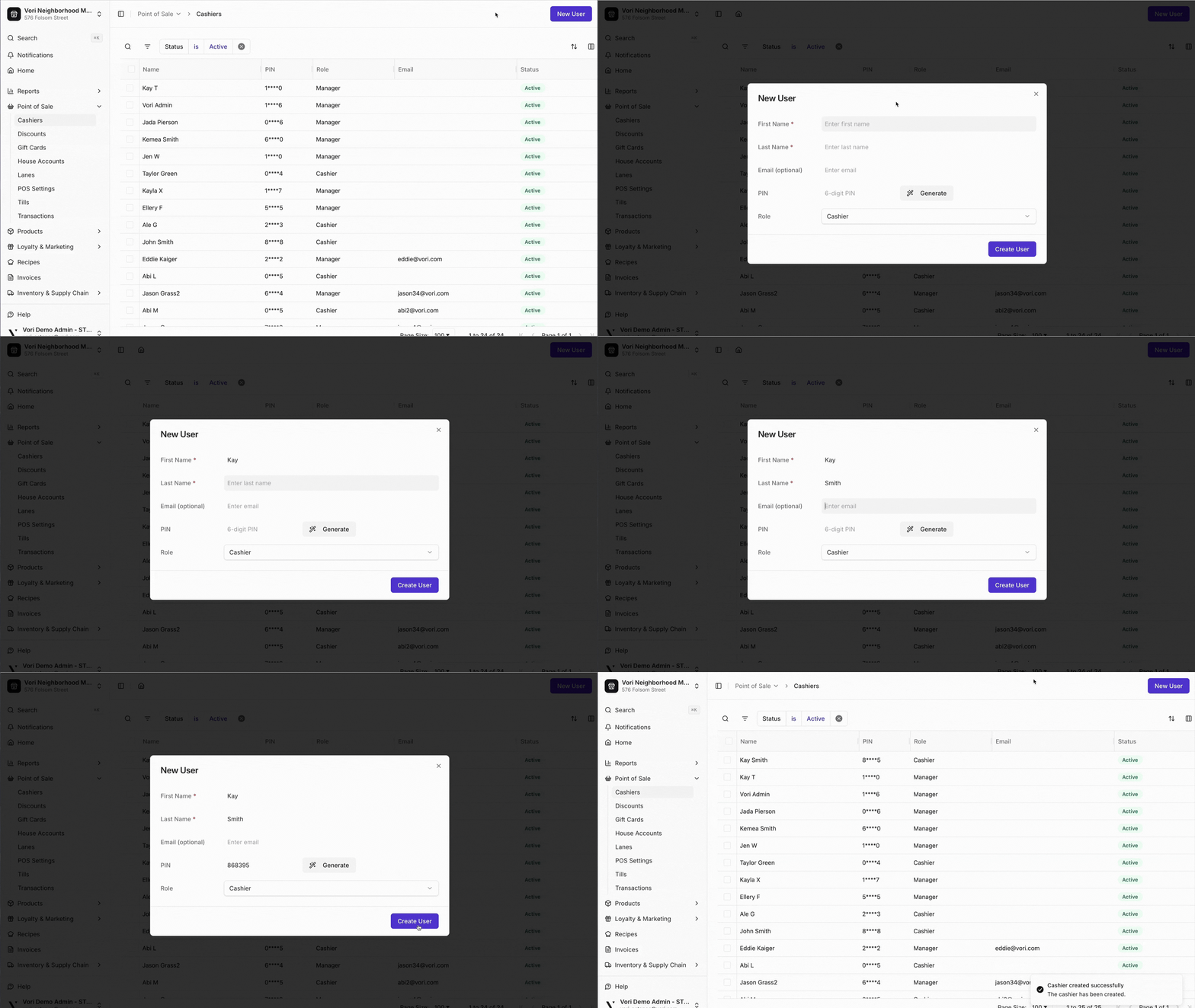
💡 Tip: Use a memorable number sequence, such as the last 6 digits of the employee's phone number or the employee's birthday.
Edit or Deactivate an Existing User
Turnover happens. Keep your store secure by updating user details or deactivating staff who no longer work at your location.
To update a user:
-
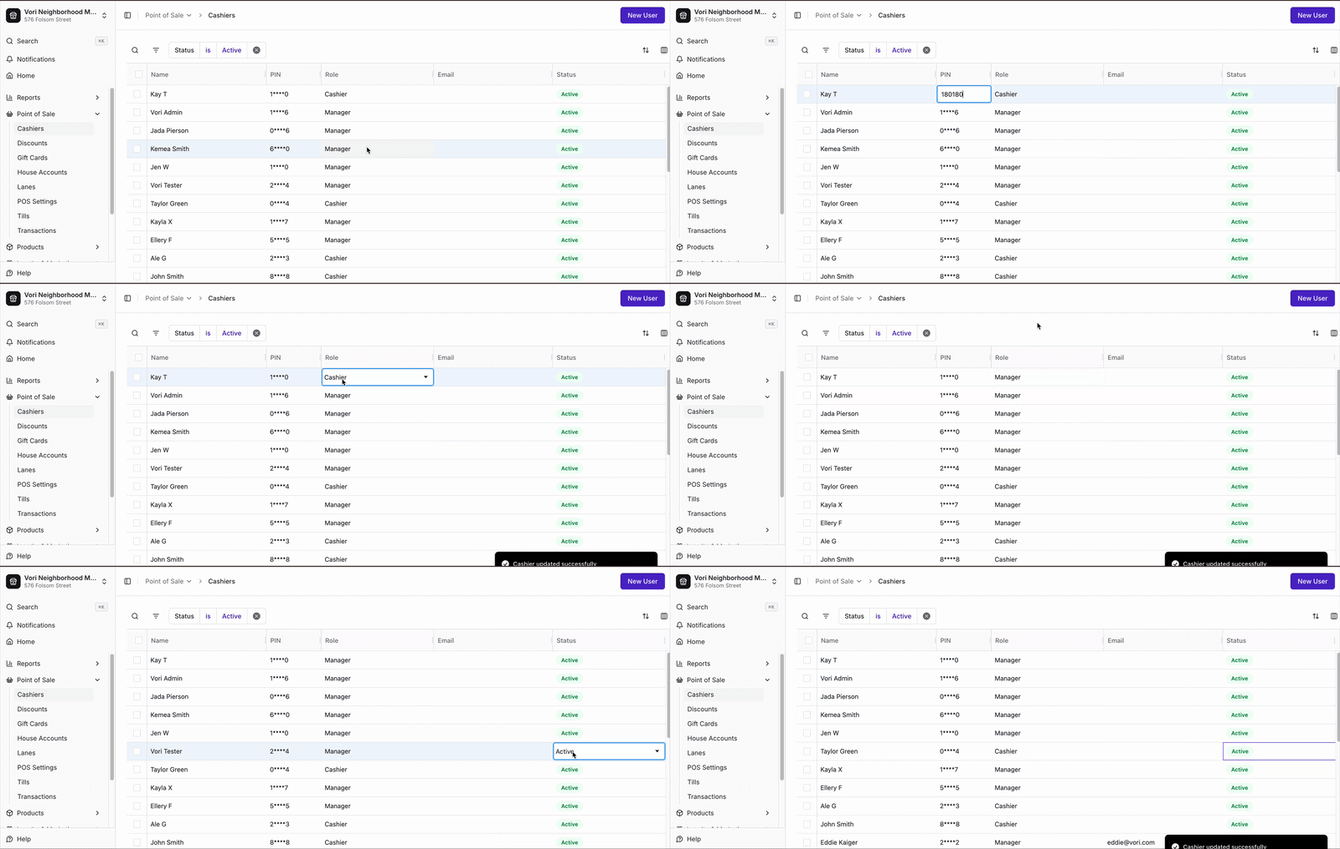
Go to Point of Sale → Cashiers.
-
Click in the field you want to edit (Name, Role, or PIN).
To remove access:
-
Change Status from Active to Inactive.
- Any changes you make will be saved automatically.
➡️ Next Up: To customize specific manager permissions and POS behaviors, visit Customize Your POS Settings.